


Imagine this: you are the customer support team lead and you use Outlook to manage queries and request emails. You use it to communicate, assign priority tasks to your team members, receive and respond to customer complaints, and whatnot!
But when you try to send a specific update regarding support tasks to your team, you must manually type a team member’s email address. This also means your team doesn’t have a shared calendar to schedule meetings, common SharePoint access, or a shared OneNote notebook.
All these communication gaps can lead to significant misunderstandings in your team’s tasks and delays in addressing customer complaints.
Sounds familiar? You can overcome these challenges by using group emails in Outlook.
How do you create and manage such email accounts? We are here to share the steps to streamline your Outlook team collaboration process.
[cta_block]
What are group emails in Outlook?
The Outlook group emails feature (also known as the distribution list) allows you to group multiple email addresses under one name. This feature helps you send emails to a specific group of users without sending individual emails to everyone.
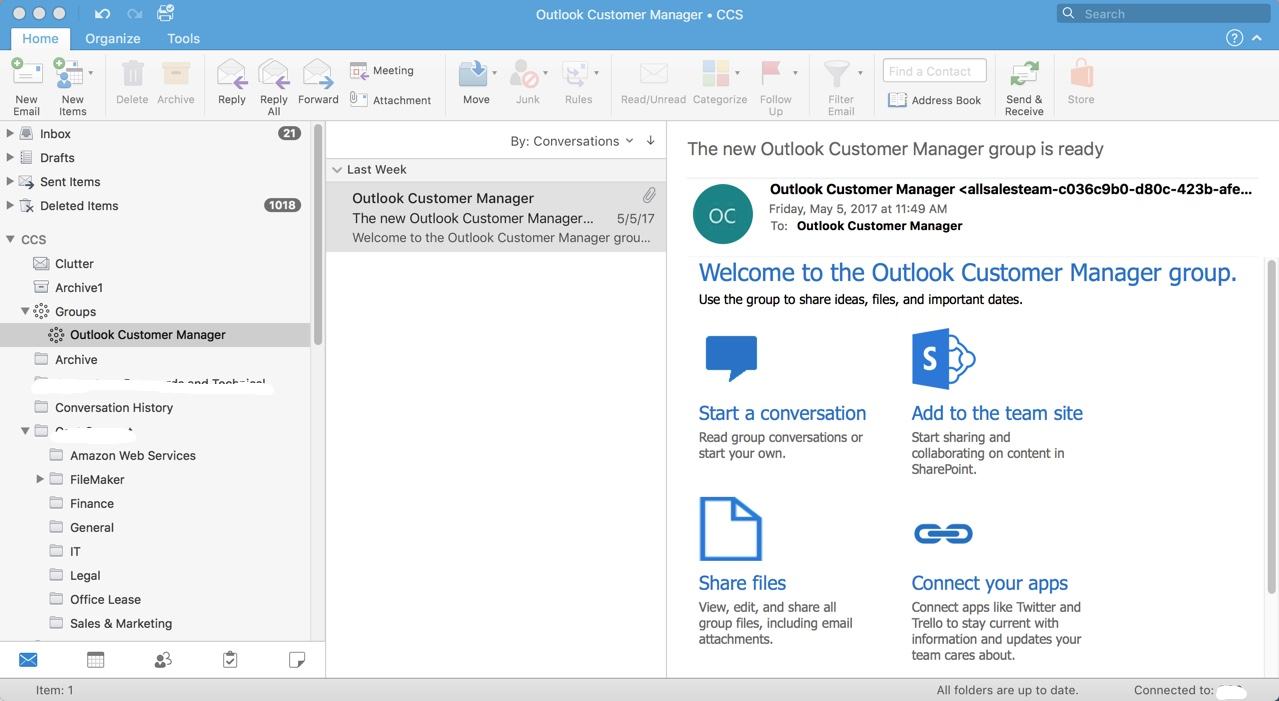
Once you create a group email in Outlook, you can use the group name in the ‘Email To’ field to send an update to the entire team. Collaborating internally becomes much simpler with Outlook emails since you will have specific OneNotes, calendars, SharePoint access, and a Teams chat window for this group.
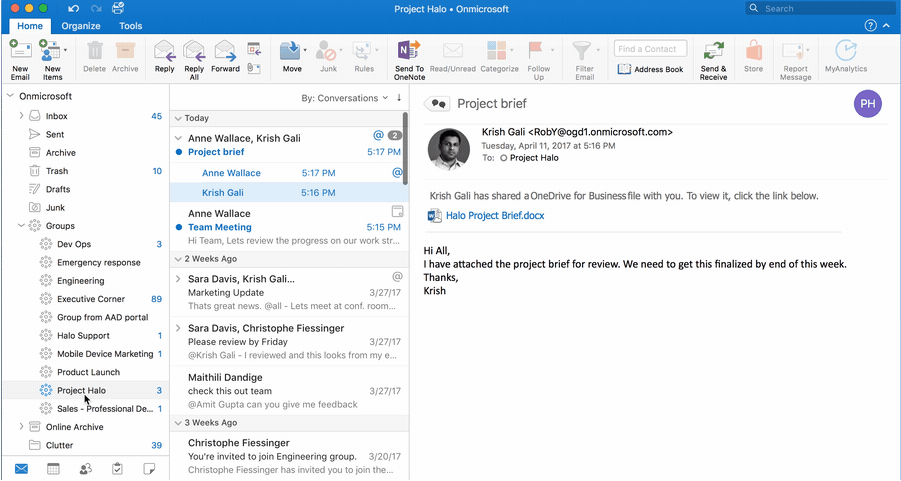
In the image below, Project Halo is the Outlook email group in question. Krish, the sender, has tagged ‘Project Halo’ in the ‘To’ field to share the project brief with the entire team.
Why do you need to create email groups in Outlook?
The most obvious answer to this question is to follow structured communication. When you have email groups in Outlook, you can share critical documents like project briefs, timelines, and terms and conditions swiftly rather than manually sending emails to each team member.
But that’s not the only reason to create an email group in Outlook.
Outlook email groups improve your team’s productivity
Outlook email groups let you and your team access SharePoint, task planner, calendar, and OneNote notebook. This becomes a huge productivity booster for your entire team as they can:
- Easily upload, download, or share files with everyone using SharePoint without requesting permission from others each time. The permission is updated for Outlook email groups in such a way that everyone in the team can access these files
- Emails sent to your Outlook group are automatically stored in the group folder, allowing easy access even if you accidentally delete a message
- With a shared calendar, scheduling group meetings becomes easier. Group members can quickly check each others’ calendars, find out their availability and free slots, and schedule calls without back-and-forth communication

- Maintain your meeting notes, MOMs, and team discussions within the OneNote notebook. With a searchable notebook, access any file or conversation whenever you need, without going through multiple files one by one
Mark an Outlook group as ‘Favorite’ for quick access
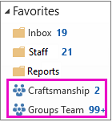
If you’re part of many groups, you can add one or more groups as ‘Favorites’ for quick access by right-clicking on the group and selecting ‘Add to Favorites’.
Socialize with your team members with @mention and likes
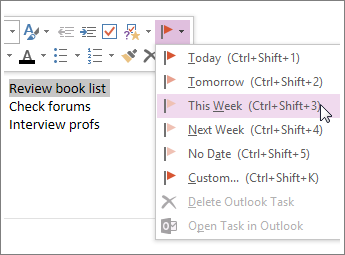
Socializing with team members, appreciating their ideas, or simply showing that you agree on matters in team communication. To do all these in an Outlook email group, simply @mention the team member in an email, and it will go straight away to their inbox so they can follow up and take the discussion 1:1.
How to make an email group in Outlook? Steps for Windows, Mac, and Outlook web application
You can create an email group in Outlook using the Outlook web application. There are specific modifications based on which operating system you use between Mac and Windows. Let’s break down the steps for different use cases in detail:
Note: All images collected from Microsoft Support
Outlook web application
- Sign in to Outlook.com or Outlook on the web.
- Expand the left navigation pane to see the folder list
- Under Groups, select New Group
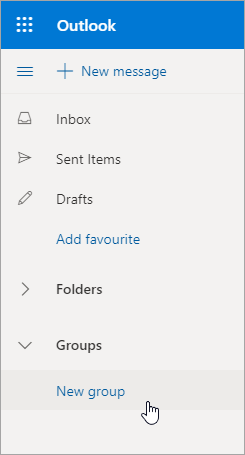
- Enter a name and description for your group and select Create
- Under Groups, select the group you want to invite your team members to join and select Add members
Windows
- Open Outlook on your Windows laptop
- Expand the navigation pane and click People
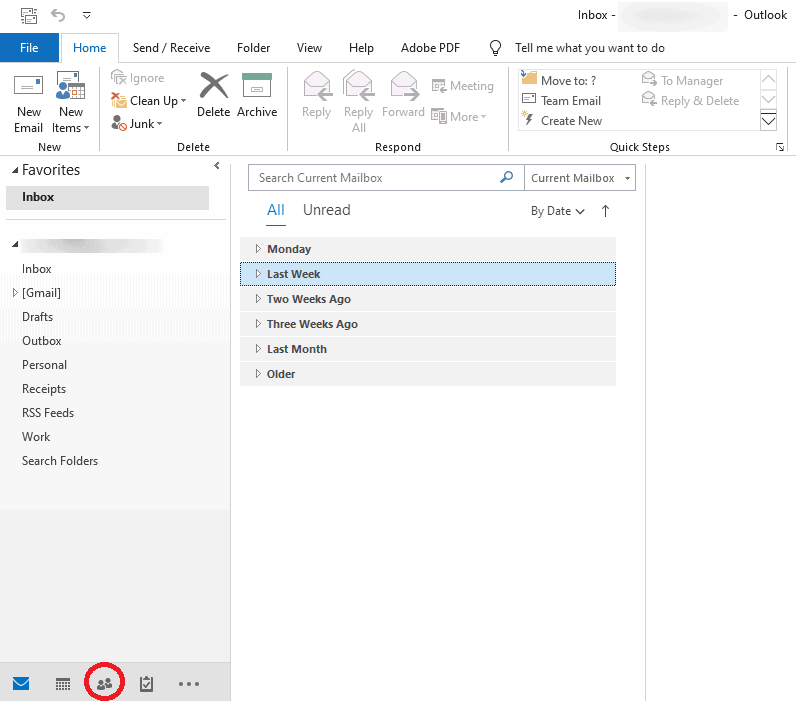
- Open My Contacts and select the folder where you want to save the contact group
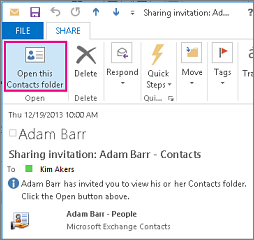
- Select New Contact Group from the Home tab and add Group Name
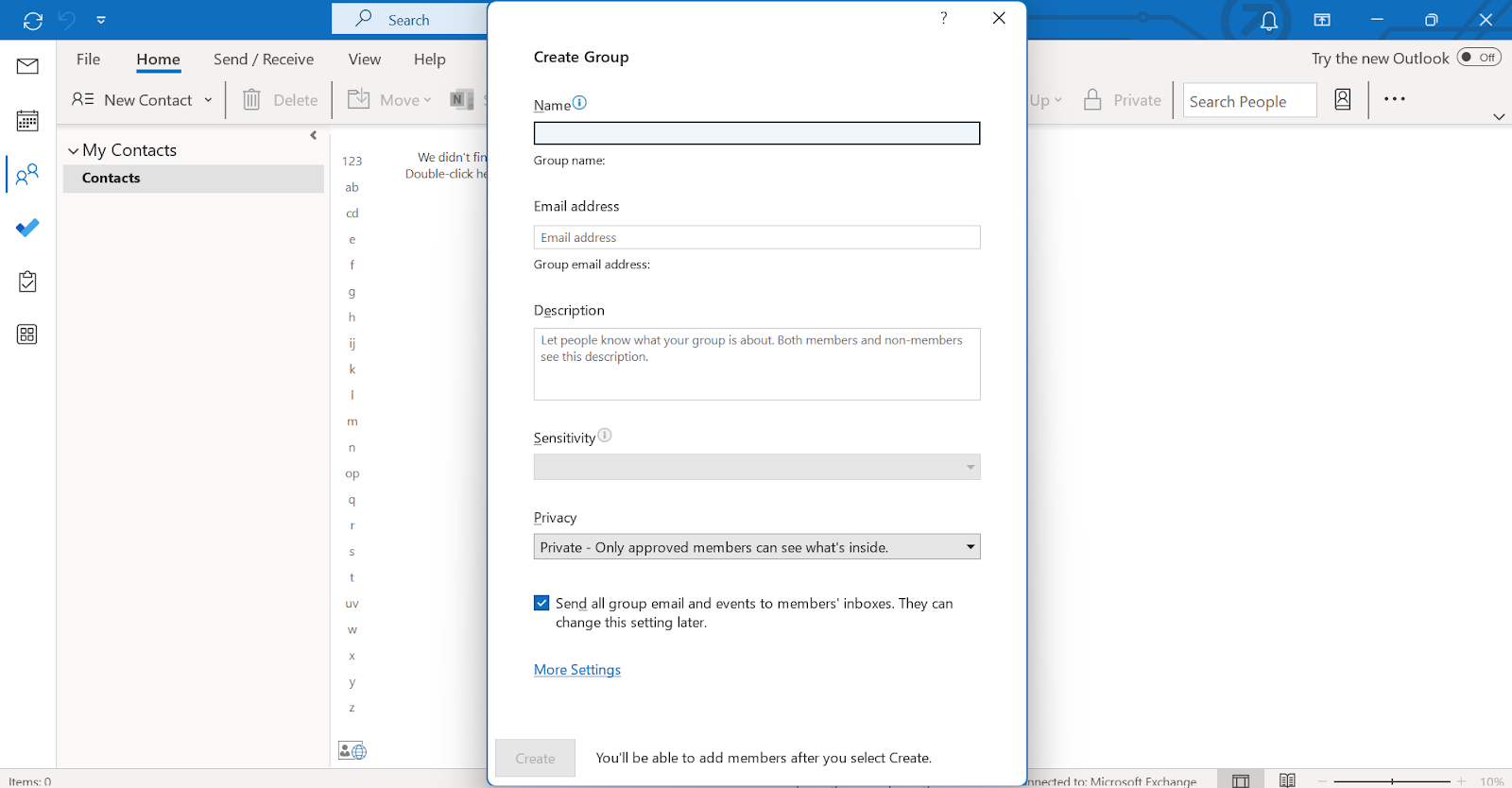
- Click Add Members. You can add new members from Address Book, Outlook Contact List, or Make a New Contact
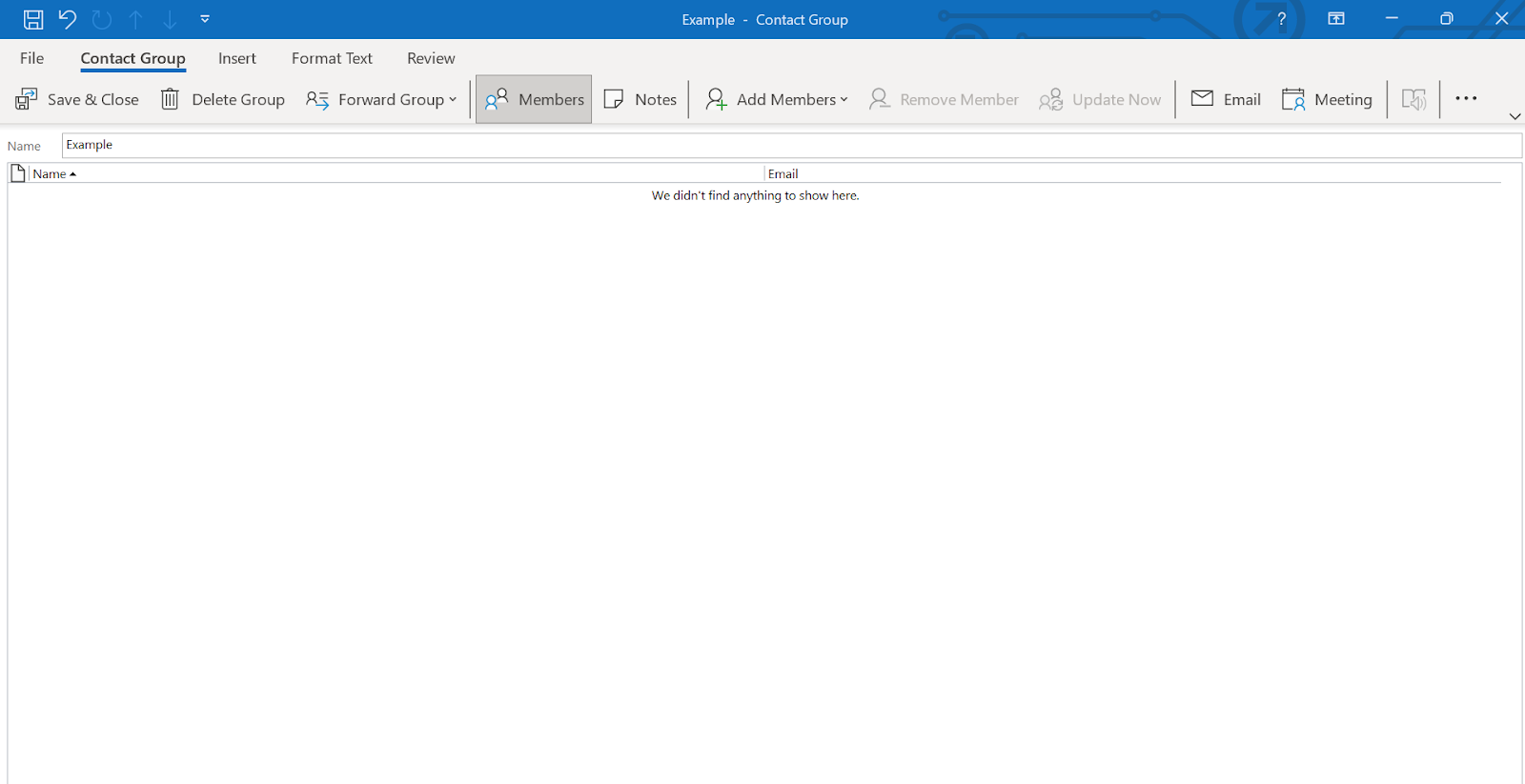
- Click Save & Close, and you are done
Mac
- Open Outlook on your Macbook
- Expand the navigation pane and click People
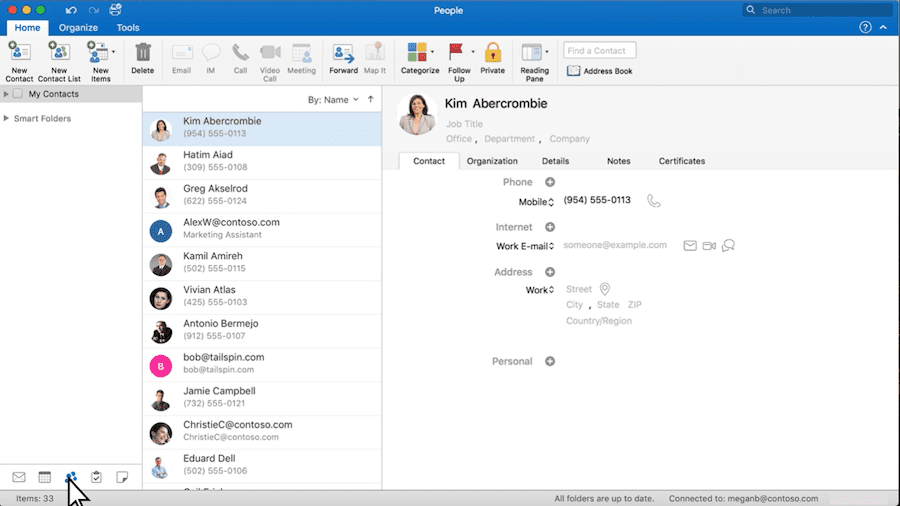
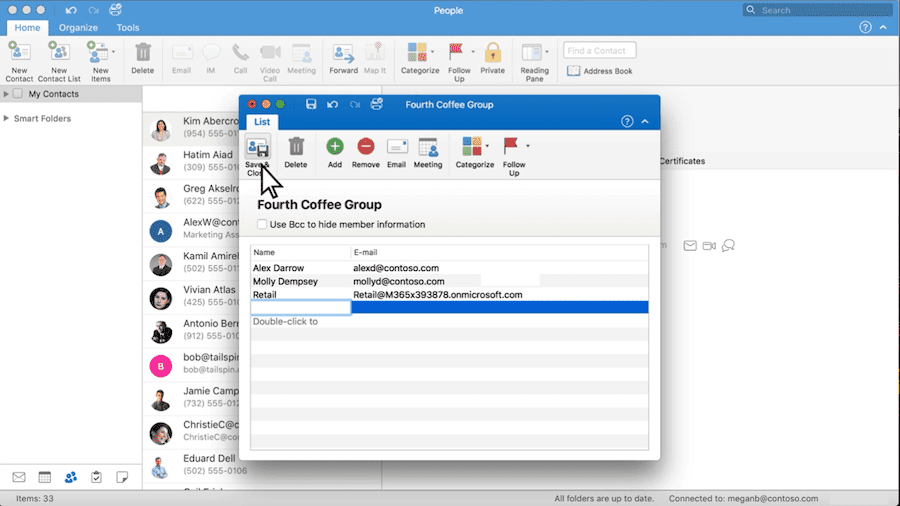
- Select Home followed by New Contact List from the navigation bar
- Set a Group Name in the Contact Group window
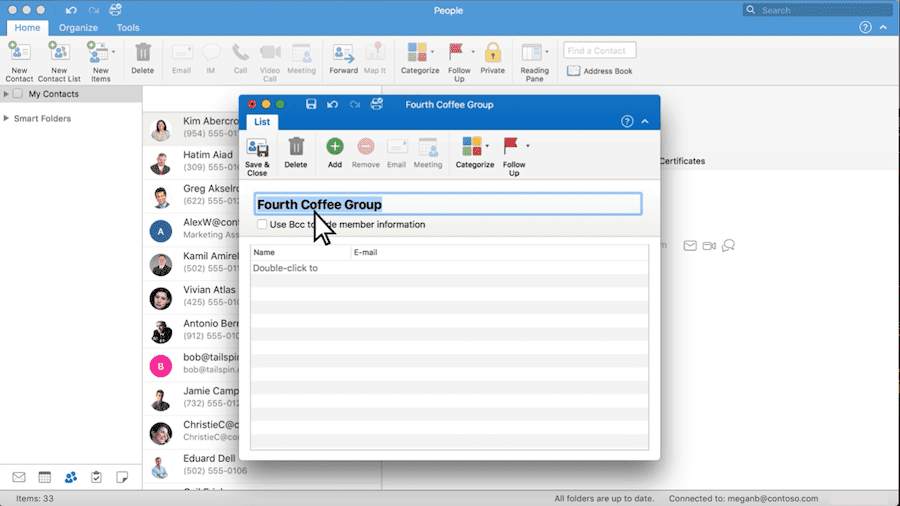
- Select Add from the navigation pane and select the email addresses of the members you want to add
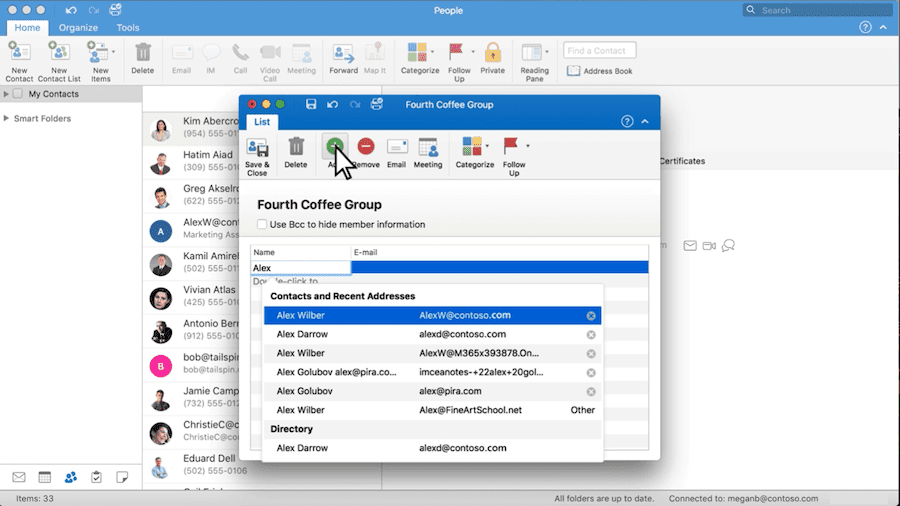
- Click Save & Close, and you are done
Limitations of email groups in Outlook
While email groups in Outlook are useful for basic communication, they come with a couple of limitations that can affect team collaboration.
- There’s no in-built way to assign emails to specific team members or track the status of emails within the group. This can lead to confusion over who’s handling what, and which emails are already answered and which aren’t.
- The collaboration features in Outlook email groups are quite basic. There’s no easy way to communicate internally about an email thread. Even if you use the @mention feature, the mail gets forwarded to your colleagues inbox – which can clutter their inbox.
- There’s no way to analyze email engagement or track response times. Without these insights, it’s hard to measure and improve your team’s efficiency.
If you’re looking for a more robust solution for managing emails collaboratively, Hiver is a great alternative. It’s a tool that integrates with your Outlook inbox helps teams access and collaborate on emails that arrive in a shared inbox (info@companyname.com or help@companyname.com).
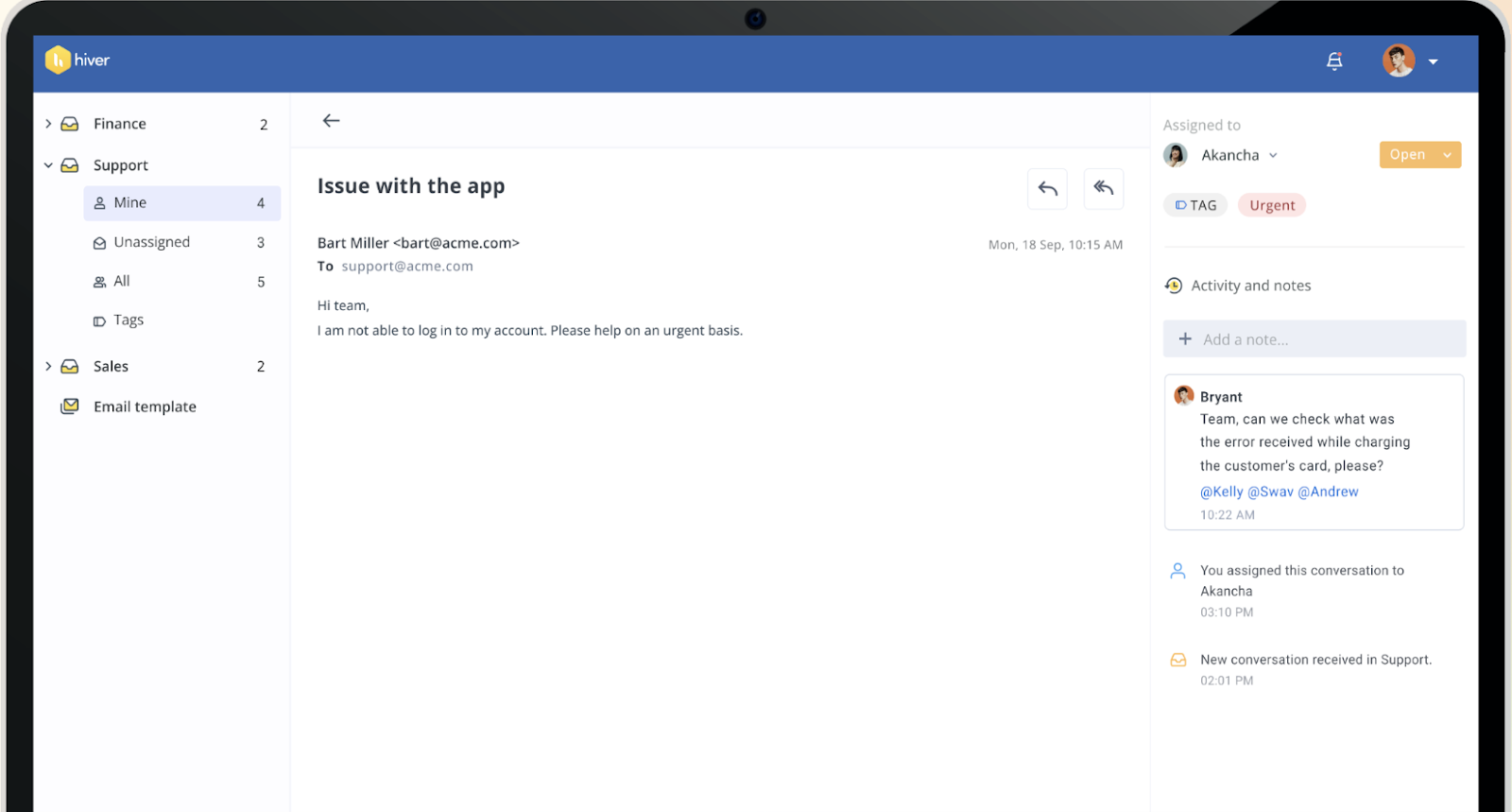
- With Hiver, multiple team members can access and respond to emails from a single shared inbox.
- You to assign emails to specific team members and track their status, so everyone knows who is responsible for what.
- You can collaborate with your team by using he notes and @mention feature. This lets you add notes to email threads, making it easier to leave comments or updates for team members without cc-ing or forwarding emails.
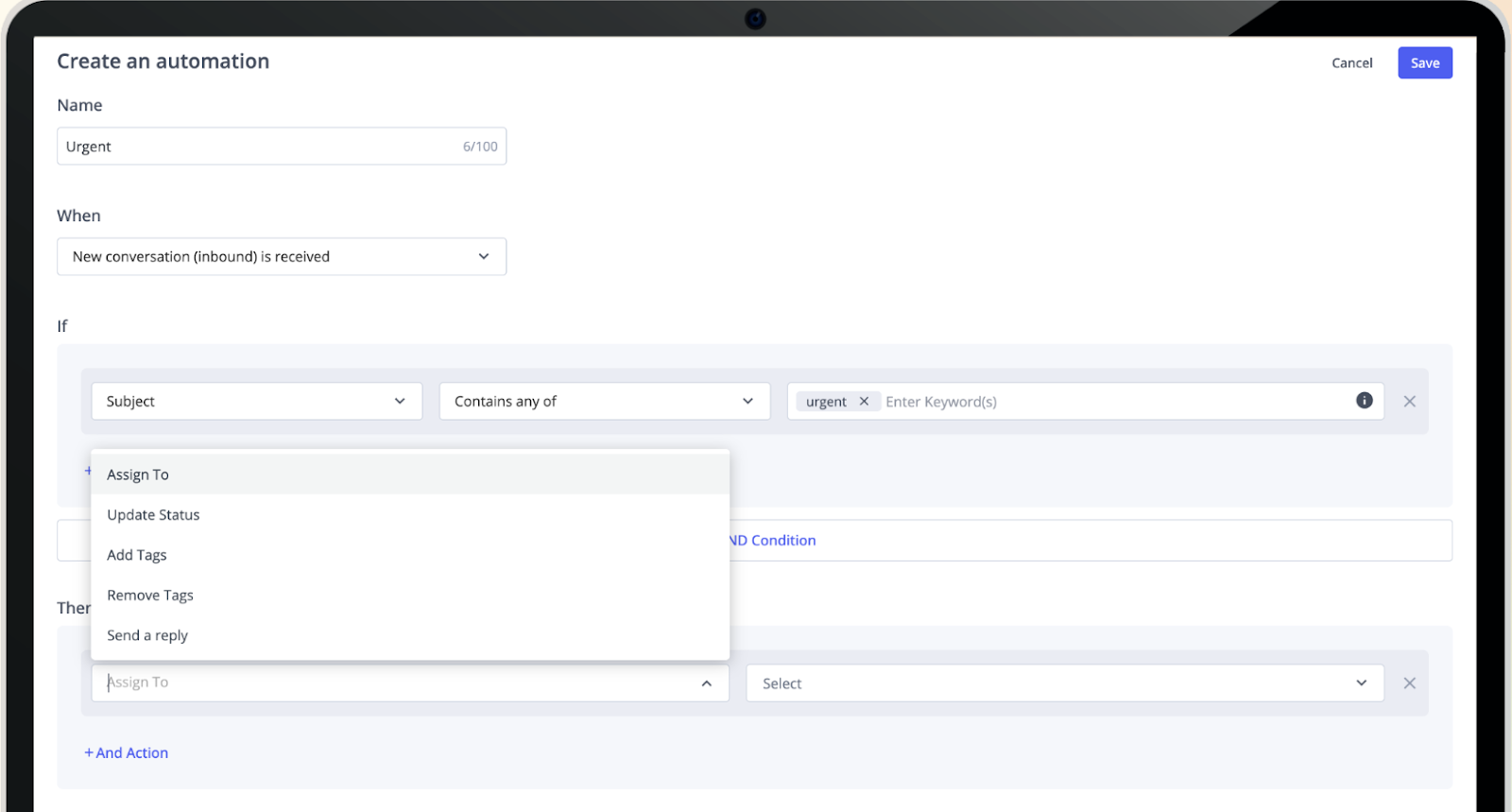
- You can also automate workflows by adding conditional rules to assign emails to the right members. For example, emails containing the word ‘Payment’ in the email body can be auto-assigned to finance specialists.
- Hiver offers robust reporting features to track response times and team performance. This helps you identify areas for improvement and make informed decisions.
Align Brooklyn, a boutique wellness studio, improved their email management operations and increased accountability using Hiver’s Shared Inbox feature. They saved 50 hours per month and improved customer email response rates.
Use Outlook email groups to collaborate with your team
We started with the question “How to make an email group in Outlook,” and you must have found the answer by now. You already know how Outlook email groups help teams collaborate, share, and access internal resources faster and improve productivity.
The steps to create an Outlook email group may differ depending on the operating system you are using (Windows or Mac). But the overall process is simple: create a group, give it a name, add team members, and you’re good to go.
We recommend using Hiver to manage your Outlook emails on an advanced level. It allows you to auto-assign skilled team members, collaborate on drafts in real-time, and access email analytics.














