Doing customer support on email is tough because you’re juggling a lot: assigning queries, helping your team prioritize, ensuring no email gets missed, and, above all, making sure resolutions happen on time.
Amidst all this, delays are inevitable. A team member might need help from a colleague which could result in some back and forth. Someone could forget to work on a specific customer email.
So how do you stay on top of things and ensure your team’s performance – and the quality of support they deliver- doesn’t suffer?
That’s where email response time tracking comes in. In this guide, we’ll break down why tracking response time on email is critical, and walk you through the best tools that help you do this.
What is Email Response Time Tracking?
Email response time is a customer service metric that tracks the amount of time it takes between your team receiving an email and sending a response. This tracking begins the moment an email lands in your support team’s inbox and ends when you reply.
Usually, traditional email clients like Gmail and Outlook do not track response times, and you’d need a separate software for it, usually a helpdesk.
? Important Note:
Email response time is typically calculated based on your company’s business hours—not round the clock.
For example, if a customer sends an email at 7 PM but your business hours are 9 AM to 6 PM, the response time will start counting from 9 AM the next business day.
This also means that automated replies like “We’ll get back to you in 24 hours” don’t count toward actual response time. Only responses sent by humans during business hours are taken into account.
Recommended reading
Why Should You Measure Email Response Time?
Email continues to be one of the most popular customer channels. Since almost 90% of customers consider an “immediate” response essential, and 31% expect replies within an hour, tracking this metric is directly tied to improving customer service.
It’s also closely tied to customer satisfaction—77% of customers say valuing their time is the most important thing a company can do to provide a good customer experience.
By tracking email response time, you get a clear picture of how your support team is performing. You can analyze response times at both- team and individual level—helping you identify your top performers as well as team members who may need additional training or support.
It also helps ensure your team is meeting SLA (Service Level Agreement) targets and delivering consistent, timely customer service.
How to Measure Email Response Times
It is possible to manually track email response time using a spreadsheet. However, the process would involve manually logging details on every customer email you receive, and the time it takes to respond.
Step 1: Set Up Your Spreadsheet
- Depending on your preference, you can use Google Sheets or Microsoft Excel. If you’re on the Google workspace, Google Sheets is ideal for real-time collaboration and integration with Gmail.
- Create Columns: Set up columns for the following data:
- Email ID (unique identifier for each email)
- Date/Time Received (when the email was received)
- Subject
- Sender
- Date/Time Responded (when the response was sent)
- Response Time (calculated field for the time taken to respond)
- Responder (who responded to the email)
Step 2: Log Incoming Emails
- Manually log each incoming email in your spreadsheet. You can use a template to streamline this process.
- If possible, consider using tools like Email Meter or cloudHQ to automate logging, especially if you receive a high volume of emails.
Step 3: Track Responses
- When a response is sent, update the Date/Time Responded column.
- Use a formula to calculate the response time. For example, in Google Sheets, you can use:
text=IF(C2=””, “”, C2-B2)
where B2 is the Date/Time Received, and C2 is the Date/Time Responded. This formula calculates the time difference in days, hours, or minutes, depending on your format settings.
Step 4: Analyze Data
- Calculate the average response time for your team using the AVERAGE function on the Response Time column.
- Use pivot tables to analyze response times by individual team members.
- Analyze how different subjects affect response times to identify areas for improvement.
Step 5: Implement Improvements
- Based on the response time data, adjust team workloads to ensure efficient handling of emails.
- Identify bottlenecks and provide training or additional resources where response times may be low
- Use existing data to set realistic Service Level Agreements (SLAs) for response times.
By following these steps, you can track and improve your team’s email response times using a spreadsheet.
For instance, here’s how the spreadsheet may look like:
| Email ID | Date/Time Received | Subject | Sender | Date/Time Responded | Response Time | Responder |
| 001 | 2025-03-01 10:00 | Query | John | 2025-03-01 11:00 | 1 hour | Jane |
| 002 | 2025-03-02 12:00 | Issue | Mike | 2025-03-02 13:30 | 1.5 hours | Bob |
But here’s the thing: over time, the manual work outweighs any benefits this method may have. Instead, switching to dedicated tools that automate this process for you and let you track email response times is best.
These tools are also more accurate than manual logging, as they consider business hours and work schedules while tracking email response rates.
Tools like spreadsheets, Outlook and Gmail are great for a start, but to really track this metric accurately, it’s best to switch to a customer service platform.
7 Tools to Track Email Response Time
Below are some tools that can not only help track email response time but help with other actions such as assigning tickets and automating workflows.
Here’s a quick overview:
| Tool Name | Free Plan/Trial Available? | Starting Price | G2 Rating | Who Should Get This Tool? |
| Hiver | ✅ | $19/user/month | 4.6/5 | Teams that want a multi-channel help desk that looks and feels like their inbox. Zero learning curve. |
| DragApp | ✅ | $10/user/month | 4.5/5 | Gmail users who prefer Kanban-style email and task management. |
| Keeping | ✅ | $8/user/month | 4.4/5 | Small teams needing simple Gmail-based ticketing with minimal setup. |
| Trengo | ✅ | $18/user/month | 4.5/5 | Businesses that manage support across email, chat, and social channels. |
| Help Scout | ✅ | $25/user/month | 4.4/5 | Support teams that want an intuitive help desk that focuses on email and chat support |
| Zendesk | ✅ | $49/user/month | 4.3/5 | Large teams needing robust, enterprise-grade support tools. |
| Front | ✅ | $19/user/month | 4.6/5 | Teams that want a collaborative inbox with collaboration and AI features. |
1. Hiver
Hiver is a customer service platform that looks and feels like your inbox. Since it’s that familiar and intuitive, setting it up is effortless and doesn’t take more than 15 minutes.

Doubling down on its ease of use, Hiver brings all support channels – email, chat, WhatsApp, and phone – into a centralized dashboard. You can toggle between these channels and your work inbox from a left side panel, avoiding the need to switch between tools or tabs.
One of Hiver’s key features is an analytics dashboard that helps you track key support metrics such as first response time, average resolution time, and SLA (Service Level Agreement) compliance for each inbox. You can also drill down extensively into every metric to identify percentage change over time, individual performance, and more.
How Hiver helps improve email response time:
- Create and share email templates across your team. These are pre-written responses that you can use for answering FAQs.
- Shared drafts and Notes enable team members to collaborate on email responses in real-time or discuss customer emails internally. Loop in a colleague for input or share a response draft with a manager for review.
- Use a shared inbox to manage support email IDs like info@ and support@. All team members can view and respond to incoming emails without any dependencies.
- To respond faster, you need to assign emails faster. This is where automated task assignments can help. Use Hiver’s round-robin distribution to equally distribute incoming workload.
- Create SLAs for first response time. For instance, you can set up a rule that says all customer queries have to be responded to within 48 hours. When a team member doesn’t adhere to the rule, you get alerted about it.
- Use the AI Copilot feature to reduce email response times. AI CoPilot reads the customer email and provides a draft that you can use for the response. All you have to do is review it and hit ‘Send’.
- Create custom reports to analyze email response time for specific customer emails. For instance, you can check response time for all ‘high priority’ emails.
Pricing:
- Lite: $19/user/month
- Growth: $29/user/month
- Pro: $49/user/month
What users say:
“What is most helpful about Hiver is that it keeps tasks organized and in one place (especially in emails). This is very beneficial so we are aware of what tasks are still open and in need of responses. It has helped significantly with a quicker response time”- User, G2
2. Drag App
DragApp turns your Gmail into a collaborative workspace, allowing teams to manage email IDs like info@ and support@, everyday tasks, and workflows without leaving their inbox.
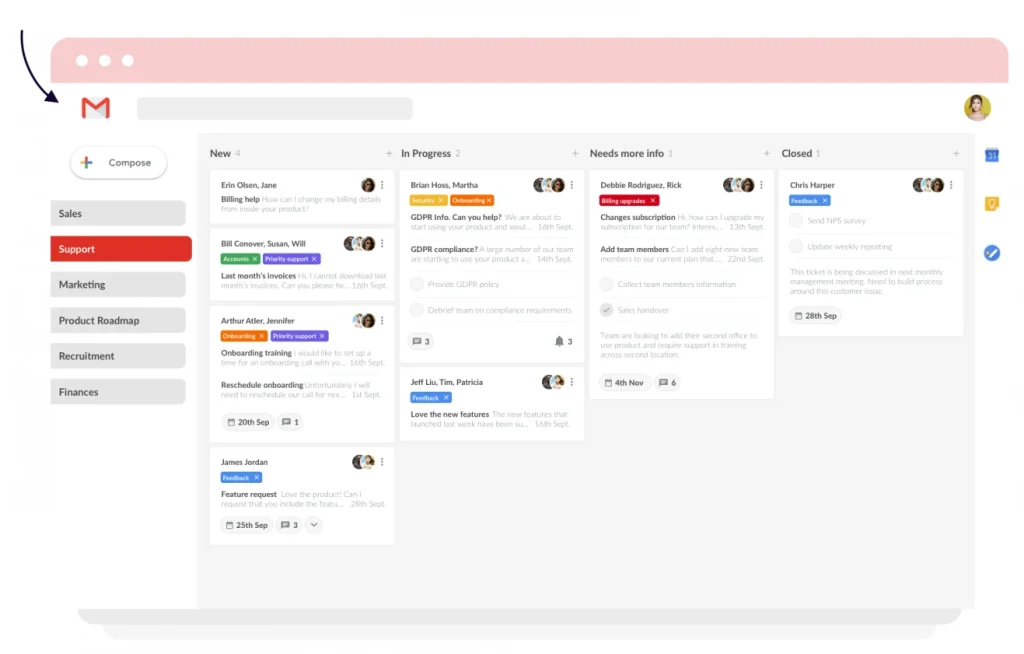
With DragApp, you can convert your inbox into a Kanban-style board with drag-and-drop cards. You can also track key metrics like first response time and average response time. It also has real-time activity logs on team performance to identify bottlenecks, track accountability, and keep your team aligned.
How DragApp helps improve email response times:
- Turns emails into tasks, making sure action items don’t get overlooked.
- Round robin and load balancer email assignment rules to distribute workload evenly. When team members aren’t overburdened with emails, they’re generally more productive.
- Automates repetitive tasks like tagging, assigning, and moving emails.
- Set auto-responder emails based on sender name, subject line, or action done on the Kanban board.
Limitations to consider:
- Only works on Gmail- no support for other email clients.
- Some users have reported that DragApp can be slow when managing a large number of emails or tasks.
- Users mention there’s no option to split email threads.
Pricing:
- Starter: $10/user/month
- Plus: $18/user/month
- Pro: $24/user/month
What users say:
“The ability to embed templates for all team members to utilize rather than drafting from scratch or sending inconsistent responses is great and will optimize our response time”- User, G2
3. Keeping
Think of Keeping as a Gmail add-on for customer support teams. Once you install it, you’ll notice that all your shared inboxes (email IDs like info@ and support@) can be accessed from the left side panel. Under every inbox, you get visibility into emails that are unassigned, work in progress, and resolved.
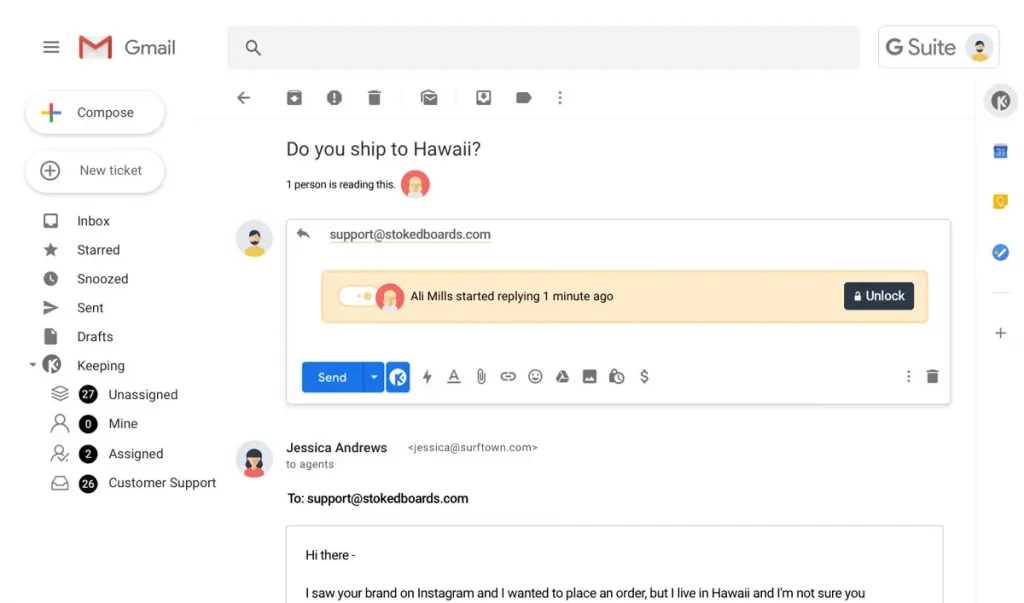
With Keeping’s analytics, you can track team-level and individual-level performance on metrics such as average response time and resolution rate.
How Keeping helps improve email response times:
- Set and track single or multiple SLAs (Service Level Agreements) to ensure timely responses.
- Automates workflows to prioritize urgent emails and streamline replies.
- Speed up replies with pre-saved responses for FAQs, without having to type answers from scratch.
Limitations to consider:
- Only supports Gmail as the primary platform (no Outlook integration).
- The mobile app is less intuitive compared to the desktop version.
Pricing:
- Essential: $12/user/month
- Advanced: $20/user/month
What users say:
“Keeping makes our day to day so much easier, and means we can respond quicker, with the most knowledgeable/best person replying directly to the customer, rather than trying to make an email train for them to get a response”- User, G2
4. Trengo
Trengo is an omnichannel communication platform that brings all your customer conversations—email, WhatsApp, live chat, SMS, and social media—into one shared inbox.
In fact, Trengo claims that it can help reduce response times by up to 150%, simply by making communication more streamlined and collaborative.
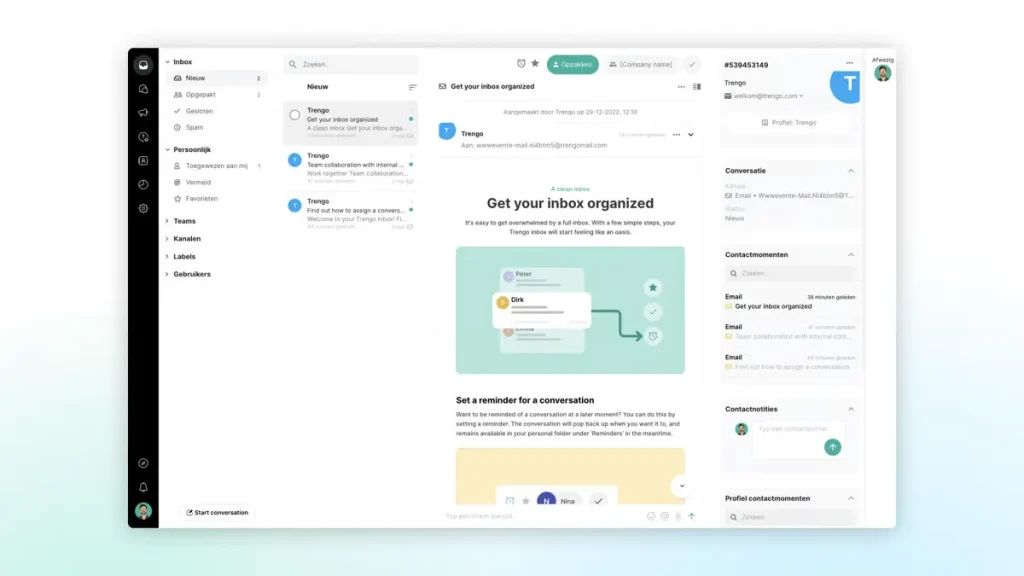
As you can see, the interface is quite intuitive. You have an ‘Inbox’ tab where all incoming messages across channels are organized.
A standout feature for your agents is the 360° customer view. Imagine this- for every conversation, you get full context—past interactions, contact details, and channel preferences of the customer—all in one place.
You also get access to agent performance reports. These reports allow you to track the number of tickets assigned and conversations closed and even filter the data by team, channel, or business hours.
How Trengo helps improve email response times:
- Use AI HelpMates, a virtual assistant that automatically responds to common customer questions. Use it on autopilot or to suggest replies that agents can review and send. This helps reduce response time and lightens the workload on your support team.
- Easily translate your conversations in any language – be it for incoming or outgoing emails. Team members don’t have to copy-paste the contents of the email into another tool just for translation purposes.
- Use the AI Summarize feature to quickly condense long conversations into short, clear summaries—saving agents time when reviewing and responding to emails.
- Auto-close conversations, tag colleagues to help with answers, and use templates for responding to frequently asked queries.
Limitations to consider:
- Analytics are limited to first response time, average resolution time, and average responses till resolution.
- Pricing tiers come with a limit on outbound emails or conversations.
Pricing:
- Boost: $32/user/per month
- Pro: $53/user/per month
What users say:
“Trengo has basically brought our missed messages to zero, improved our response times and has allowed us to improve internal collaboration greatly”- G2, User
5. Helpscout
Help Scout is a customer service platform that brings together email and chat support into one centralized dashboard. Teams using HelpScout can also create a knowledge base to host answers to FAQs and other how-to guides.
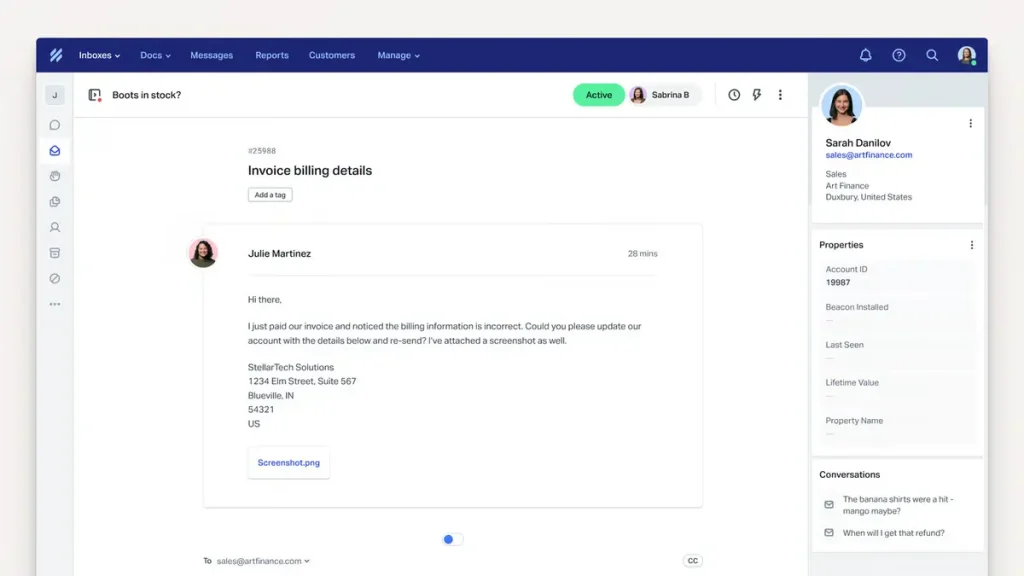
A major selling point of the platform is that when you open a customer email, you can see past interactions, purchases, and important details about the customer on the same screen.
This gives you a lot of context when responding to customers, and to not treat customer issues as just tickets.
The system also tracks each agent’s handle time and volume. You can access team-wise reports that rank agents by average first response time or drill down on specifics like what percentage of conversations got a first reply within an hour vs. longer.
How Help Scout helps improve email response times:
- Assigns emails to the right team members based on workload, category, or priority.
- Artificial intelligence features to draft responses, summarize conversations, and adjust the tone of replies.
- Saved, pre-written replies to respond faster to frequently asked questions.
- Collision alerts notify a team member when they open an email that their colleague is already working on. This prevents duplicate responses from being sent out.
Limitations to consider:
- A major drawback is the lack of an SLA feature. This requires either setting up a specific workflow to detect aging conversations or a third-party integration for conventional SLA tracking.
- AI features such as AI assist are gated behind higher pricing plans
Pricing:
- Standard Plan: $50 per month
- Plus Plan: $75 per month
What users say:
“With HelpScout, the ability to create and send pre-defined saved responses is great! I also love that I can see my results compared with my teammates (response times, ratings, # of emails answered, etc)”- User, G2
6. Zendesk
Zendesk is one of the most widely used customer service platforms, known for its robust ticketing system and multi-channel capabilities. Email, chat, phone, and social media are some of the top support channels you can set up and manage using Zendesk.

With Zendesk’s all incoming customer emails are automatically converted into tickets and funneled into a centralized dashboard. These tickets are auto-assigned to agents based on rules, priorities, or workload—helping teams respond faster and stay organized.
Zendesk also tracks the time between ticket creation and the first agent response, making it easier to monitor responsiveness. You can also create detailed reports on individual and team performance, including metrics like first response time, average tickets created by hour or day of the week, resolution time, unsolved tickets, backlog, SLA adherence, and more.
How Zendesk helps improve email response times:
- Use macros (canned responses) to insert pre-written content into emails. This is useful for answering repetitive questions.
- Omnichannel routing allows you to direct tickets from email, calls, and messaging platforms to agents based on their availability and capacity.
- Use Intelligent Triage, an AI feature to determine a ticket’s intent, language, and sentiment, enabling faster and more accurate routing to the appropriate agent.
- Connect AI Agents to the knowledge base, create custom conversation flows, and even train it to solve customer queries from start to end.
- Use Zendesk agent Copilot to get real-time suggestions and guidance during customer interactions.
- Analyze custom reports for response times and how often a ticket is passed between agents.
Limitations to consider:
- Steep learning curve due to extensive features.
- Zendesk is often cited as expensive, especially for growing teams.
- Creating reports on Zendesk isn’t very straightforward.
- Features such as group SLAs are only available on higher pricing tiers.
Pricing:
- $55/user/month (Suite Team)
- $89/user/month (Suite Growth)
- $115/user/month (Suite Professional)
What users say:
“The ticket management system offered by Zendesk is extremely effective and structured. It helps support agents to properly observe and prioritize customer concerns, making sure of timely resolution and reducing response times” – G2, User
7. Front
Front is an AI-powered customer service platform that combines the interface of an inbox with the collaboration features of a chat app. Everyone in your team can access customer emails arriving in inboxes like help@ and support@ using a central dashboard.
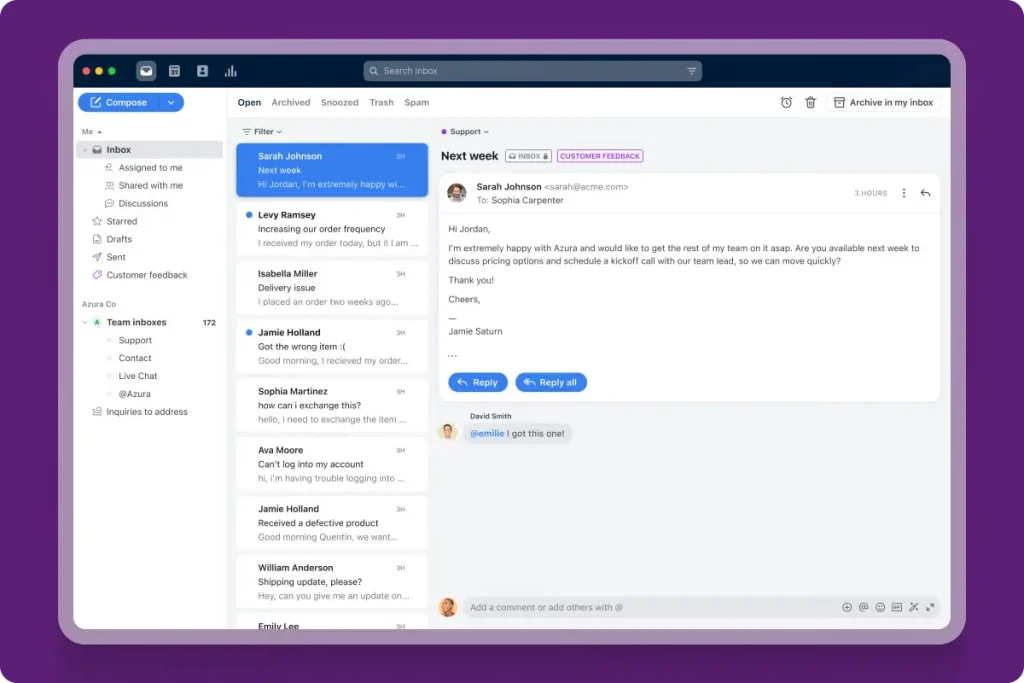
Assign emails as tasks, leave comments for updating cases or looping in colleagues, and get full visibility into your team’s workload.
Measure the performance of each team member in terms of responsiveness and efficiency. Find out if certain team members are overloaded or slower, so you can balance workload accordingly.
How Front helps improve email response times:
- Turn emails into a to-do list, and set up custom workflows to route, assign, and prioritize emails.
- Create and share email templates with placeholders and attachments. This enables faster responses to FAQs.
- Set and track SLAs based on channel or team to make sure response goals are hit.
- Use AI compose to draft and refine email responses, AI Summarize to quickly gather context from lengthy conversations and AI Answers to resolve chat inquiries by generating responses sourced from your knowledge base.
Limitations to consider:
- Users mention how there’s no option to segment emails that come in during off-business hours toward their weekly average response rate.
- Lack of audio notifications for new emails, which might lead to a delay in response.
- No option to check median response times, as it only offers statistics on average response times
?Why check median response times?
While average response time is commonly checked, teams can benefit from looking at median response times as well, and here’s why:
Say you have 5 tickets with response times:
1 min, 3 min, 4 min, 5 min, 90 min
Average = (1+3+4+5+90)/5 = 20.6 minutes
Median = 4 minutes
In this case, the median is a better measure of your team’s typical response time, while the average gives a misleading impression due to the one outlier.
Pricing:
- Starter: $19/seat/per month
- Growth: $59/seat/per month
- Scale: $99/seat/per month
What users say:
“With Front, we can customize workflows, automate repetitive tasks, and assign emails to specific team members- it’s helping us improve efficiency and response times”- User, G2
Tips to Improve Email Response Times
Once you’ve set on a tool, you can also follow these tips to improve your team’s email response time:
1. Set and track SLAs
Define SLA rules (e.g., “respond within 2 hours”) and track them with real-time alerts. SLA tracking helps your team stay accountable and prioritize emails based on urgency and deadlines.
For instance, Kiwi, an online travel agency, struggled to maintain its internal SLA of 24 hours.
Once they switched to Hiver, they had all the resources to manage their inboxes better. They also got complete visibility into the ownership of emails, their status, and how the workload is distributed within the team.
The result? The team ended up achieving a 100% SLA success rate.

“I can see how much workload my team members have, their response time, and average time to close is. We never miss our SLA of 24 hours. It helps that we have an idea how well we’re serving our partners”
David Pinto
Business Development at Kiwi.com
2. Automate workflows wherever needed
One way to improve email response time is to use round-robin assignments. This automatically distributes incoming emails evenly across your support team, ensuring that no single agent is overloaded.
Another method is rule-based assignment, where emails are routed based on specific criteria such as keywords, sender, or subject line. For example, emails mentioning “billing” can be automatically assigned to the finance support team. This eliminates manual triaging and ensures that each query goes to the person best equipped to handle it.
Both functionalities help maintain a balanced workload and speed up response times by ensuring every email is picked up promptly.
You can also automate repetitive steps like tagging, prioritizing, or changing email status using workflow automation. For example, emails with “urgent” in the subject line can be tagged and escalated automatically.
3. Use Auto Replies as Acknowledgement
Here’s the thing about customer queries. Not all can be resolved as soon as they come in. Some may require looping in other team members or delving into the product to fix an issue.
The best approach is to set up autoresponders that instantly confirm receipt of an email. Even if the issue isn’t solved right away, customers feel acknowledged, and it gives your team some breathing room while maintaining responsiveness.
Which Email Response Time Tracking Tool Should I Go For?
Email response time is a critical customer service metric, but tracking it is just the first step. To really improve your email response rates, it isn’t just about tracking—it’s also about:
Creating the right conditions and offering the right training for your support team
Using automations intelligently so that your team isn’t spending time on grunt work
The right tool for your team will depend on your needs, support volume, and the channels you operate on.
Here’s a quick guide to help you pick the right tool based on your team’s specific needs:
- For teams that want a powerful help desk without complexity: Hiver and Help Scout.
- For teams using Gmail that want to keep things lightweight and visual: DragApp and Keeping
- For teams handling high email volumes: Trengo, Front, and Zendesk.
No matter the size of your team or the channels you support, choosing a tool that fits how you work is key to improving your response time—and delivering better customer experiences.
Frequently Asked Questions
1. What is the industry standard for email response time?
The industry standard for email response time in customer support is typically 24 hours, though many companies aim for 1–4 hours to stay competitive. For example, an e-commerce company might respond to general inquiries within 12 hours, but handle order issues or complaints in under 2 hours to keep customers satisfied. Response time standards can vary by industry and customer expectations.
2. Is email response time a KPI?
Email response time is a key performance indicator (KPI) in customer service. It measures how quickly your team responds to customer emails, from the moment the email lands in your inbox. This also directly impacts customer satisfaction and perceived service quality. Tracking this metric can help teams identify delays and improve overall support efficiency.
3. How to keep track of email responses?
You can track email responses using helpdesk software that offer built-in analytics. These platforms typically log metrics like first response time, average reply time, and SLA compliance- which can be analyzed team-wise or agent-wise. Some tools like Hiver also provide real-time dashboards and alerts to help teams analyze their email response metrics.