


Practically, everyone today has an email account. From staying in touch with your friends and family, to using it for professional communication, you can use an email account to do a bunch of things.
While there are numerous email service providers in the market, Gmail is the most popular, with 1.8 billion users* and counting. And there are a host of reasons for this.
Gmail has a very user-friendly interface, powerful security features, and it offers seamless integration with other tools. In fact, it is used not just for communication, but for accessing a plethora of online services. For example, if you want to create a to-do list without leaving your Gmail inbox, you can do it by integrating a productivity tool (ex: Trello) with Gmail. Quite functional, right?
So, if you’re someone who’s switching from Outlook or any other email service to Gmail, this article is for you.
Here’s a quick guide on how to create a new Gmail account within 5 minutes. Let’s get started!
Step-by-Step Guide to Create A New Gmail Account
You can create a Gmail account from anywhere, provided you have a good internet connection and a device – laptop, desktop, or mobile. Here’s how:
Step 1: Go to Gmail’s website and click on “Create an account.”

Step 2: In the next screen, you’ll be asked to fill in your first and last name. Click “Next” once you’re done.

Step 3: Next, you need to fill in your birthday and gender. Gmail asks this to give you a personalized experience based on these details. Also, Gmail has age requirements that you have to adhere to. Here’s a complete guide on Gmail’s age requirements. Once you fill these in, click on “Next”.

Step 4: This step is important. You have to create a username. A username is the unique identifier that differentiates your mail ID from others. It comes before the @ symbol.
Every username is unique to each user. So in case, your username is taken, add a set of numbers, to make it unique, as shown in the image. You can use a mix of letters, numbers or period (.).
Click “Next” once you’re done.

Step 5: Next, you’ll have to set a password. Make sure your password has 8 or more characters and has a mix of symbols, letters, and numbers. This is required so that your email address doesn’t get easily hacked.
Click “Next” once you are done filling in these details.

Step 6: In this step, you have to add a recovery mail address. This is to keep your data secured in case of any unauthorized access, or if you get locked out of the email id. Once you’ve added this, click “Next”
Although it is recommended to add a recovery address, you can choose to skip this step.

Step 7: Finally, review your details and click “Next.”

Step 8: In this step, Gmail asks you to preview the privacy and terms of service. It essentially covers which information is captured by Google and what is done with it. You can go through this and click “I agree”.

You may also like: How to Secure Your Gmail Account
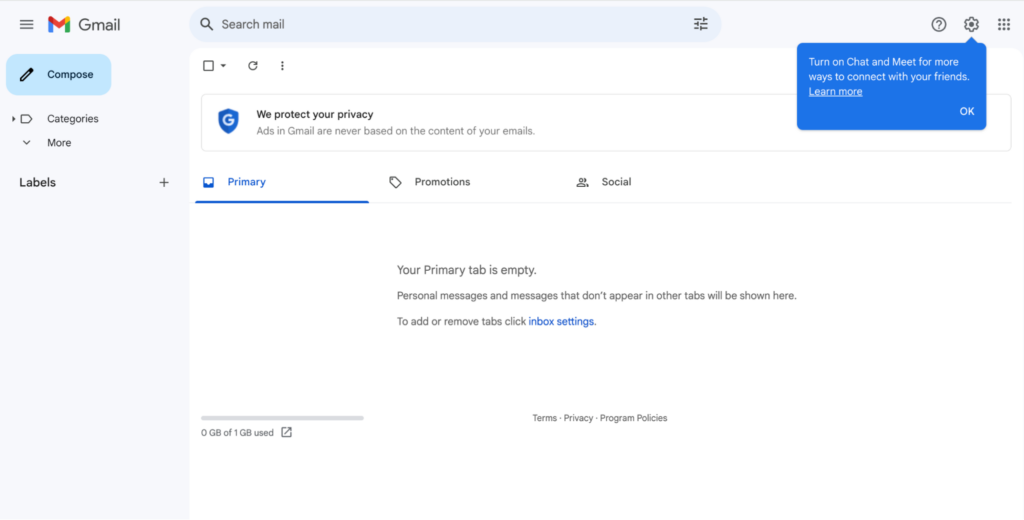
Step 9: And, you’re done! You have a fresh new Gmail account. This is what Gmail’s inbox interface looks like. Gmail automatically sorts incoming emails into categories like Primary, Social, and Promotions – to keep important communication separate from promotional mails.
You can also customize your inbox interface by clicking on the settings menu (gear icon).
Troubleshooting Common Issues
Creating a Gmail account is quite straightforward. However, you may face some issues in the process. Here are some of the common issues users face and their possible solutions.
1. Username already taken
This is by far the most common issue faced by users while creating a new Gmail account. Finding a unique username can sometimes get difficult, and most of the usernames you try might be taken.

Solution:
The only solution to this issue is to get creative with your username. Here are some tips:
- Add Numbers or Symbols: If “johnsamuel@gmail.com” is taken, try adding numbers or symbols like “johnsamuel67@gmail.com” or “john.samuel@gmail.com.”
- Use a Different Variation: Consider using your middle name or initials, like “john.m.smith@gmail.com.”
- Get Creative: Think of a unique identifier that reflects your personality or interests, or even your job – like “johnthewriter@gmail.com.”
2. Weak password error
Gmail does not accept weak passwords. A strong password ensures that your Gmail account security is not compromised easily. Examples of weak passwords could be: “12345678” or “QWERTY” or even your date of birth.

Solution:
Here are some tips to make your password strong:
- Use a Mix of Characters. Combine uppercase and lowercase letters, numbers, and symbols. For example, instead of creating a password like “password,” use “Pa$$w0Rd4u”.
- Stay away from easily guessable passwords like “hello123.”
- Make It Long. Aim to create a password with at least 12 characters.
3. Invalid birthdate
You must to be atleast 13 years of age to create a Gmail account. This is true for most of the countries, excpt a few. If you enter a birthdate that indicates you’re too young, you’ll get an error.
Also, if you add a random year, as shown below, Gmail will flag it as an invalid birth date.

Solution:
To fix this issue:
- Make sure you’ve entered the correct date, month, and year.
- Ensure you meet the minimum age requirement, according to your country, for creating a Gmail account.
4. Setting up a Gmail account for an existing email address
This may seem like a problem to many. You might want to set up a Gmail account with an existing email account (possibly a non-Gmail email address) instead of creating a new account.
Solution:
Here’s how you can set up a Gmail account using an existing email address:
- Go to the Gmail sign-up page and click on “Use my current email address instead.”

- Add your existing email address in the respective field.
- Follow the prompts to set up your Gmail account, including verification and password creation.
Recommended read: A Guide to Gmail for Business
Tips for Managing Your New Gmail Account
Once you create a Gmail account, it is also important to keep your inbox organized so that you dont get overwhelmed when emails start to come in.
You will be using your new Gmail account not just for communication. You’ll be subscribing to newsletters of your choice, tracking your order details, and more. So when huge volumes of emails start coming in, you have to make sure that you keep your inbox clutter-free.
Gmail provides an excellent set of features to help you manage your inbox like a breeze. Here are some tips:
1. Use labels to organize your emails
Using labels is one of the best ways to keep your inbox organized. Labels are essentially folders for your emails. You can categorize them by topic, project, or sender. For example, you could create labels for your work emails like: “Urgent” for urgent mails, “client” for client communication, “prospects” and “vendors.”

Here’s a complete guide on how to create labels on Gmail.
2. Use filters to automatically sort your emails
Another powerful feature for managing your emails in Gmail is filters. Filters allow you to automatically sort your emails based on certain criteria, such as the sender, recipient, subject, or keywords.
For example, you could create a filter to automatically move all emails from your boss to the “Work” label.
Here are the different types of filters you can use to manage your emails.

We have a dedicated blog on Gmail filters that explains its importance and how to set these. Check it out.
3. Use email templates to save time
Templates are pre-written messages that can be used to respond quickly to common or repetitive emails. For example, you could create a canned response for “I’m out of the office,” “Thank you for your email,” or “Please see the attached document.”

[cta_block]
4. Other email management features of Gmail
Apart from those mentioned above, Gmail has a number of other features to help you manage your inbox and keep it functional at all times.
Here are a few:
- Unread emails: You can mark your emails as “unread” to go through them later. This feature also allows you to see all of your unread emails at a glance.
- Important emails: You can mark your emails as “important” so that they are always visible at the top of your inbox.
- Starred emails: This feature allows you to star emails that you want to refer to later.
- Snooze: This feature allows you to snooze emails for a later time.
- Undo Send: This feature allows you to undo an email that you have already sent. This feature gets particularly useful when you have to correct mistakes in an email that is already sent. But please note that you can undo an email only within 10 seconds of sending an email.
Conclusion
So there you have it! I’m sure that with this guide, creating a Gmail account would be a piece of cake. With just a few minutes of your time, you can create a robust email account that not only keeps you connected but also boosts your productivity.
Gmail also offers some powerful built-in features. So,whether you’re using Gmail for personal or professional use, make sure to make the best use of them to stay organized and efficient.
So, go ahead and try these tips. You’ll be amazed at how much easier managing your emails can be.
Frequently Asked Questions (FAQs)
- What happens if I forget my Gmail password?
Gmail has a password recovery option. You’ll usually be asked to verify your identity through your recovery email or phone number.
- How many Gmail accounts can I have?
You can create as many Gmail accounts as you’d like, but you’ll need a unique username for each one.
- How do I change my Gmail username?
Unfortunately, once you’ve created your Gmail account, you cannot change your username. However, you can create a new Gmail account with the desired username and set up email forwarding from your old account to the new one.
- What is the storage limit for Gmail accounts?
As of now, each Gmail account comes with 15 GB of free storage shared across Google Drive, Google Photos, and Gmail. If you need more storage, you can purchase additional space through Google One.
- Can I recover a deleted email?
Yes, Gmail keeps deleted emails in the Trash for a certain period. You can restore them from there. But remember, once an email is permanently deleted, it’s usually gone for good.
- How do I import contacts into my Gmail account?
To import contacts, go to Google Contacts, click on “Import” from the left-hand menu, and follow the prompts to upload a CSV or vCard file with your contacts. These contacts will then be available in your Gmail account.














