

A report by Hiver revealed that 52% of customers prefer personalized experiences. So, that generic “Dear Valued Customer” email just doesn’t cut it anymore. People crave genuine connection, even in their inboxes.
But let’s be honest: crafting personalized emails at scale – for a list of 1000 recipients, for instance is almost impossible.
There has to be a better way, right?
Enter email templates. These pre-written drafts allow you to streamline your communication while still maintaining a personal touch. With templates, you can create a foundation for your emails and easily personalize them with specific details for each recipient.
Today, let’s discuss how to create and use email templates in Microsoft Outlook.
[cta_block]
How to Create and Use Email Templates in Outlook Web Version
Let’s dive into the process of creating templates specificallLet’s dive into the step-by-step process of creating templates specifically for the web version of Outlook. This section will guide you through building your customizable email drafts in a few quick steps:
1. Log in to your Outlook account
Step 1: Go to Outlook.com and sign in to your account.
2. Create a New Email Template
Step 2: Click ‘New Mail’ located at the top left of the interface.

Step 3: On the “Insert” tab, click “Apps” and select “My Templates.”
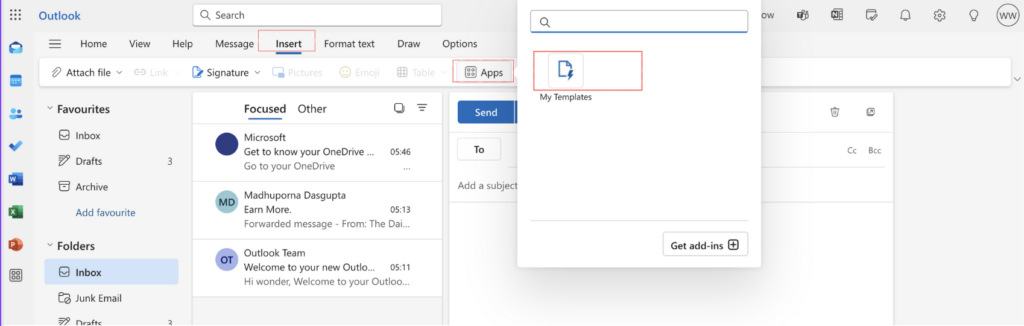
Note: If you do not see the “My templates” option, simply click “Get add-ins” and select “My Templates.”
Step 4: Now Click “+Template” to create your new email template

3. Save Your Email as a Template
Step 5: Once you click “+Template,” you’ll be able to draft a new email. Enter your subject and body text.

Step 6: Now your email should be ready to save as template.When you finish drafting your email, simply click Save.
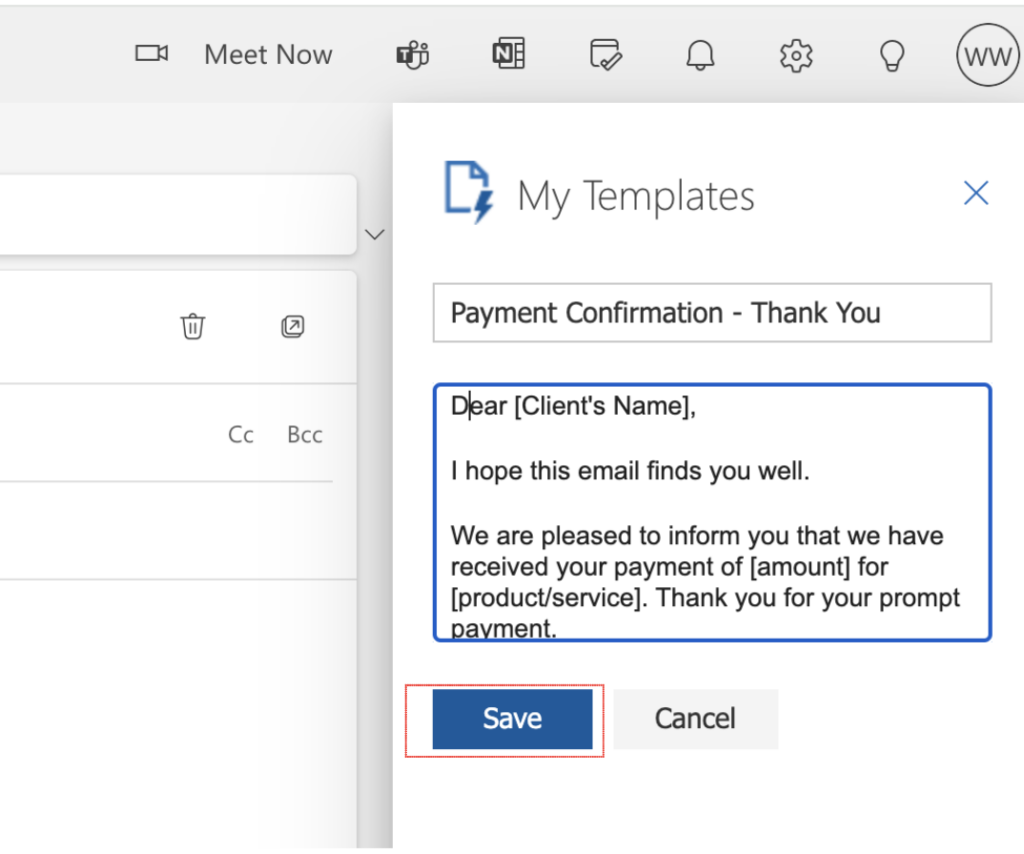
And now, you’re all set to use the newly created email template.
4. Use the new email template
Step 7: Select “My Templates” from “Apps” under the “Insert” tab.
Step 8: Click to open the template you want to use. The draft will appear on the left side, where you compose emails.
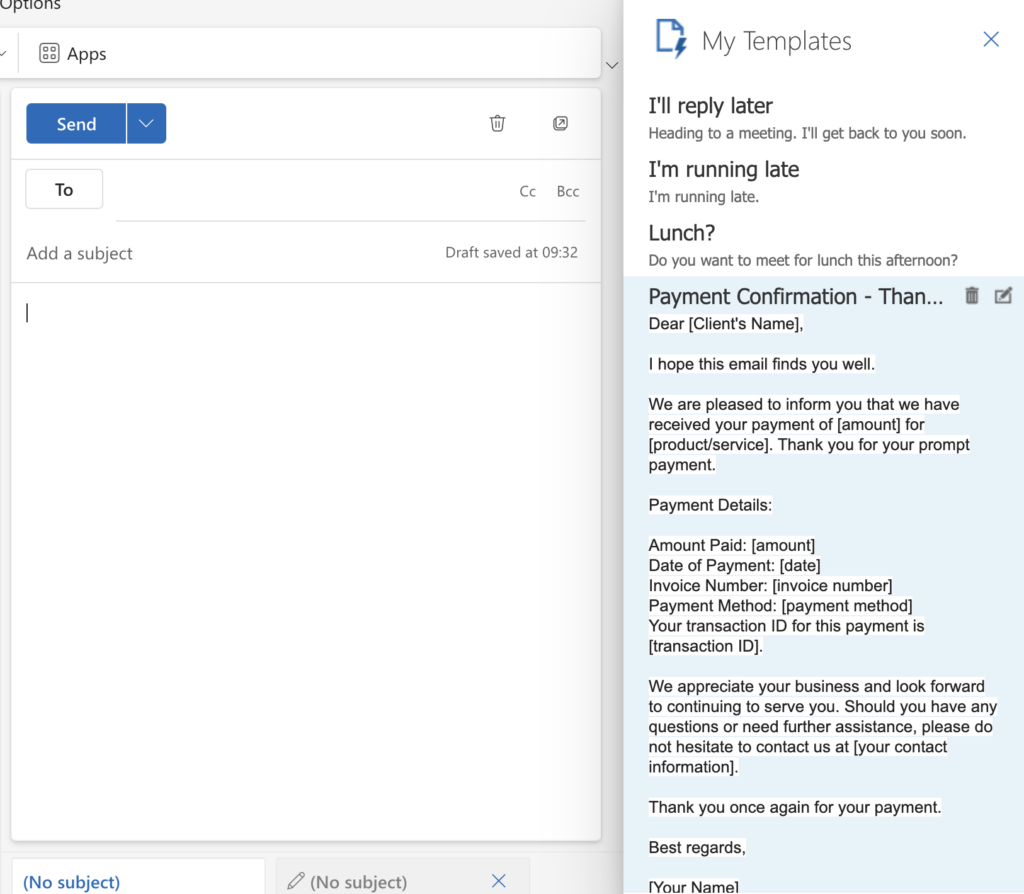
Step 9: You can personalize the email by changing the recipient’s name and other details, as required. Once you’re done, click “Send.”

And that’s it. You have successfully created and used an email template in Outlook. This saves you from the hassle of repeatedly writing email drafts for all your recipients.
How to Create and Use Email Templates in Outlook (Desktop Version)
Creating an email template on new Outlook’s desktop version differs slightly from how you do it on the web app. Let’s check the tutorial.
1. Create a new template
Step 1: Click on the Outlook icon on your desktop and sign in with your credentials.
Step 2: Click ‘New Email’ to start composing a new message.

Step 3: Click on the three dots […] on the toolbar, at the top right corner. Then click “My Templates.”

Note: If you do not see the “My templates” option, simply click “Get add-ins” and select My Templates.”
Step 4: Now Click “+Template” to create your new email template on the message window.

2. Save your email as a template
Step 5: Once you click “+Template”, you can draft a new email. Enter the subject line and body of the email.

Step 6: When you finish drafting your email, simply click on “Save.”
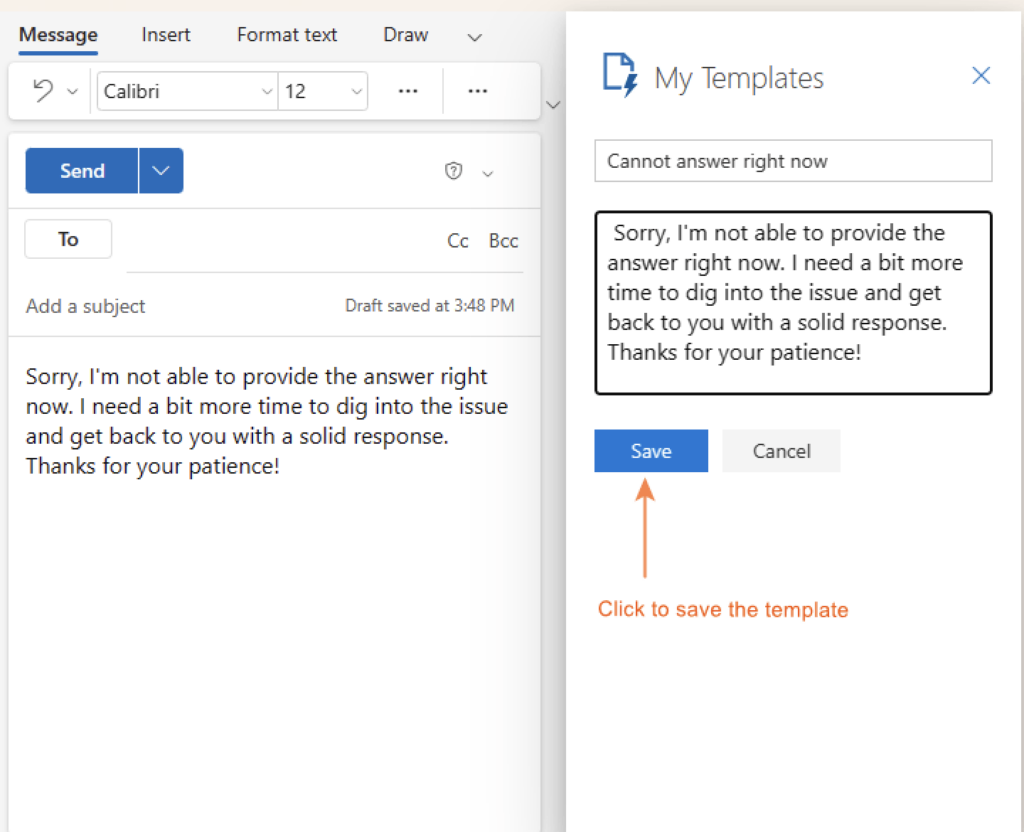
And now, you’re all set to use the newly created email template.
3. Use the new email template
Step 7: Click “New Email”
Step 8: Click on the three dots […] in the top right corner of the window. Then Click “My Templates”.
Step 9: Click on the template you want to use. The draft will appear on the left side, where you compose emails.
Step 10: You can edit the email template as needed. Once you’re done, click “Send.”
And that’s all! You can now reuse email templates send personalized emails to your recipients in no time.
Best Practices for Using Email Templates
Now that you know how to create email templates in Outlook, let’s move on to the best practices to follow. These outlook tips will truly unlock the power of email templates and ensure your messages remain personalized, professional, and impactful.
1. Use descriptive naming conventions
While creating email templates, be as descriptive as possible with the file names, so that you or your team can quickly identify their purpose, even in a hurry.

In this example, “Customer Response” is a generic name that doesn’t explain the purpose of the template. On the other hand, “Customer Inquiry Response” is more specific and clearly explains when to use the email template.
Also, if you frequently update templates with new items, include version numbers or dates in the template names. E.g., “Growth Project Update Template – June 2024”.
2. Personalize wherever possible
Use Outlook’s dynamic fields feature to personalize email templates with the recipient’s specific information, such as name, company name, or custom messages. This makes each email feel more personalized without having to customize all of them manually.
3. Test your templates
Ensure your templates render correctly across different email clients and devices. If you’re using html versions in templates, test them properly. What looks good in the Outlook desktop app might not display the same way in Gmail or other email services.

Also, ensure that your templates are mobile-friendly. Recipients will view your emails on their phones when on the go. So, your templates must be responsive and easy to read on smaller screens.
4. Maintain consistency
Ensure your templates align with your brand’s style guide. Consistent use of logos, fonts, and colors helps reinforce your brand identity.
Make sure to keep the tone and style of your templates consistent with your overall brand language.
5. Incorporate third-party tools
Third-party tools or add-ins enhance the functionality of your templates. For example, you can add a mail merge tool like SecureMailMerge to send out bulk emails with a certain degree of personalization. This is particularly useful for newsletters, announcements, or marketing campaigns.
Hiver is another powerful tool that improves the visibility of your teamwork in Outlook. For example, you can use Hiver to assign emails (in a single click) to the right person without forwarding or cc’ing them.
It also helps users create and share email templates across teams. And the best part is that Hiver’s template feature is integrated right into your reply window, where you can select the desired template. No more hunting for the right email!

6. Security and privacy
Avoid including sensitive information in your templates unless necessary. And even if required, ensure that such templates are securely stored and accessed.
Make sure your templates comply with relevant data protection and privacy regulations, especially if they include personal or sensitive information.
Final Words
So, there you have it! You can now use email templates in Outlook to craft personalized emails at scale in a fraction of the time. Make sure to follow the best practices and keep updating your email templates from time to time.
And, If you want to improve Outlook’s functionality, you might want to try Hiver. It offers features like:
- Shared Inboxes: Collaborate with your team on emails that arrive in inboxes such as info@, support@, and help@.
- Real-time Communication: Discuss emails and assign tasks within the Outlook platform.
- Advanced Analytics: Gain valuable insights into your team’s performance.
Interesting, isn’t it? Opt in for a free demo.
Frequently Asked Questions (FAQs)
1. What are email templates?
Email templates are pre-formatted messages that you can use to respond to frequently asked questions, share SOPs, and for auto-responses, without having to write emails each time. They normally include text and other elements that remain unchanged, and have content placeholders that you can customize according to the purpose of the email.
2. Why are email templates important?
Email templates are important because they help save time in drafting emails, ensure consistency in communication, and reduce the risk of errors in frequently sent emails.
3. Can I personalize email templates in Outlook?
Yes, definitely! You can do this in Outlook by using dynamic fields, such as the recipient’s name or company.
4. Are email templates in Outlook accessible on different devices?
Yes, email templates created in Outlook Desktop can be accessed in Outlook Web and vice versa, provided they are saved in a shared location or imported properly. This allows you to use your templates on different devices, ensuring flexibility and convenience.
5. What should I do if my email template does not display correctly in the recipient’s email client?
Consider simplifying the design and formatting of your template. Testing your templates across various email clients and devices before sending them out can help identify and fix any rendering issues.
6. Are there any limitations to using email templates in Outlook?
While Outlook email templates are highly useful, they may have limitations, such as restricted formatting options in different email clients, potential issues with images not displaying correctly, and the need for periodic updates to ensure content remains current. Additionally, overly complex templates might not render correctly on all devices.














