


Email continues to be an important customer support channel. Even today, plenty of people prefer sending a message to a company’s support@ or info@ email over opening a live chat.
But for growing support teams, managing a shared inbox like that can turn messy. Who’s replying to what? Has someone already responded? Why is that urgent email still sitting unanswered? Without structure, things slip through.
Not every team has the time—or budget—for a full-fledged help desk. So, many look for something simpler. Something that works with the tools they already use. That’s where Google Collaborative Inbox often enters the picture.
What is a Google Collaborative Inbox?
Google Collaborative Inbox is Google’s free tool that helps teams manage a shared email address like info@ or support@. It’s part of Google Groups and available to anyone using Google Workspace (formerly G Suite).
It provides a central workspace for your everyone in your team to manage incoming emails. Team members can assign conversations, track status of emails, and use labels for categorizing work.
How to set up a Google Collaborative Inbox?
Setting up a Google Collaborative Inbox is pretty straightforward. Here are the steps to get you started.
- Create a Google Group by referring to this guide.
- Enable Collaborative Inbox to allow email assignments, permissions, and member roles.

Activate Google Collaborative Inbox
- Add teammates to the collaborative inbox so that they can view, assign, and reply to emails.
- Use labels to categorize conversations and statuses to mark progress.

Top use cases of Google Collaborative Inbox
1. Manage support@ inboxes and convert emails into trackable tasks
A Google Collaborative Inbox can help support teams manage shared email addresses like support@ or help@. Instead of forwarding emails or logging into a single account, everyone can access the same inbox, assign messages, and track progress. You can mark emails as assigned, in progress, or resolved—turning support queries into clearly owned tasks. It’s a simple way to streamline queries without needing a full-blown help desk.
2. Collaborate on sales or partnership conversations
Sales and partnership emails often involve multiple people, and it’s easy to lose track of who replied or what was promised. Collaborative Inbox lets you assign conversations to teammates, use labels to track deal stages, and update statuses—so everyone stays aligned without cluttered threads or double replies.
3. Managing internal requests for HR, Admin, or IT teams
HR, Admin, and IT teams often get internal emails for things like onboarding, leave approvals, or policy clarifications. Instead of relying on personal inboxes, they can manage requests from a shared space. With features like assignments and status updates, it’s easier to ensure timely follow-ups and clear ownership.
What are the advantages of Google Collaborative Inbox?
The biggest advantage of Google Collaborative Inbox is that it’s free.
If you’re already using Google Workspace, you don’t have to pay extra for a shared inbox. It’s built into Google Groups and works within your existing setup. Other benefits include:
- No shared passwords: Team members can access the inbox through their own Google accounts, reducing security risks and eliminating the need to share login credentials.
- Basic email assignment: You can assign emails to team members. There’s clarity on who needs to work on what.
- Status tracking: Emails can be marked as ‘Closed’ or ‘Duplicate’, helping teams keep track of progress.
- Permission controls: You can set different access levels for team members, limiting who can manage or modify emails.
What are the disadvantages of Google Collaborative Inbox?
Google Collaborative Inbox might look like an easy way to manage team emails, but once you start using it, you realize it has more cons than pros. Here’s where it falls short:
1️⃣ Everything is manual—there’s no automation
Customer support is all about speed and efficiency, and automation plays a huge role in that. But with Google Collaborative Inbox, everything is manual.
Let’s say a customer emails about a billing issue. Ideally, this should go straight to your finance team. If it’s a high-priority request, it should be flagged automatically. With a proper shared inbox, you can set up rules to route emails based on keywords or sender type—VIP customers are routed to dedicated Account Managers, product queries go to Support, and finance queries go to Billing.
But none of this is possible in Google Collaborative Inbox. Every email has to be opened, assigned, and followed up on manually. If your team gets dozens (or hundreds) of emails a day, this is a recipe for delays, missed messages, and frustrated customers.
2️⃣ No visibility—you have no idea who’s responding to emails
One of the biggest issues with Google Collaborative Inbox is you don’t know if someone is already replying to an email. This leads to two common (and equally frustrating) problems:
- Two teammates reply to the same email, saying different things. This creates confusion for the customer and makes your team look disorganized.
- No one replies because they assume someone else will. As a result, a customer is left waiting, wondering why they haven’t heard back.
Most modern shared inbox tools show – in real-time – when someone is replying to an email; this is a simple but powerful feature that avoids duplicate responses and ensures accountability. But with Google Collaborative Inbox, you’re left guessing.
3️⃣ No internal notes or easy collaboration
The name Google Collaborative Inbox might make you think it’s built for teamwork, but real collaboration is missing.
Let’s say a customer email is assigned to Derek from the support team. Derek needs more context on this from the billing team. In an ideal world, he would want to directly tag the concerned person from the billing team on the customer email and collaborate with them.
However, with Google Collaborative Inbox, that’s not possible. You’d have to message them separately, or send them another email asking for help. Even if one team member wants to hand off a customer email to a colleague, there’s no structured way to pass along details.
4️⃣ No reports, no data, no insights
How many emails does your team handle in a day? What’s your average response time? Are there recurring issues that could be solved with a self-service page? Google Collaborative Inbox doesn’t tell you any of this.
There’s no way to measure how your team is doing, where the bottlenecks are, or if you need to hire more people. For small teams, this might not be a dealbreaker. But as your email volume grows, you’ll wish you had these insights.
5️⃣ No clear way to prioritize emails—every email looks the same
Not all emails are equal, but Google Collaborative Inbox treats them the same. There’s no way to:
- Mark an email as urgent so it gets addressed first.
- Set response deadlines to ensure no email is forgotten.
- Group emails by priority to focus on what matters most.
Say a high-value customer emails about an account issue. You’d want to flag it as urgent, making sure it gets a response ASAP. In Google Collaborative Inbox, it just sits in the same pile as everything else.
The only workaround? Manually adding labels. But that still doesn’t notify the right people automatically.
6️⃣ No smart filtering—inbox clutter builds up
Even though Google Collaborative Inbox supports labels, it lacks real filtering and sorting capabilities to manage high volumes of emails effectively.
- Want to see only emails assigned to you? You have to manually scroll and check.
- Need a clean view of pending vs. resolved emails? There’s no easy way to filter them.
- Want to pull up all unresolved VIP customer emails? You have to rely on manual labels.
Most shared inboxes have dedicated views for unassigned, pending, and urgent emails, so that teams can focus on the right messages at the right time. Google Collaborative Inbox? It’s just a long, cluttered list.
7️⃣ Does not scale with your team
Google Collaborative Inbox might work for small teams with low email volume, but as you scale, its limitations become very evident.
- Lack of integrations: You can’t connect it with your CRM, help desk, or ticketing system. If you need to log customer conversations or track follow-ups, you’ll have to copy-paste everything manually.
- No multi-channel support: Google Collaborative Inbox only supports email. If your team handles requests across multiple channels, this tool won’t keep up.
- No self-service options: Many businesses use FAQs or chatbots to reduce email volume. Since Google Collaborative Inbox has no integration with self-service tools, every query ends up in the inbox.
At some point, fast-growing support teams outgrow Google Collaborative Inbox and start looking for something built for scale.
5 alternatives to Google Collaborative Inbox
By now, it’s clear that Google Collaborative Inbox works for basic email sharing, but it falls short for customer support teams that need speed, clarity, and teamwork. That’s why so many teams start looking for better alternatives. With that in mind, I’ve put together a list of some of the best alternatives to Google Collaborative Inbox.
| Tool | Key Features | Starting Price |
| Hiver | – Email assignment for clear ownership of tasks – Internal notes and @mentions for collaboration – Analytics to monitor team performance – Automations to streamline workflows | $19/user/month. A free plan is available. |
| DragApp | – Task management with due dates and checklists – Tracks email opens and provides customizable views | $8/user/month |
| Gmelius | – Kanban boards to turn emails into tasks – Internal email chat to discuss emails with teammates | $24/user/month |
| Front | – Unified inbox for email, SMS, and social media messages – Assignment and internal comments for collaboration | $19/user/month |
| Help Scout | – Automated workflows to streamline operations – Templates for faster responses – Offers live chat and in-app messaging | $55/user/month. A free plan is available. |
1. Hiver
Managing team emails like support@ or info@ using Google Collaborative Inbox can be frustrating. You’re constantly switching between your work inbox and the collaborative inbox, trying to figure out who’s handling what. It’s easy for emails to pile up, responses to overlap, or messages to go unanswered.
Hiver simplifies all this by letting you manage shared emails directly from Gmail—without jumping between tools. Once you install Hiver, you’ll notice that all your shared email addresses can be accessed from the left panel of your Gmail inbox.
You can see how many queries are unassigned, work in progress, and resolved. You also have the option of filtering by team member to check each person’s tasks and their status.

There’s a lot more you can do with Hiver as opposed to with Google Collaborative Inbox. You can assign emails without forwarding, add internal notes for quick discussions, and use automation to streamline all internal workflows.
Key Features:
- Centralized dashboard: Manage customer emails, chat requests, phone calls, and WhatsApp inquiries, from Gmail’s interface. No need to switch between multiple apps.
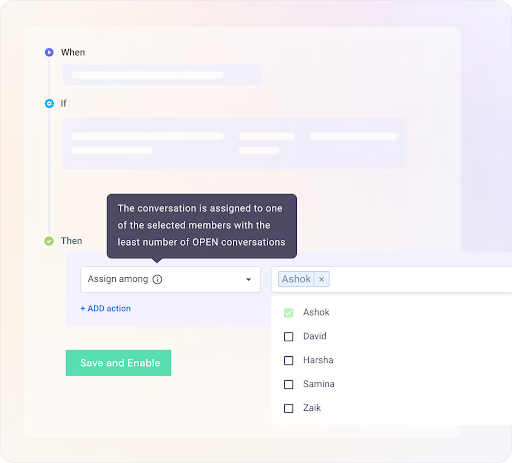
- Automation: Automatically assign emails based on keywords, sender, or skill level. Use round-robin distribution to balance workloads. You can even set up auto responders for acknowledging receipt of emails.
- AI Copilot: Instantly pull answers from your knowledge base and get ready-made drafts of replies. No need to manually search through your help docs.
- Customer Portal: Enable customers to submit queries and track its resolution status – from a dedicated customer portal feature, thereby reducing follow-ups.
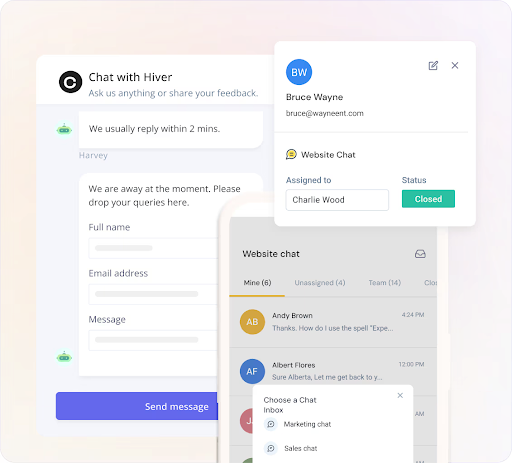
- Live Chat & Chatbots: Embed a chat widget on your website and mobile app for having real-time conversations. Use chatbots for answering FAQs.
- Team Collaboration: Use internal notes and shared drafts to ask a colleague for help or getting a fresh pair of eyes before sending out the response.
- Analytics & Reports: Track response times, agent workload, ticket volume, and customer satisfaction. Create custom reports for deeper insights.
- Seamless Integrations: Connect with Slack, Jira, WhatsApp, Asana, Zapier, and 100+ tools to bring all customer context in one place.
“Hiver is easy to navigate and allows customers to always be taken care of! I never worry if our team has forgotten an email or not. I use Hiver every day and it allows us to stay organized. This software has been easy to use, implement and integrate into our team. We can always take care of our customers and ensure they are getting the best customer support!” – Hiver User Review | G2
Pricing:
- Free Forever: Includes a multi-channel shared inbox, knowledge base, internal notes, shared drafts, and 24/7 support.
- Lite ($19/user/month): Get two shared inboxes, email templates, workflow automation, live chat, a knowledge base, and basic analytics.
- Growth ($29/user/month): Includes unlimited users, advanced analytics, custom reports, and integrations with tools like Asana, Jira, and QuickBooks.
- Pro ($49/user/month): Comes with five shared inboxes, AI automation (Harvey), chatbots, CSAT surveys, SLA tracking, and advanced reporting.
- Elite (Custom Pricing): Includes unlimited shared inboxes, skill-based auto-assignment, HIPAA compliance, enterprise security, and a dedicated success manager.
2. DragApp
DragApp turns your Gmail inbox into a comprehensive workspace so that you can manage emails and other tasks effortlessly.
As an alternative to Google Collaborative Inbox, DragApp offers more flexibility and functionality. It includes a visual Kanban view, similar to Trello boards, making it easy to track the status of inquiries and organize workflows. You can also set up custom boards for managing emails, tickets, tasks, or anything your team needs.

Key Features:
- Shared Email Drafts: Collaborate effortlessly on email replies. With shared drafts, you can write a response and have a teammate review or tweak it before hitting send.
- Activity Log: Stay on top of every action with a detailed activity log. You can see the full history of what’s happened on a board or a specific card, like who assigned a task, when it was updated, or what changes were made. This helps you track progress and quickly understand what needs attention.
- Email Sequences: Schedule outbound email sequences with each message reaching the recipient at a particular date and time.
Pricing:
DragApp offers three pricing plans to fit different needs. The Starter plan costs $8 per user/month, the Plus plan is $14 per user/month, and the Pro plan is available for $20 per user/month.
3. Gmelius
Gmelius is a powerful collaboration tool for teams that want to stay in the Gmail ecosystem but need more structure than Google Collaborative Inbox. It works as a Gmail add-on and brings all your shared inboxes into the left side panel. Here, you can assign emails, have discussions with your colleagues on these emails, and do a lot more.

The platform lets teams create Kanban boards for keeping track of tasks. You also have the option of adding emails to these boards. However, for support teams that need multi-channel capabilities, Gmelius might not suffice as its focus is on email.
Key Features:
- Shared inbox: Manage inboxes like info@ and support@ from an intuitive, user-friendly interface. Assign emails to teammates and track their status without leaving Gmail.
- Kanban boards: Create a kanban board to manage projects. Add emails as tasks to it, assign owners, and stay on top of things.
- Email reply assistants: Gmelius AI helps you draft personalized replies by learning from thousands of past conversations and pulling in real-time data from sources like your help desk and website.
- Basic workflow automation: Automate email assignments, follow-ups, and tagging (limited to three automations on the base plan).
Pricing:
Gmelius has three plans: Growth ($24/user/month) for shared inboxes and basic automation, Pro ($36/user/month) for advanced workflows and integrations, and Enterprise (custom pricing) for larger teams needing custom features.
4. Front
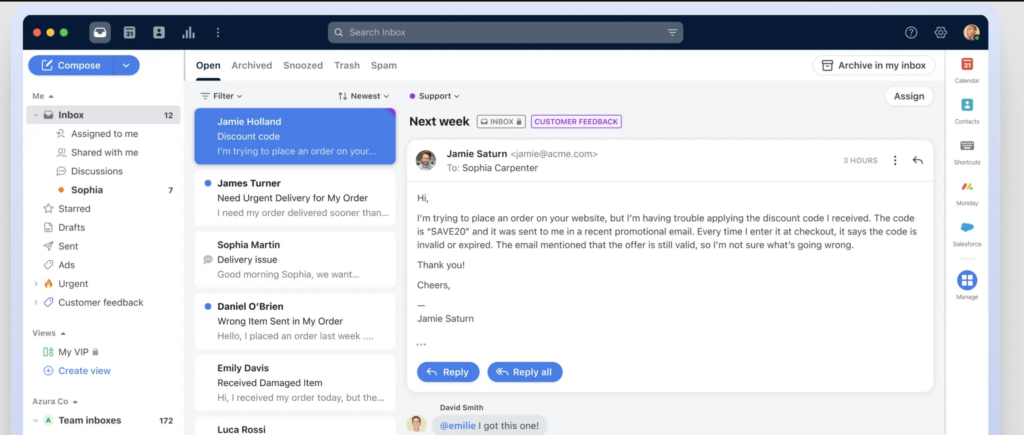
Front offers a collaborative inbox to manage customer emails – and its interface is very similar to that of your regular inbox. Teams using Front – especially customer support, finance, and IT – can assign emails as tasks, collaborate on responses, and automate workflows with ease.
Front goes beyond email support and integrates other communication channels such as chat, SMS, and social into a centralized dashboard.
Key Features:
- Task Assignment: Team managers can assign ownership of conversations to specific team members based on their availability and expertise.
- Internal Comments: Team members can leave comments on customer messages for sharing updates or asking for help from a colleague.
- AI: Use AI Compose for drafting and refining messages, AI Summarize for generating conversation overviews, and AI Tagging for auto-tagging conversations.
- Workflow Automation: Schedule outbound email sequences with each message reaching the recipient at a particular date and time. Auto-redirect messages at the end of shifts, or when someone’s OOO, ensuring nothing gets missed. With dynamic variables, the criteria for your workflow rules get auto-updated whenever there is a change in a customer account or with your team.
- Analytics: Get AI-powered predictive insights into your customer service operations. Access reports on SLAs (service level agreements), drill down into customer feedback, and optimize resource allocation.
Pricing:
The Starter plan begins at $19 per seat/month, while the Growth plan is available for $59 per seat/month. Their most popular option, the Scale plan, costs $99 per seat/month. For more advanced features and customization, you can contact their team to learn about the Premier plan.
5. Help Scout
Help Scout is a customer service platform that is known for not having a cap on the number of users across all its pricing plans. Its ‘Inbox’ feature helps manage all customer emails from a centralized dashboard.
You can assign owners to emails, loop in colleagues for help, and make use of saved replies for answering FAQs. While Help Scout is loaded with features, it’s designed in a very intuitive way, so that support staff don’t lose the human touch when interacting with customers.

Key Features:
- AI Answers: This is a 24/7 self-service assistant that pulls information from your knowledge base to draft responses for customer queries. It uses this content to instantly answer customer questions, helping visitors find what they need without waiting on a support rep.
- Private Notes: The platform supports collaboration among team members through shared notes and internal comments on customer tickets. This allows agents to discuss customer emails internally using shared notes and internal comments.
- AI Summarize: Get bullet-point overviews of long email threads, so you don’t have to read through every message to get context. It’s perfect when you have to hand off a conversation to a teammate without missing any details.
- Customer Profiles: View key details like contact info, conversation history, and past transactions, right next to the customer email. Equip your team members with all the context they need to offer personalized and contextual support, without having to switch between tools.
Pricing:
Help Scout offers a free plan that supports up to 50 contacts per month with unlimited users. For larger teams or more advanced features, their paid plans start at $55/month per user for the Standard plan and $83/month per user for the Plus plan.
Frequently asked questions (FAQs)
1. How much does Google Collaborative Inbox cost?
Google Collaborative Inbox is free for users who have a Google Workspace account. Simply put, if you’re already subscribed to Google Workspace, you can use this feature without any additional charges. However, in case you want a custom domain for your group email address, you will need a paid Google Workspace plan.
2. What is the difference between Google Groups and Shared Inbox?
Google Groups is a product of Google that allows users to create groups for discussions and sharing information. A Shared Inbox, on the other hand, enables team members to access and manage emails from a common email ID. While Google Groups can serve various purposes (like forums or mailing lists), a shared inbox aims to help teams manage emails in a collaborative manner.
3. Can I assign conversations to specific team members in Google Collaborative Inbox?
Yes, one of the main features of Google Collaborative Inbox is the ability to assign conversations (or topics) to specific group members. This helps streamline workflow by ensuring that each inquiry is directed to the most appropriate person.
4. Is there a limit on the number of members in a Google Collaborative Inbox?
There is no specific limit on the number of members who can be added to a Google Collaborative Inbox. However, the overall limits depend on your Google Workspace plan. Generally, larger plans allow for more users and greater storage capacity.
5. Does Google Collaborative Inbox integrate with other tools?
Google Collaborative Inbox has limited integration capabilities compared to its alternatives like Hiver, Zendesk, Front and DragApp. While it works well within the Google Workspace ecosystem, it does not offer extensive integrations with third-party applications like CRMs or task management tools. Owing to this, it becomes difficult to sync data from Google Collaborative Inbox to other tools and this leads to more back and forth.
6. Is Google Collaborative Inbox suitable for customer support or sales teams?
Google Collaborative Inbox is pretty handy for managing team emails. But it has significant limitations for customer support or sales. Features like reporting, automation, and integrations are missing. It’s difficult to gain visibility into everyday workload or track all incoming queries diligently. Alternatives like Hiver, Zendesk, or Front are better suited for these use cases.
Your team deserves better than Google Collaborative Inbox!
In a nutshell, Google Collaborative Inbox might not cut it if you’re using it for teams like sales and customer support. You need a tool that offers:
- An intuitive user interface
- Powerful collaboration features
- Complete visibility into everyday workload
- Insights into conversation volume, response quality and team performance.
But hold on a second, Google Collaborative Inbox is free. Would switching to another tool mean that you have to invest a lot of money?
Well, absolutely not. Many tools like Hiver and Help Scout have a forever-free plan. Try them out and take feedback from your team. Go with what they’re comfortable with. In the future, you can upgrade to one of the paid plans if needed.














