


Email is an integral part of how companies do customer support. If you notice, most of them use an ID like info@ or support@ where customers can reach out if they need any assistance. The entire support team has access to all incoming emails.
Now, to manage such an email ID as a team, there are multiple ways. One popular approach is to use a Google Group. It’s free, easy to set up, and convenient for businesses that use Google Workspace – formerly known as G Suite.
So, how do you set up a Google Group for managing customer support? And what are the limitations to this approach? Let’s take a look.
How to Set Up Google Groups for Customer Support (Step-by-Step Guide)
Setting up a Google Group for customer support is slightly different from setting up a normal Google Group.
Let’s take a look at the steps:
- Go to Google Groups, click “Create Group” and give it a name. For example, support@yourcompany.com.
- Set up your group details.

- Choose the privacy settings. Here you can define who can view, respond, and assign emails.
- Add members to your group. And you’re all set.
For a more detailed guide on how to set up Google Groups, check out this blog.
What are the benefits of using Google Groups for customer support?
Google Groups can be a simple, no-cost way to handle customer emails. Here’s why it’s quite popular:
✅ If you already use Google Workspace, you can create a Google Group in minutes.
✅ Everyone in your team can see all incoming customer emails in one place.
✅ Your team can reply to emails just like they would from their own inbox.
✅ You can assign emails, track conversations, and label messages to stay organized.
Sounds useful, right? But what happens when your support team starts to scale? When you have to handle 100s or even 1000s of customer emails on a daily basis?
What are the limitations of Google Groups?
Google Groups started as a platform for online discussions. It wasn’t built for handling customer support and all the internal collaboration that comes with it.
It’s definitely a decent option for small teams but as you scale, its limitations become more and more evident.
1. No clear way to assign emails
Most well-run customer service teams display high levels of accountability. Unfortunately, in a Google Groups setup, there’s no way to assign customer queries across your team. The only thing you can do is forward the email to your team member.
When you do this, the email lives in two places: the inbox of the support staff and in the main collaborative inbox.
What’s the problem with this? Other people in the team won’t know who is working on the email.
This can lead to a lot of confusion and even duplicate responses. What’s worse is that some customer emails might get completely overlooked.
Recommended reading
2. Messy internal communication
Sometimes, a support rep needs help from a colleague before replying to a customer. In Google Groups, there’s no easy way to have internal discussions. Agents end up forwarding emails or sending messages on a different app like Slack. This eventually leads to a lot of back and forth and toggling between tools.
Even worse, agents might reply directly on the main email thread, thinking they’re messaging a teammate.
3. Lack of visibility into workload
Since Google Groups doesn’t have a dashboard or tracking system, there’s no easy way to see:
✅ Who’s working on which email
✅ What’s pending, urgent, or already resolved
✅ Tickets that are way past their SLAs
When managers have zero visibility into what the team is doing, delivering timely and efficient support only becomes more of a challenge.
4. Hard to prioritize work
Not every customer email is the same. Some are high-priority, and some might be follow-ups on on-going issues. Is there a way to demarcate these emails in Google Groups? You can use labels but they have limitations.
Every time you receive a customer email, you’d have to manually apply a label to it. If you’re managing hundreds or thousands of customer emails on a daily basis, this becomes extremely time consuming. Google Groups doesn’t offer support teams a mechanism to prioritize incoming emails.
5. Repetitive tasks can’t be automated
Customer support teams would love a bit of automation to take care of everyday grunt work – assigning emails, prioritizing work, and sending acknowledgement messages. However, Google Groups lack automation capabilities.
Everything has to be done manually, which means your team is spending time and effort on things that don’t move the needle.
6. No insight into performance
Great customer support isn’t just about answering emails — it’s about measuring how good you’re at it and improving performance. Unfortunately, Google Groups doesn’t offer any data on:
❌ How long it takes to respond to emails
❌ How many emails each support rep handles
❌ Customer feedback on the support experience
Without data, teams can’t improve operational efficiency or spot recurring issues proactively.
Basically, Google Groups is useful only when you have to broadcast information to a group of people. The moment you want to use it for collaborating on that information (and some more), it fails
What if you can do customer support from your Gmail inbox?
When the limitations of Google Groups start becoming obvious, support teams generally start looking for an external tool to handle customer emails.
These tools require your team to migrate to an external interface and go through extensive training before getting started. But there is a Google Group alternative that doesn’t complicate things for your team, and that’s Hiver.
It turns your Google Group into a shared inbox and helps your team access it from Gmail’s left panel. Simply put, your team members can toggle between their primary inbox and the common shared inbox from their Gmail interface, without having to constantly switch between tabs.
Hiver allows your team to gain full visibility into all customer emails. You get to know how many emails are work in progress and how many are yet to be picked up. You can also filter by team members to see everyone’s workload.
Let’s dive into how exactly Hiver is an upgrade over Google Groups.

“With Hiver, I have much better visibility into the resolution path of issues. And we’ve stopped missing emails!
Nathan Strang
Ocean Freight Operations Manager, Flexport
1. All the action — right inside Gmail
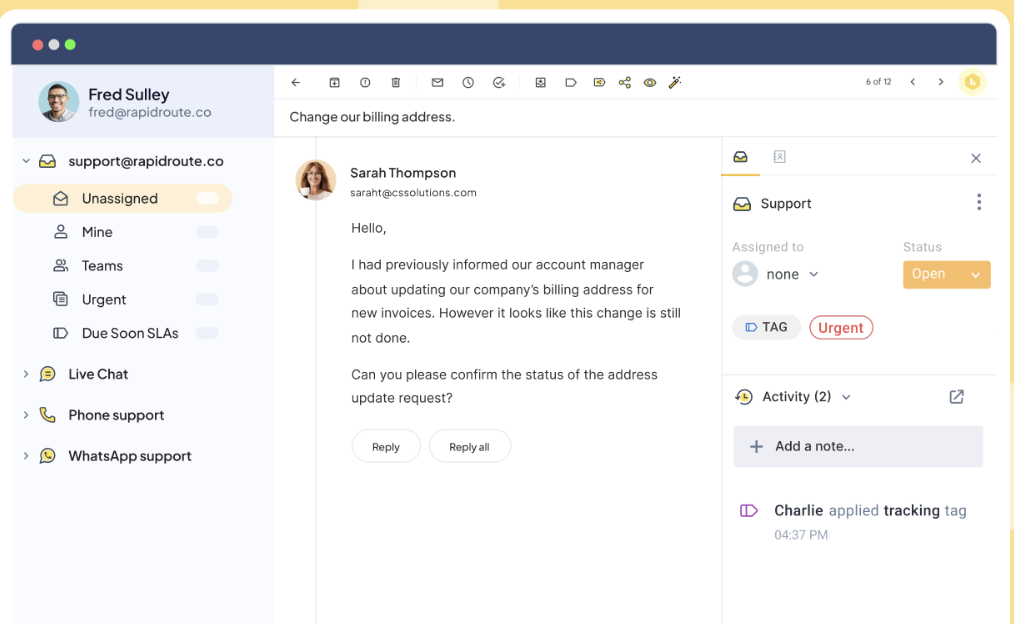
Any email that is sent to your Google Group (the info@ or support@ email ID), now appears in the shared inbox as well. This shared inbox can be managed from Gmail’s left side panel.
Everyone who is part of the team can view and access all incoming emails. So, there is no risk of work being adversely impacted if the group owner or “Administrator” is on leave or not available
2. Clear visibility into tasks
Every member who is part of the original Google Group can go into the shared inbox and see how many emails are unassigned, how many are assigned to them, and how many are resolved. This virtually eliminates the risk that an email gets missed.

When an email arrives in the shared inbox, it goes into the Unassigned Tab. From here, the team lead usually assigns it to someone from the team
Also, when an email is assigned to someone, the entire team will simultaneously know to whom it has been assigned. Other team members can, if necessary, provide information to the individual or from a continuity perspective, get the email reassigned to him/herself. This also minimizes the risk that two (or God forbid, more!) agents respond to the same email.
3. Making teamwork easy (like truly easy)
Asking colleagues for help or advice when dealing with a customer situation is not a bad thing. But when you do this using Google Group, it can often mean sending more internal emails or using a separate messaging app like Slack.
But with Hiver, your team can write notes in a chat-like interface right next to the main customer email. These notes can be used to loop in colleagues for help or update context on a particular customer conversation.
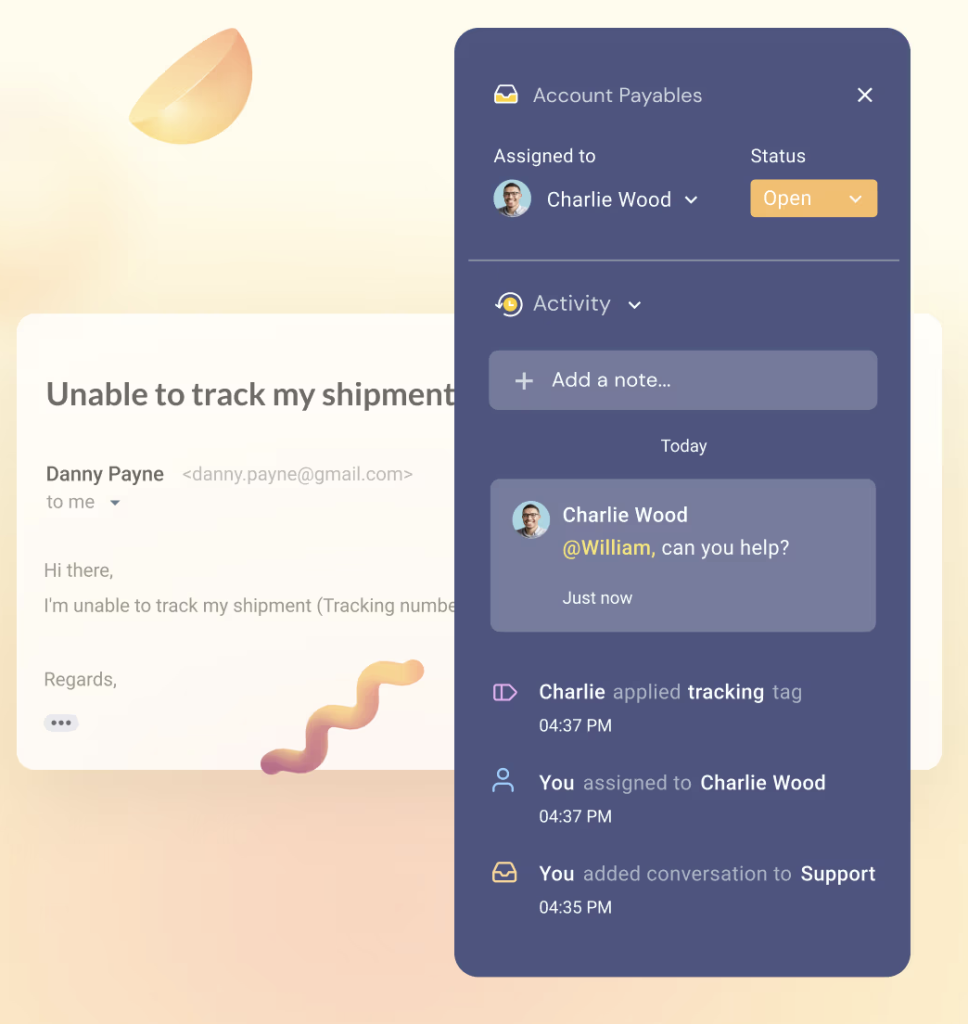
Notes are useful in a variety of situations, such as these:
1️⃣ If you want to add some context or learning that you think might come in handy in the future, just write it down in the Notes section; it will stay alongside the email.
2️⃣ If you want to broadcast a question to everyone in the group, start the note with @all and it will notify everyone in the group. This also means anyone in the group can reply to your note.
3️⃣ If you want to reach out to a specific person, start the note with @name and only that person will receive a notification. You can then exchange messages with that person like you would on personal chat.
Even if a customer interaction is closed, your notes wouldn’t get deleted. This makes it easy to go back to old interactions as well (for training purposes or if they were handled by people who have since left the organization).
4. Keeping duplication at bay
E-mail collisions are every customer support team’s nightmare. They arise because nobody knows who is working on a specific customer email, other than the support staff working on it.
A colleague might pick up the same customer email and write to the customer. The customer would now get two responses from two different agents. Quite a mess, isn’t it?!
But when you use Hiver to manage your Google Group, the risk of email collisions is all but eliminated, thanks to the Collision Alerts feature. This alerts a team member when they open a customer email that their colleague is already working on.

5. Keep a tab on your team’s performance
Kel Kurekgi, Director of Developer Support at Zapier, explains why unhappy customers rarely speak up:
“Most customers won’t tell you when they’re unhappy, they’ll just leave. It’s like getting a bad haircut. The barber holds up the mirror and asks, ‘Is that alright?’ and you say, ‘Yeah, great,’ then never go back!”
That’s why you can’t rely on customer feedback or complaints alone for insights to improve support quality. You need to track KPIs for your team.
If you’re using Google Groups in its default UI, there’s no real way to track performance. All you see is how many messages were sent and received — not whether issues were resolved, how fast your team replied, or how efficiently each agent is working.
That’s where Hiver makes a difference.
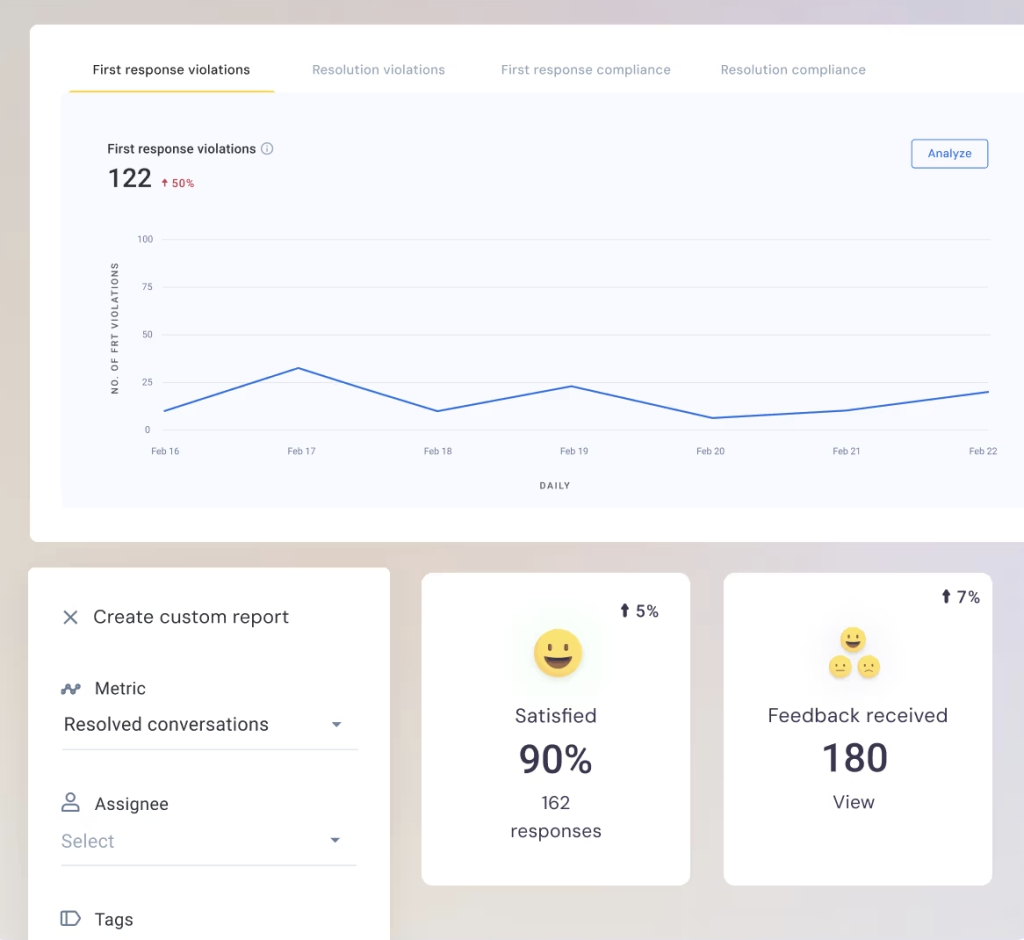
Hiver’s shared inbox comes with powerful analytics feature that help you measure important metrics— like average response time, resolution time, and query volume over time. You can even track how many conversations each agent is handling, how long they take to resolve issues, and how their performance trends across different days, weeks, or shifts.
6. Automate and save your team from grunt work
Using Hiver, you can set up workflows to:
✅Auto-assign based on keywords or sender name.
✅Distribute workload on an equal basis using round-robin assignment.
✅Automatically add tags to email to prioritize faster
✅Close unimportant emails such as newsletters and ‘thank you’ messages.

Example of an automation you can set up with Hiver:
All emails from a customer named Cindy get tagged as ‘high priority’ and assigned to support specialist Jake.
7. Let AI make your support team more efficient and smarter
When a customer asks a question, Hiver’s AI Co-Pilot can automatically draft a response using your company’s knowledge base as the source material. All your team has to do is review the draft, make tweaks if necessary, and share the resolution with the customer.
Hiver also offers other AI features to take care of everyday tasks:
✅ Summarize long email threads into short, easy-to-grasp insights — so agents don’t waste time reading everything line by line.

✅ Auto-close emails that don’t need a response — like “thank you” messages from customers.
✅ Get recommendations on what template (pre-written response) you can use for a specific customer email.
When to use Google Groups for Customer Support?
For teams that handle a limited number of customer emails, Google Groups can work as a standalone solution. But as your ticket volume grows, there’s a good chance that you start missing customer emails. This is when you need to look for other solutions or ways to manage your existing Google Group – like, Hiver.
Frequently asked questions (FAQs)
- Can Google Groups be used for customer support?
Yes, but it has limitations. Google Groups lets teams share a common inbox, but it lacks key features like email assignment, automation, and analytics. If you have a small team with low email volume, it may work. Otherwise, you’ll need additional tools like Hiver for proper workflow management.
- What are the disadvantages of using Google Groups for customer support?
? No clear email assignment, leading to missed or duplicate responses.
? Sorting, tagging, and follow-ups must be done manually.
? No easy way to track who’s working on what.
? Can’t measure response times, resolution rate, or agent performance.
- How do I track customer support emails in Google Groups?
Google Groups doesn’t have built-in tracking, but you can:
✅ Use labels in Gmail to categorize emails.
✅ Set up email forwarding rules for better inbox organization.
Or you can switch to a dedicated customer support platform like Hiver which lets you assign emails, track status, and generate reports—all inside Gmail.
- Can I automate responses in Google Groups?
Not directly. Google Groups doesn’t support automated workflows, SLAs, or email routing. If you need automation, you’d have to set it up via Gmail filters but its functionality is quite limited.
- Can Google Groups replace a help desk?
No, Google Groups is not a true help desk. It lacks ticketing, automation, SLA tracking, and reporting. If your team receives a high volume of customer queries, switch to a help desk such as Hiver, Front or Freshdesk.














