


If you manage a team or work as part of one, there would be instances where you’d want to broadcast one message to multiple team members.
In such instances, you can’t add every person’s email ID or send each of them a separate email.
What you need is a more efficient and straightforward solution. While there are many tools to help you stay connected, one tool that can be helpful is Gmail’s group email feature. Built for Google Workspace users this feature can not only increase productivity across teams, but it can also help improve communication by providing easy access to resources, collaboration documents, and project updates.
Let’s break down why every business should consider it and how to create a group email in Gmail.
A shared inbox that comes with an AI Copilot
- Collaborate with ease
- Manage high email volume
- Leverage AI for stellar service
What is a Gmail Group Email?
Gmail’s group email is a feature that allows you to group a list of email addresses under a single label or email. Think of it as assigning a collective name to a group of email contacts. And when you want to send an email, you just use that name, and voila! Everyone in the group gets the message.
For example, if you’d like to broadcast an email to your support team, you can create a group with a collective name like supportgroup@xyz.com. Add your teammates’ email contacts to the group. Compose a new message, add this collective name in the recipient box, and hit send. All your teammates from the customer support team will receive the mail.
Recommended reading
Why Use Email Groups in Businesses?
It’s simple! Using features like email groups can help you save significant time at work. Not only does it reduce the hassle of having to select individual recipients every single time, but also ensures you don’t inadvertently leave anyone out. In short, email groups streamline communication and foster collaboration.
A Step-By-Step Guide to Creating a Group Email in Gmail
An Email group in Gmail can be created in two ways:
- Using Google Contacts
- Using Google Groups
Both are effective; it just depends on your preference! Let’s check out both the methods:
Method One: Using Google Contacts to Create a Group Email
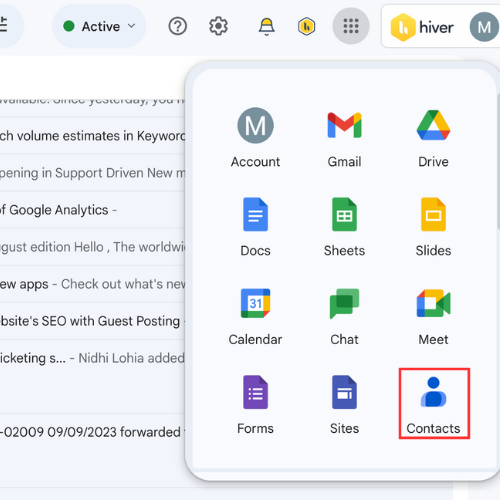
Step 1: Access Google Contacts
From your Gmail account, click on the Google Apps icon (looks like a grid). From there, select ‘Contacts.’
Step 2: Browse the Contacts
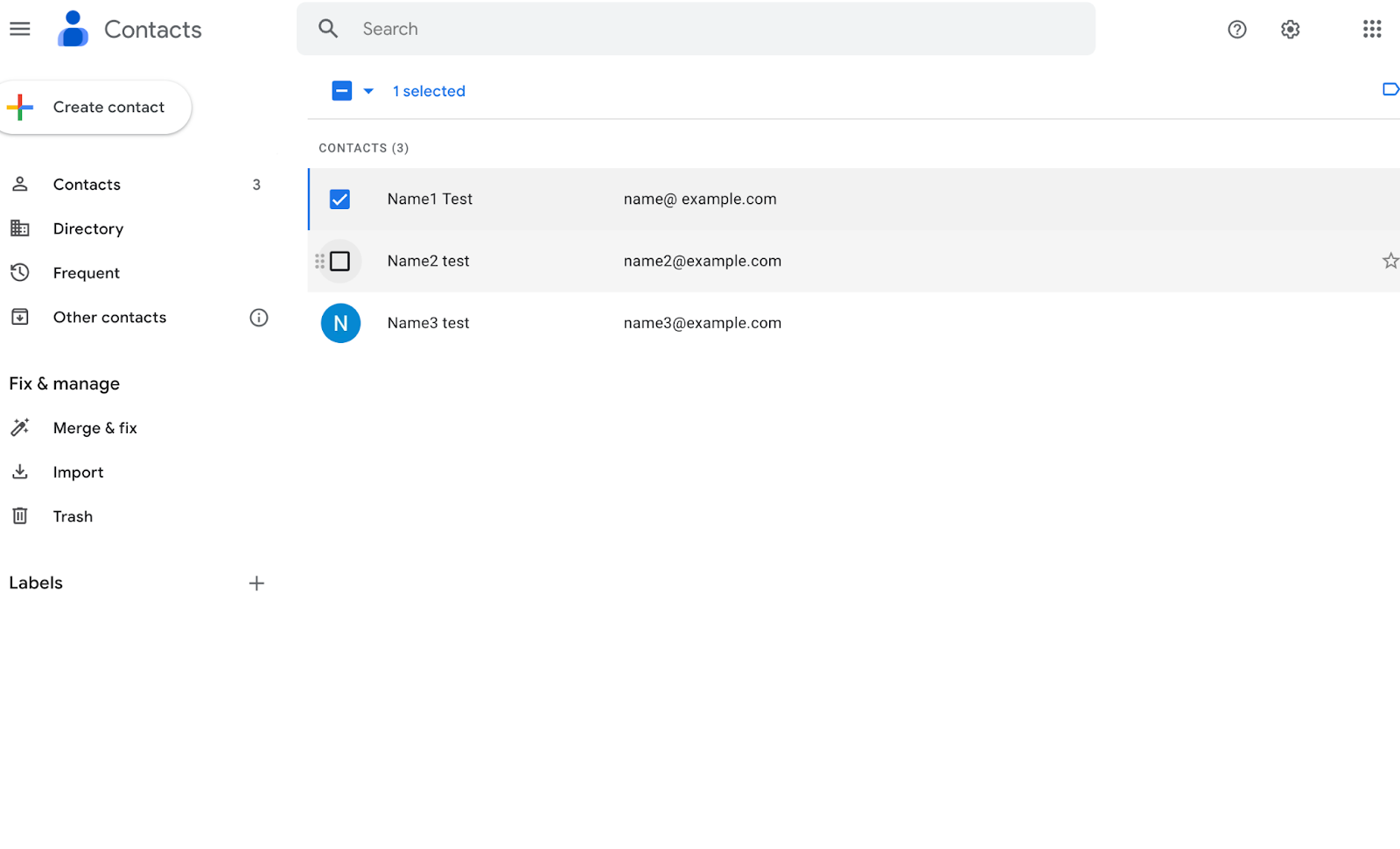
Browse through your contact list and tick the boxes next to the contacts you want to include in your group email.
Step 3: Create a New Label for the Group
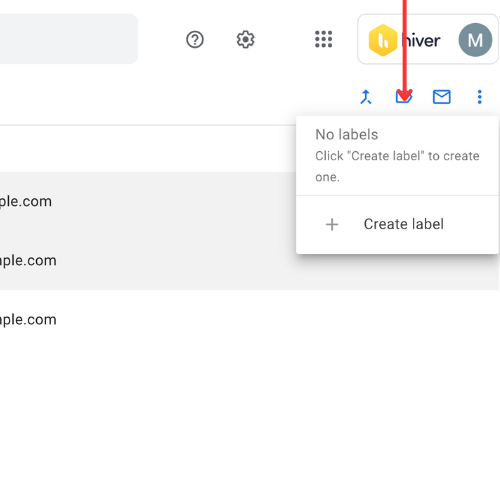
Once you’ve chosen all the right people, click on the label icon and then select ‘Create Label.’ Give a relevant group name.
Step 4: Your Selected Contacts Will be Added to the New Label
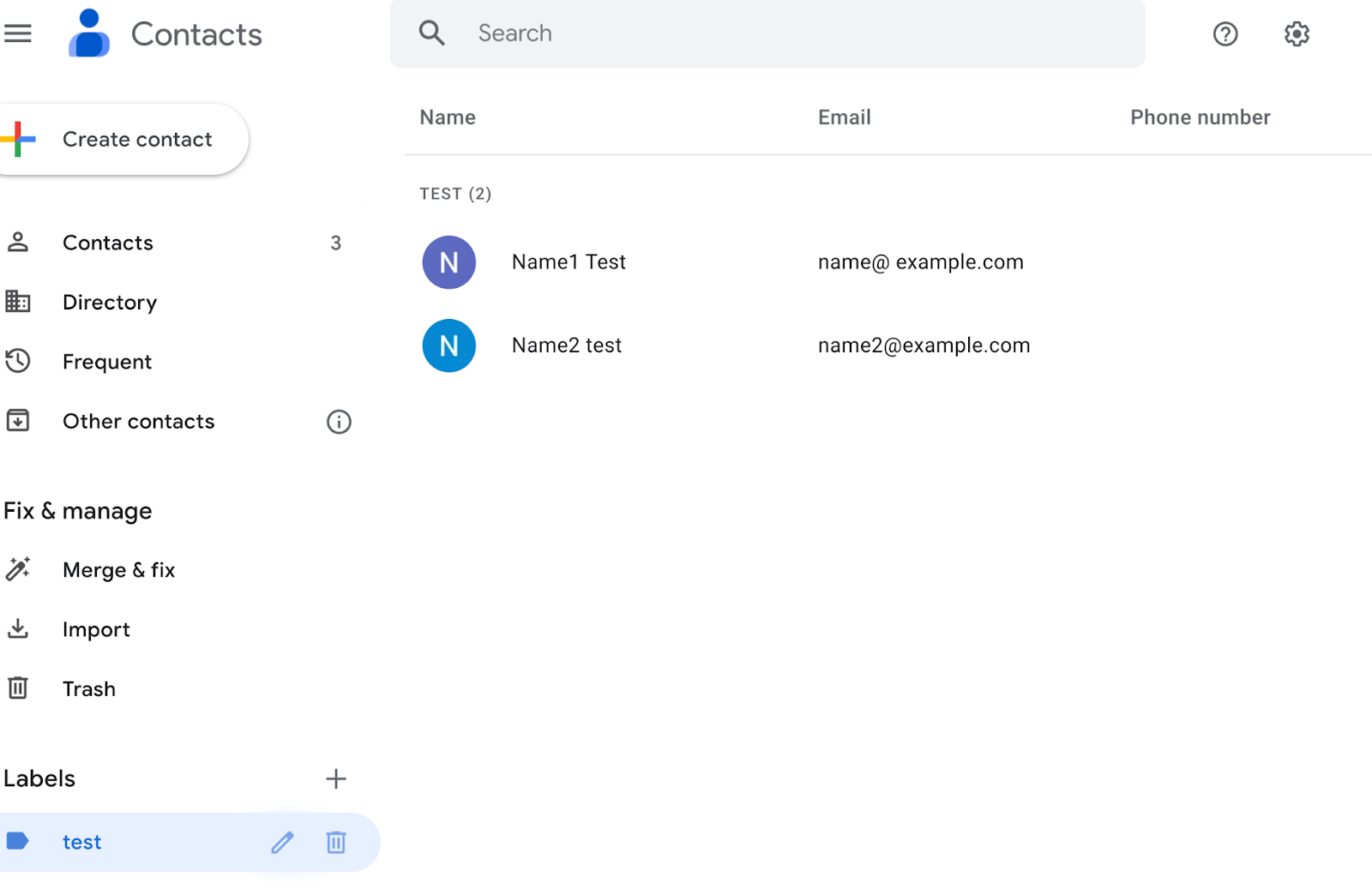
With your new label created, your selected contacts are now added to it. This effectively creates your email group.
Step 5: Send an Email to Your Newly Created Group
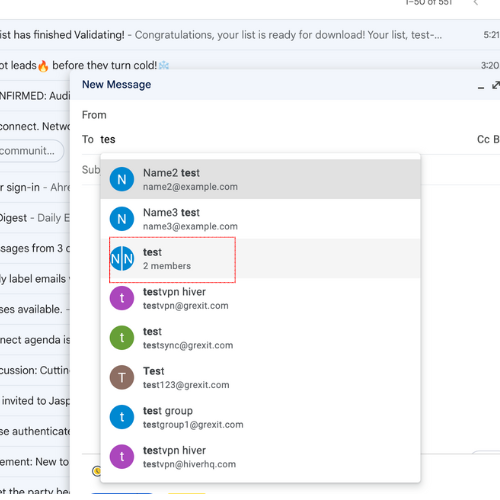
Compose a new email in Gmail, type in the name of your label in the ‘To’ field, and Gmail will auto-populate it with all the email addresses under that label. Hit send, and you’re all set!. If you want your emails to look professional, you need to sign them. Creating a sleek and unique signature is easy with email signature generators.
Recommended reading
5 things you must use Gmail Labels for
Labels vs. Folders: The Definitive Guide To Organizing Your Inbox
Method Two: Using Google Groups to Create a Group Email
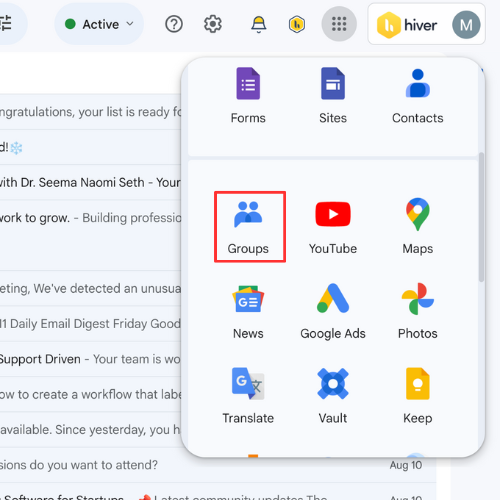
Step 1: Navigate to Google Groups
Head over to Google Groups from the Google Apps icon
Step 2: Click on ‘Create Group’
On the homepage, in the left sidebar, you’ll find the ‘Create Group’ option.
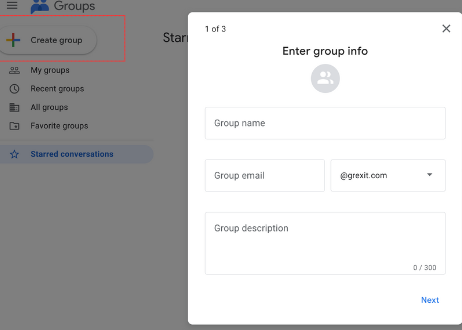
Step 3: Set Up Your Group Details
A pop-up screen appears once you click on the “Create Group” option. Fill in the group’s name, email address, and a brief description.

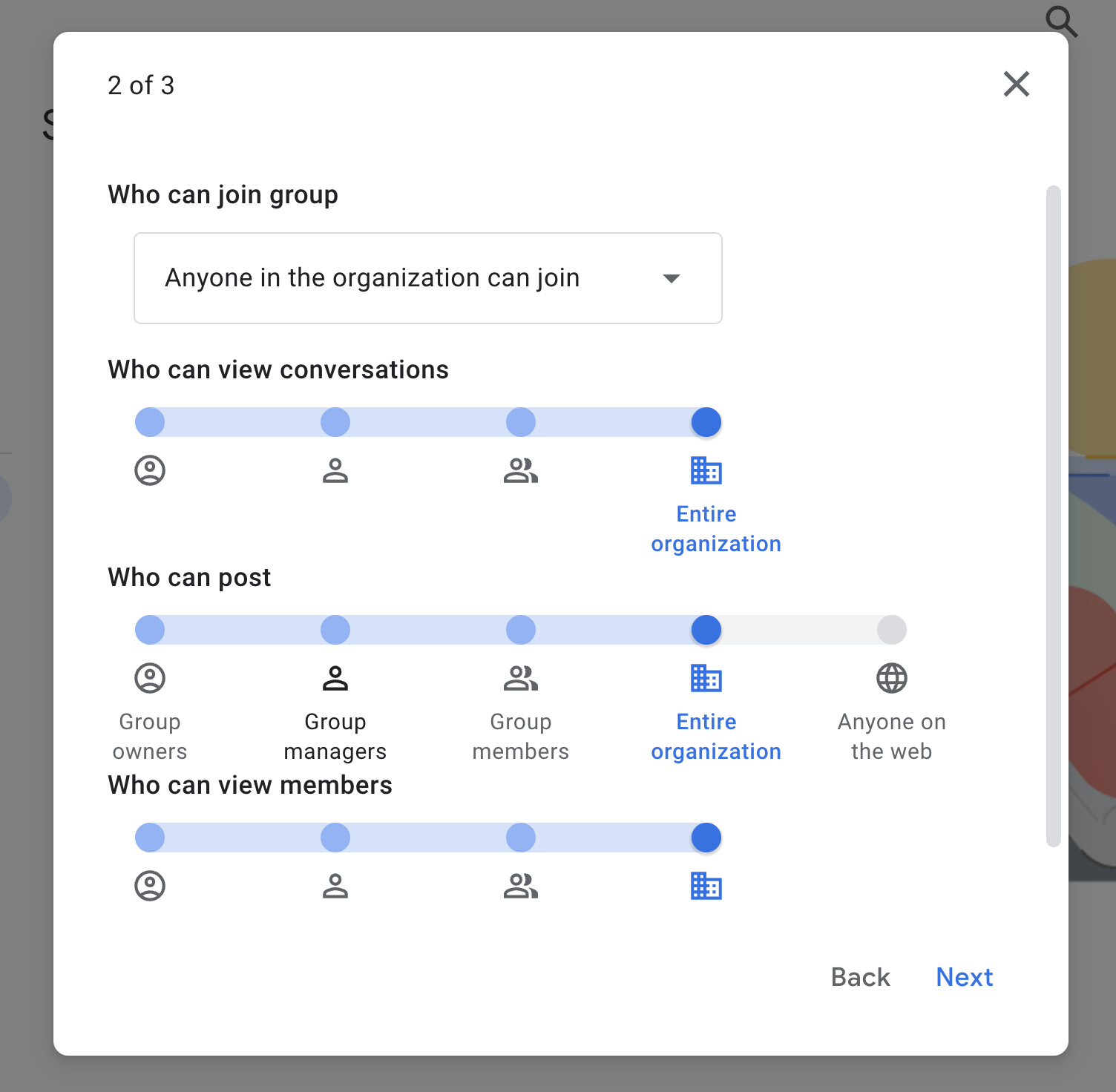
Step 4: Choose the Privacy Settings
Decide who can view, join, or post in your email group. Keep it open for everyone or make it exclusive; the choice is yours.
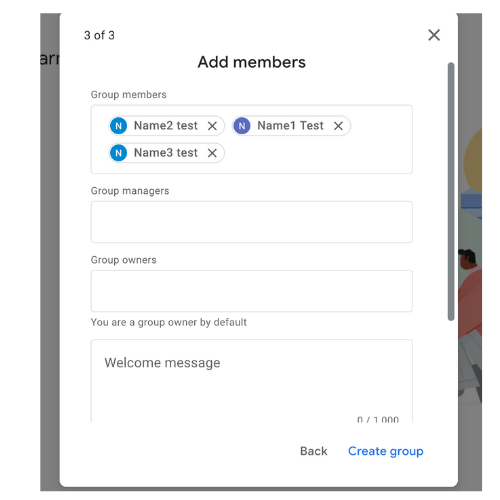
Step 5: Add Members to Your Group
Type in the email addresses of those you want in your group. Send out those invites!
Step 6: Use Gmail Group Email to Send and Receive Emails
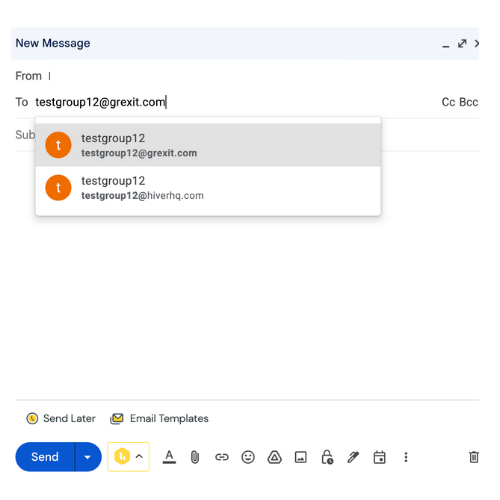
With your new email group set up, you can now use its email address in Gmail to send emails to group members. You can also receive email when others mail you on the group email address. It works like a collaborative inbox where members receive messages right in their Gmail inbox. Using effective email management software can make it easier to organize and manage group conversations.
Recommended reading
Wrapping Up
Group emails on Gmail are the easiest way to broadcast messages to a broad messages to several people at once.
We’ve taken a look at two methods of creating group emails in Gmail. The main difference between the two is that the second approach (using Google Groups) gives you more control over privacy settings compared to the first. You can completely manage who can post and view messages in your organization.
It’s a lot like a shared inbox, where different members are offered different custom roles. Some can manage and assign emails. Some can only read and respond to emails.
Speaking of a shared inbox, you might want to check out Hiver. It turns your Google Group (info@ or support@) into a shared inbox so that your team can effortlessly assign, track, and collaborate on emails.
The best part about Hiver is that it works as an extension to your Gmail inbox. This means you can manage both group emails and your regular work emails from the same place – no more switching between tabs or apps. Sign up for a free trial.
Frequently Asked Questions (FAQs)
- How do I create a group email list in Gmail?
To create a group email list in Gmail:
- Open Google Contacts: Navigate to Google Contacts via the app launcher in Gmail.
- Create a Label: Set up a new label for your group.
- Add Contacts: Assign contacts to this label.
- Compose Email: When emailing, type the label name in the “To” field to send the message to all contacts who are part of the group.
- How many emails can be added to a Gmail group?
A single Gmail group can include up to 100 email addresses. Every time an email is sent to a group, it’s counted as one email.
- How do I send a group email and hide recipients in Gmail?
Here’s how you can send a group email and hide recipients in Gmail:
- Click on the “Compose” button to create a new email.
- In the “To” field, enter “Undisclosed recipients” followed by your email address in angle brackets (e.g., myinfo@gmail.com).
- Click the “Bcc” field in the compose window’s upper right corner.
- Enter the email addresses of all the recipients you want to hide in the “Bcc” field, separating them with commas.
- Compose your email message and add a subject line.
- Hit the “Send” button.
- How does Hiver help in managing group emails in Gmail?
With Hiver, group emails like sales@, support@, or helpdesk@ can be easily managed. Here’s how:
- Hiver helps assign emails to specific team members, ensuring clear ownership and accountability.
- It provides real-time alerts to prevent multiple team members from responding to the same email.
- It allows you to tag emails based on criteria like keywords and sender information.
- Team members can add internal notes to emails for collaboration.














