

You delegate a task to your virtual assistant, they do it so well that it looks like they are ‘reading your mind’ — isn’t that the best kind of teamwork? But it does not happen in a day. It takes a lot of time to get there, and some work from you as well.
Most tasks are delegated through email. The common way to do this is forwarding emails to your virtual assistant — and that’s also the problem.
Email forwarding works until the number of tasks is low and you delegate only to one person. As the number of emails and the number of assistants increase, things will start going haphazardly.
Delegation by forwarding — not a great idea
Let’s say you receive a customer request and want your virtual assistant, David, to take care of it. You forward the email to David, and he begins working on it.
Meanwhile, the customer comes back with a slight change to the request. How do you accommodate the additional request? You have to write a second email to David.
When David finishes the task and sends replies to the customer, he keeps you in Cc/Bcc.
Here’s the problem with this approach: There are too many emails, which makes workflows difficult to manage and clogs up your inboxes.
You forward a few more emails to David. And at the end of the day, you want to know which ones he has finished working on.
You will have to go back to him to find out the status of the emails he hasn’t replied to. He might have replied to a few customers and forgot to CC you—you’d think he’s still working on them. You’ll always have to reach out to your virtual assistant to find out the status of tasks.
As the volume of emails increases, you hire another virtual assistant, Sarah. You now split the emails between David and Sarah. You will again face the same problems you were facing with David.
Additionally, you now have to spend time in your inbox to know who is working on what and then reach out to them with updates or to check the status of tasks.
You will have to spend considerable time to find out which assistant is working on what.
Forwarding emails is inefficient. If you use Gmail, here are three better ways to manage email delegation that you can consider:
1. Delegated access in Gmail
Gmail has a delegated access feature which gives your assistant direct access to your inbox to manage emails.
Unfortunately, if you set up Gmail delegation, your virtual assistant will have access to all the emails you receive. You do not have the option to limit access to a few emails.
Some of your emails contain sensitive information you do not want to share with anyone. Even from a security standpoint, sharing your account with anyone is not a good idea.
I know I will not be comfortable sharing my account with anyone in the world!
2. Create an info@/support@ account
The second option you have is to create an info@company account — have your customers email you there — and your virtual assistants can manage that email account for you.
It comes with some great benefits:
- You do not have to forward emails to anyone.
- Nobody logs in to your Gmail account.
- All your virtual assistants can start using the same Gmail account to manage emails.
But this approach has a major downside: Google blocks a Gmail account every time more than one person uses it. If you do not pay attention to their warnings, your account can be blocked permanently.
The was on a Google Support page:

Even when you have just one virtual assistant, I’m sure you’ll log in to the account to monitor their performance or the responses they send out. Having more than one person use an account will not work.
Oh, and that’s not the only problem you’d face.
- You will still face difficulties finding who is working on what.
- Tracking the status of emails will still require some asking around to do.
- Two virtual assistants might end up working on the same email.
And more.
3. Hiver, the effortless way of delegating tasks
We built Hiver to put an end to the problems of email forwarding and delegated access.
It turns your info@/support@ into a shared inbox that team members can access from within their individual Gmail accounts. You can, therefore, manage your 1:1 emails and team emails – ones that you’d need to delegate to your virtual assistant – from the same interface.
You don’t have to log in separately to the info@ account, so getting blocked by Google is out of the question.
Key features:
- All emails in the info@ inbox can be accessed from Gmail’s left panel.
- If an email you want your virtual assistant to work on lands in your regular inbox, you can add it to the team inbox and assign it to them.
- Assign emails as tasks in two clicks using the right panel, which you’ll see after installing Hiver.
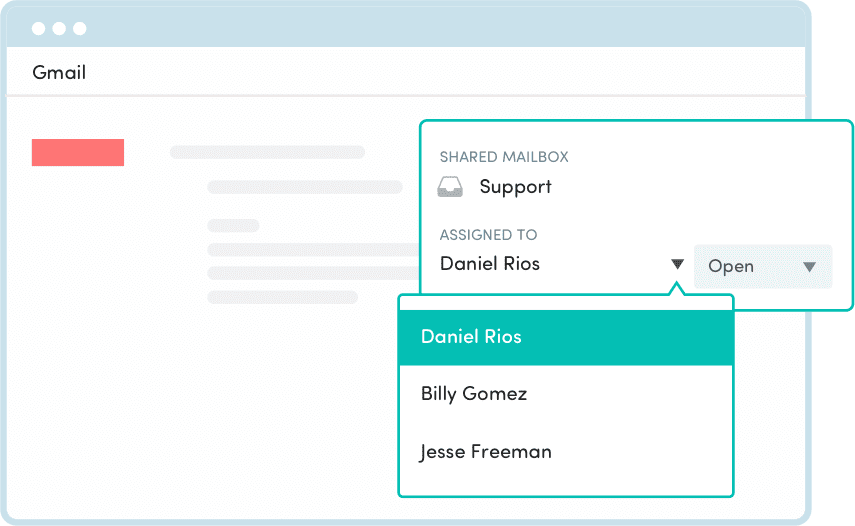
- Get to see the status of every email – whether it’s yet to be picked up, work in progress, or closed. You don’t have to manually follow up with your virtual assistant for updates every single time.
- Write and attach notes to emails that your virtual assistant can refer to. You can also @menion any of your virtual assistants and write a specific message for them. No more forwards or CCs.
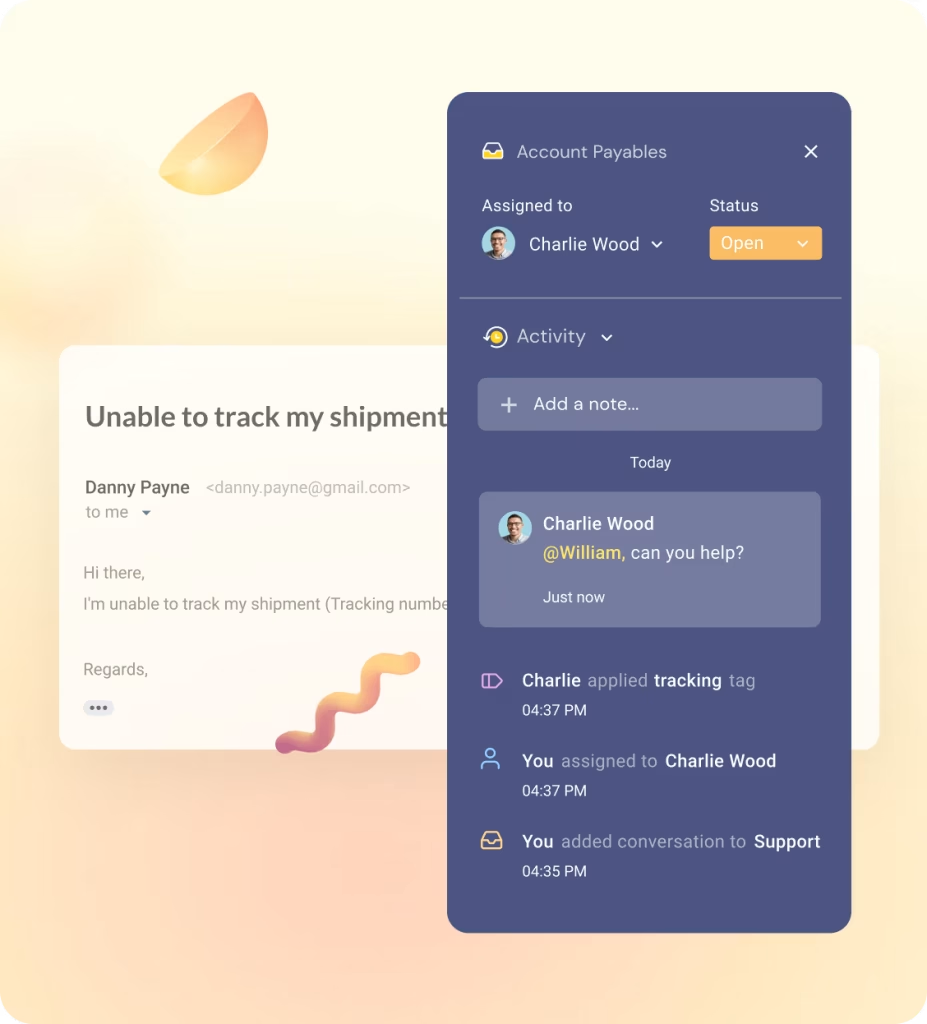
- Get complete visibility into your team’s workload. Know what responses your assistants are sending out without having to be CC-ed on emails.
Turning your inbox into a smarter workspace
Managing emails with a virtual assistant doesn’t have to be complicated. Instead of dealing with forwarding, CCs, or shared logins, a tool like Hiver keeps everything organized. It simplifies delegation, keeps conversations transparent, and ensures nothing slips through the cracks.
The result? Lesser back-and-forth, faster responses, and a more efficient way to work as a team.














