


Gmail is great for personal communication. It’s simple to set up, easy to navigate, and does a solid job filtering out spam. But when it comes to managing emails as a team, things can quickly get messy. Tracking who’s responded, which emails need action, and ensuring nothing falls through the cracks becomes a daily challenge.
Many teams end up sharing passwords just to stay afloat — but that’s a serious security risk.
A safer and smarter solution is to set up a shared inbox inside Gmail.
In this guide, we’ll show you exactly how to do it so that your team can stay organized, respond faster, and collaborate more effectively.
What is a Gmail Shared Inbox?
A Gmail shared inbox is a common email account, like support@company.com or info@company.com, that multiple team members can access at the same time. It lets your team view, manage, and reply to emails collaboratively, without needing to forward threads or share passwords.
Everyone stays on the same page, making it easy to keep customer conversations organized and trackable. Depending on your setup, a Gmail shared inbox could be a delegated Gmail account or a Google Collaborative Inbox.
Top 4 Use Cases For A Shared Inbox
1. Customer Support Management
A shared inbox helps support teams stay organized and responsive. You can categorize incoming emails with filters and labels, assign queries to the right agents, and add internal notes to collaborate on tricky cases. Tracking which conversations are open, pending, or resolved becomes easier, helping your team deliver faster, more consistent support.
2. Sales Lead Handling
Managing incoming leads gets simpler with a shared inbox. You can set canned responses for common inquiries, route new prospects to available sales reps, and track all lead conversations in one central place.
3. IT & Helpdesk Operations
For IT and helpdesk teams, a shared inbox streamlines ticket resolution. You can route support@ emails based on priority, auto-assign tickets with SLA-driven rules, and add internal comments to document troubleshooting steps.
4. Finance & Billing Communication
Channel invoices and payment-related emails into dedicated views, tag conversations by status (Invoice Received, Overdue, Paid), and assign them to specific team members. Internal notes allow easy collaboration on payment follow-ups or escalations.
How To Set Up A Gmail Shared Inbox?
If you’re a Google Workspace admin, it’s important to know that Gmail doesn’t offer a true shared mailbox by default. That being said, there are two workarounds:
1. Using a Delegated Gmail Account
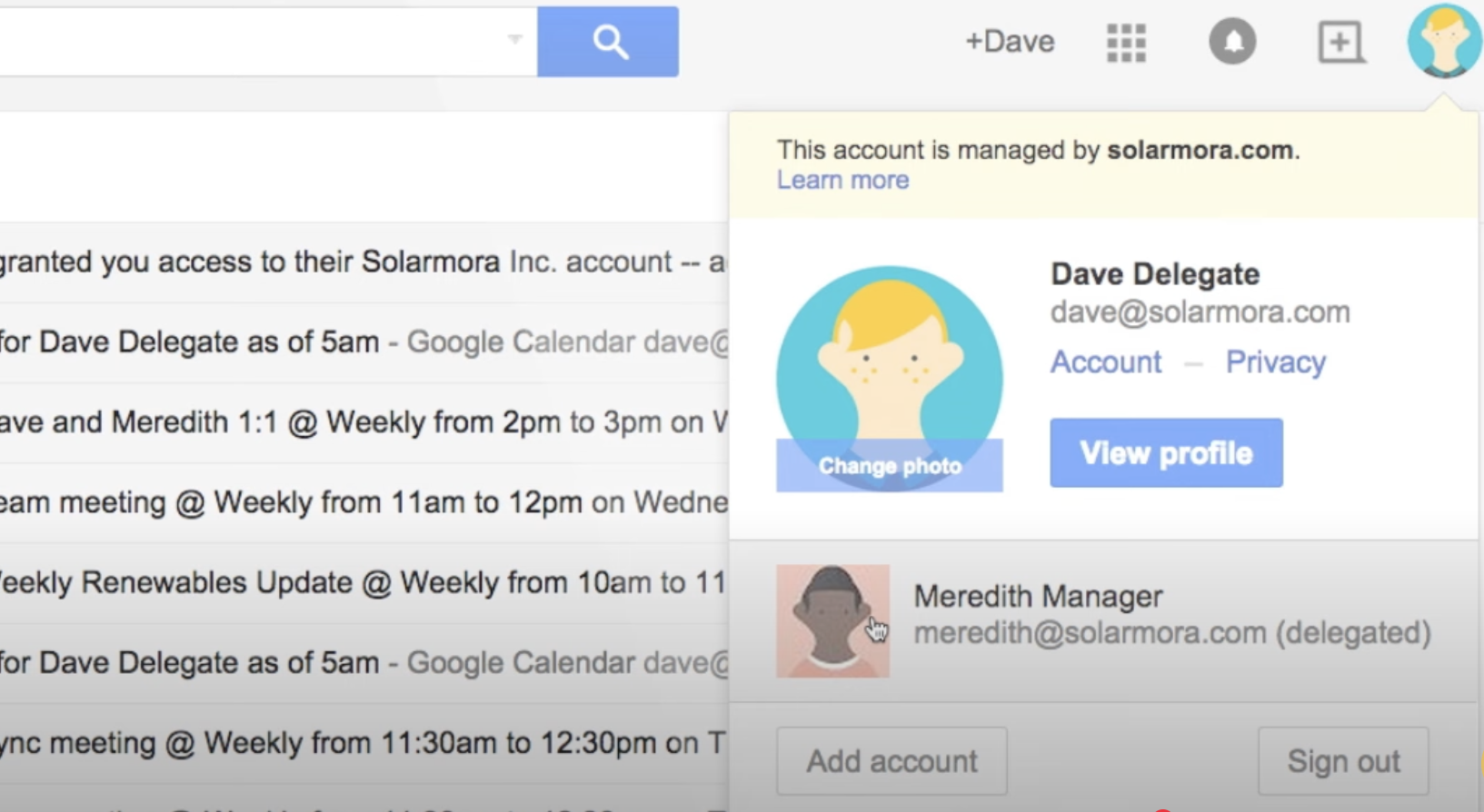
A delegated account lets you give specific team members access to one Gmail inbox without sharing passwords. Everyone can read, reply to, and manage emails while keeping their own login credentials safe.
? How to set up a Delegated Account:
- Log in to the Gmail account you want to share (for example, support@company.com).
- Click the ⚙️ gear icon → See all settings
- Go to the Accounts and Import tab.
- Scroll down to Grant Access to Your Account and click Add another account.
- Enter the email addresses of team members you want to give access to and confirm.

Once access is granted, each team member will see the shared inbox listed under their primary Gmail account, and can easily switch between their own inbox and the shared one.
2. Google Collaborative Inbox
Another option is to create a Google Collaborative Inbox using Google Groups. Instead of giving direct access to a single Gmail account, you invite your team members to a shared workspace where everyone can view, assign, and respond to emails together. There’s no need to switch between accounts.
? How to set up a Google Collaborative Inbox
- Visit groups.google.com.
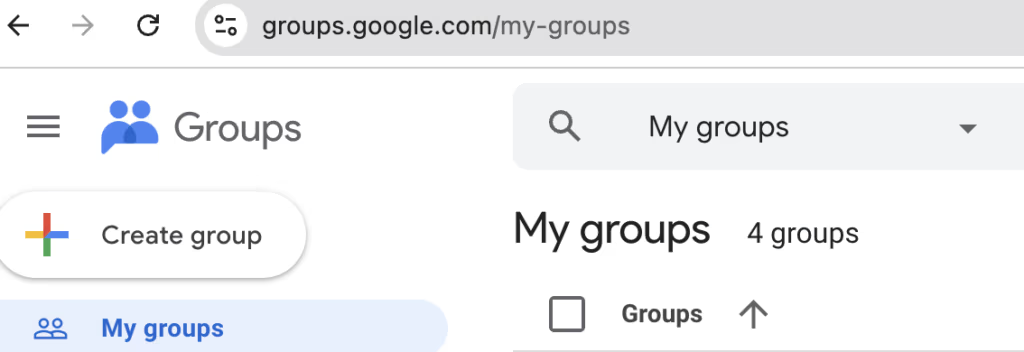
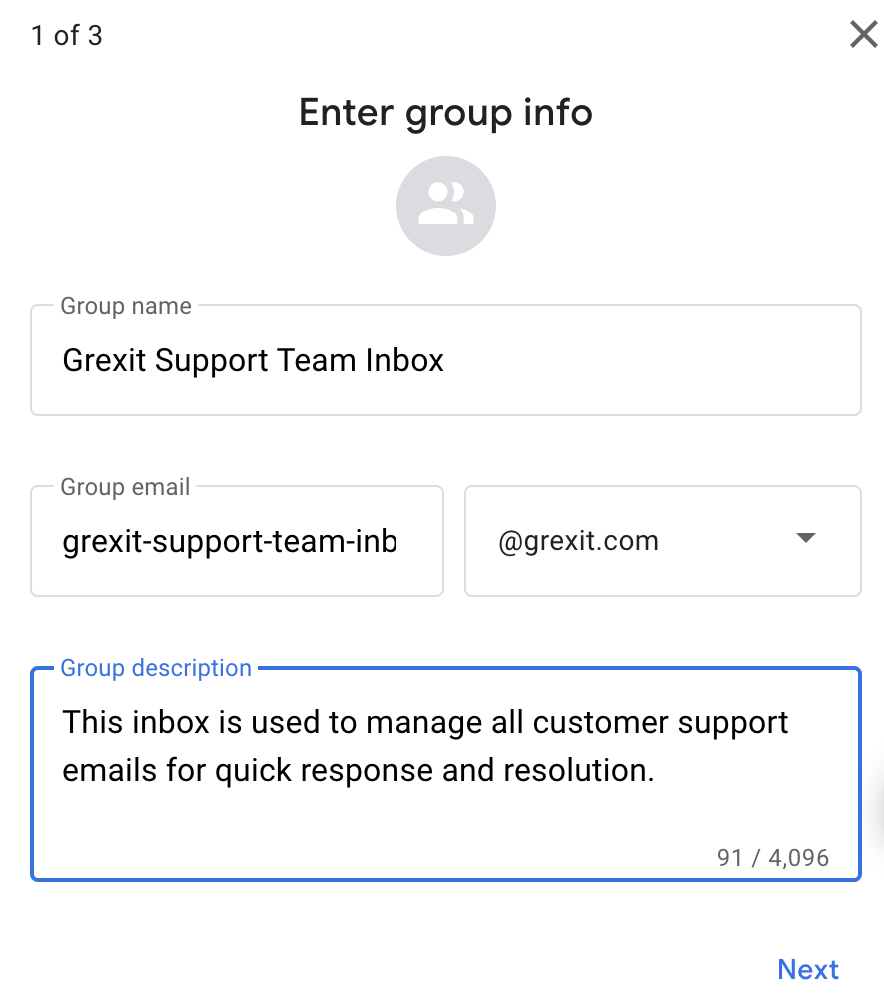
- Click on Create Group and input group details that include name (example: Support Team), email (example: support@company.com), and description (example: This inbox is used to manage all support emails).
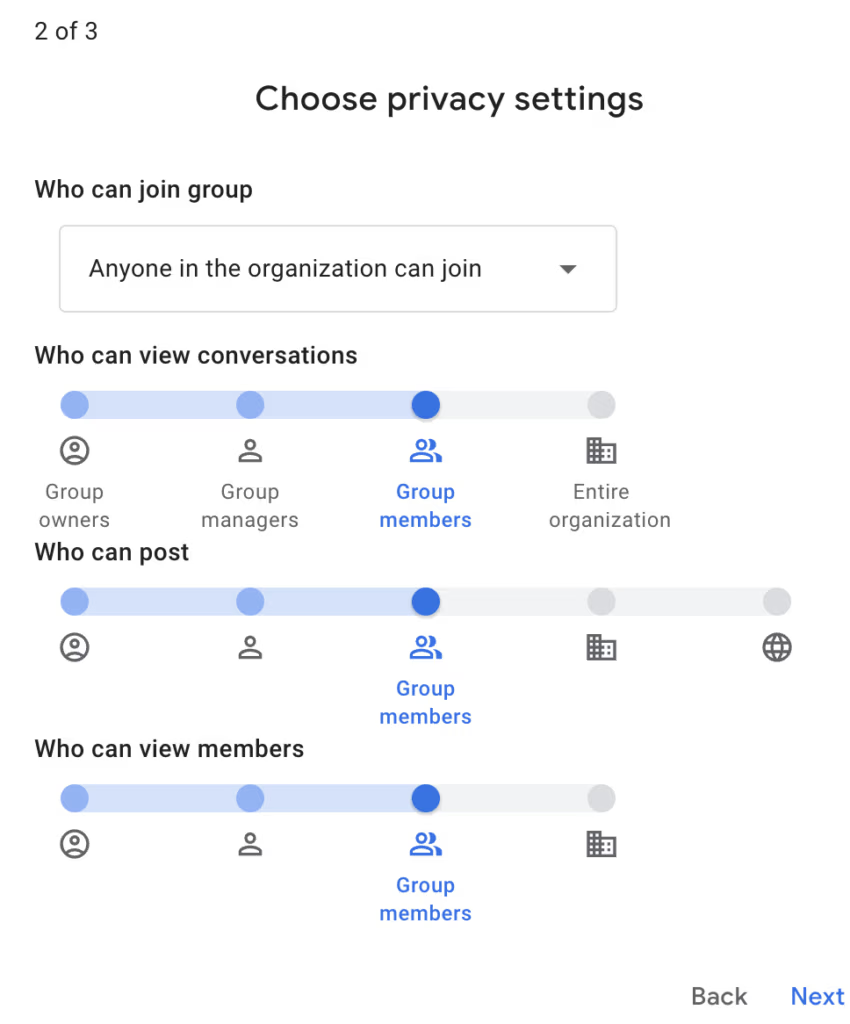
- Under Permissions, define who can post, view, and reply to conversations.
- Add team members to the group. Assign roles like Member or Manager based on access needs and the click ‘Create Group.’
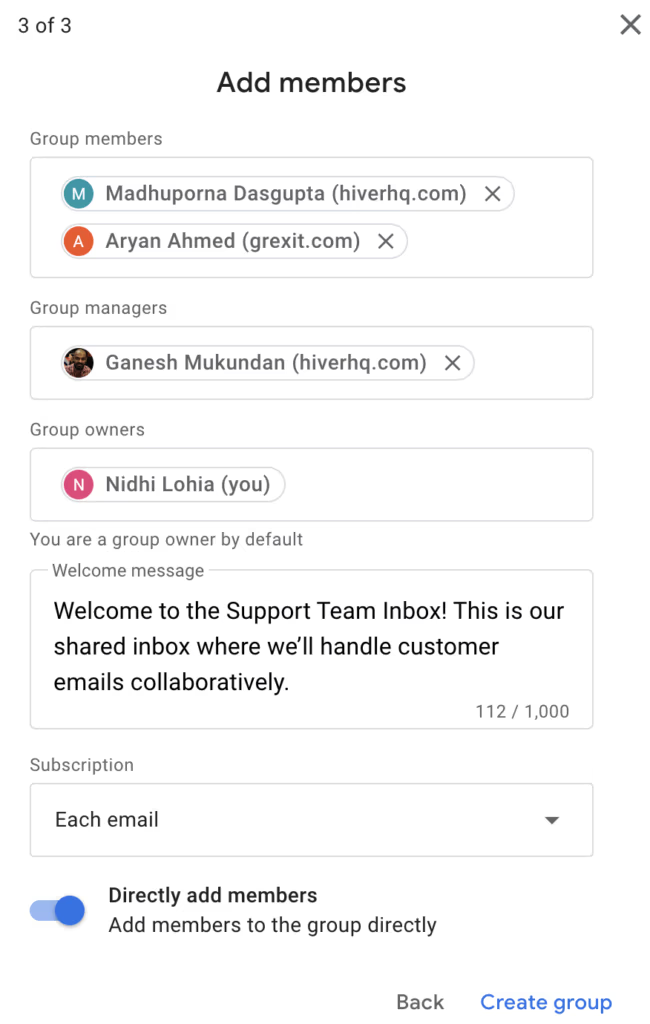
- Once the group is created, you’ll be able to see all members and their roles.
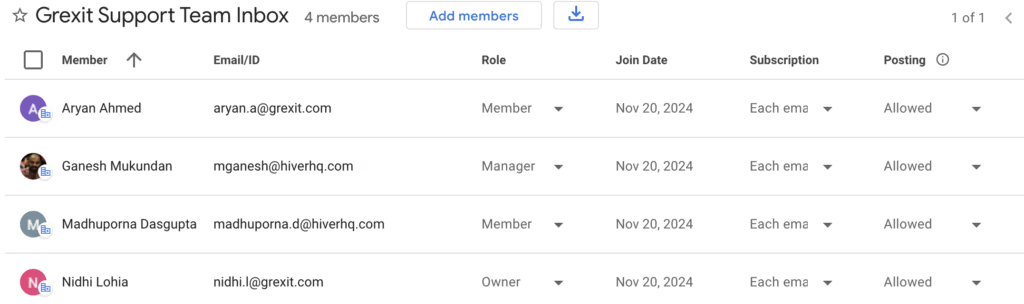
- After creating the group, select Group Settings → Enable additional Google Groups features. Then turn on Collaborative Inbox. Once enabled, your team can assign emails, mark conversations as complete, and track statuses easily — all without juggling passwords.

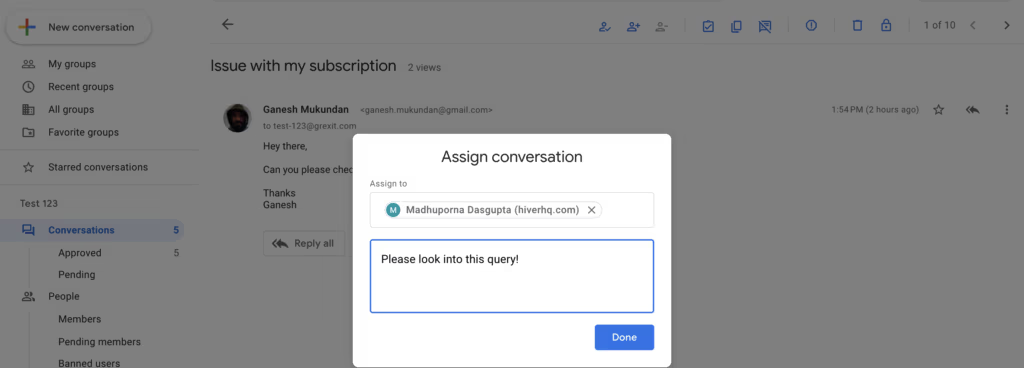
?Let’s say a customer emails about a billing issue. In your Collaborative Inbox, you can assign the email directly to a finance team member, like @Madhuporna, without forwarding or CC’ing anyone separately.
Delegated Gmail Account vs Google Collaborative Inbox: Which One Should You Choose?
Both delegated accounts and Google Collaborative Inboxes let your team manage emails together, but they work very differently. Choosing the right setup depends on your team’s size, workflow needs, and the level of collaboration you’re looking for.
Here’s a quick breakdown:
| Feature | Delegated Gmail Account | Google Collaborative Inbox |
|---|---|---|
| Setup Complexity | Very simple | Moderate (requires Google Groups setup) |
| Best for | Small teams (2–5 users) handling low volume | Mid-size teams (5–20 users) managing higher email volumes |
| Email Assignment | ❌ Not possible | ✅ Can assign emails to team members |
| Internal Collaboration | ❌ Needs external tools (e.g., Slack) | ❌ Limited; no private notes on emails |
| Mobile Access | ❌ Browser-based (no native mobile app support) | ✅ Accessible via mobile Gmail/Google Groups apps |
| Analytics/Tracking | ❌ None | ❌ None |
| Collision Alerts | ❌ No alerts | ❌ No alerts |
| UI/UX | Familiar Gmail interface | Different interface (basic, outdated per user feedback) |
| Security Risks | All delegates have full access | Controlled through group roles (Member, Manager) |
? Key Takeaways:
- Choose Google Collaborative Inbox if you need basic email assignment and prefer working within Google’s ecosystem. But be ready to deal with limited collaboration features, and lack of analytics and automations.
- Choose Delegated Accounts if you have a very small team, minimal email volume, and don’t need assignment or reporting features.
Neither solution is designed for modern, fast-moving teams that need advanced collaboration, real-time collision detection, SLAs, or deep reporting.
That’s where tools like Hiver come in — offering full shared inbox capabilities right inside Gmail without the common limitations of Google’s native options.
A Better Way to Manage a Shared Inbox in Gmail: Meet Hiver
If you’re serious about managing a shared inbox inside Gmail, it makes sense to use a tool that fits seamlessly into your existing workflow, without forcing your team to switch tabs or work around Gmail’s limitations.
That’s exactly what Hiver does. It turns Gmail into a powerful, collaborative, AI-powered shared inbox. Your team can manage email IDs like support@, sales@, or info@ from their inbox’s left-side panel.
Unlike Gmail’s native options, such as delegated access or Collaborative Inbox, Hiver gives you everything your team needs in one place: email assignment, status tracking, internal notes, SLA monitoring, analytics, and more.
The best part? Teams can get started in under an hour. Here are some of its key features:
Email Management
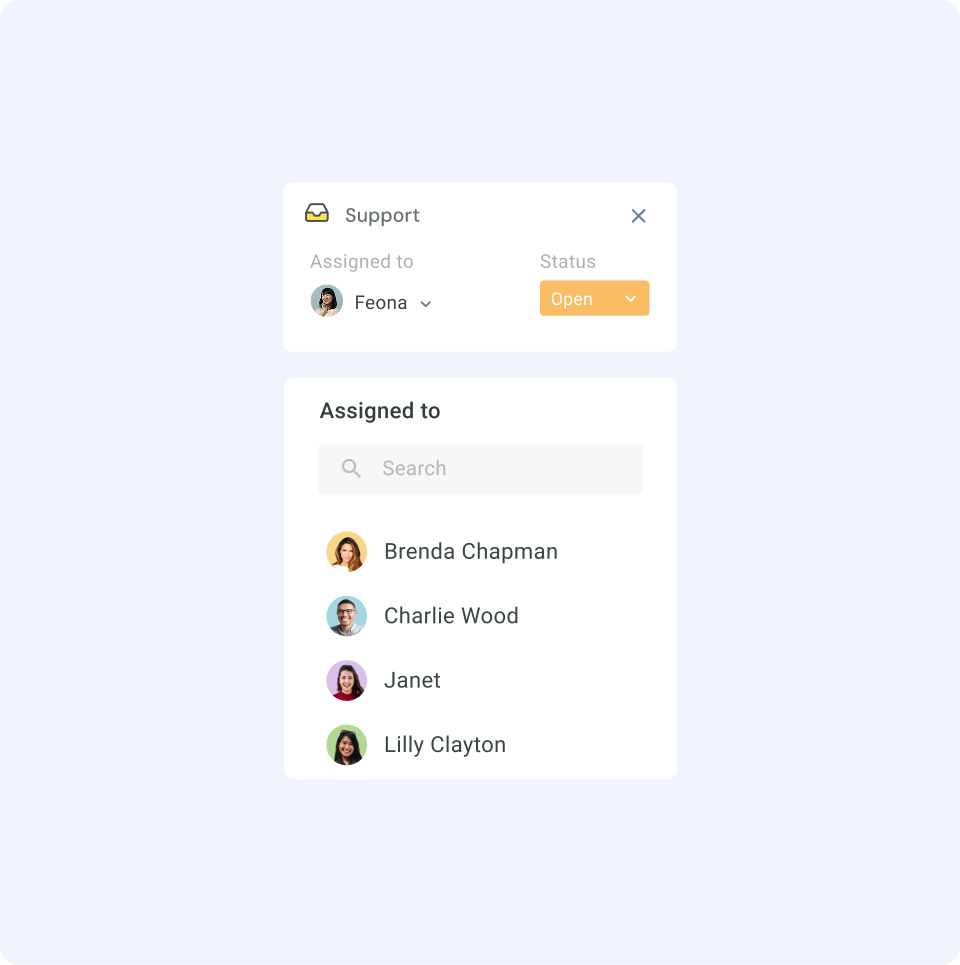
Hiver lets you manually assign emails to specific team members, tag conversations, track statuses (Open, Pending, Closed), and organize emails into shared views, all from Gmail.
It also brings structure to shared inboxes with features like tags, shared views, conversation statuses (Open, Pending, Closed), and collision detection — all inside Gmail. Your team always knows exactly what needs attention and what’s already handled.
? Pro Tip: Create a shared view like “Urgent Tickets — Unassigned” from where agents can pick emails during high-traffic periods.
Workflow Automation
Manual assignment and tagging eats up valuable time. With Hiver’s automation capabilities, you can auto-assign emails based on conditions like sender domain, subject line keywords, or even the time of day. For example, you can automatically assign all emails from billing@clientcompany.com to your finance team, tagged as “High Priority”.
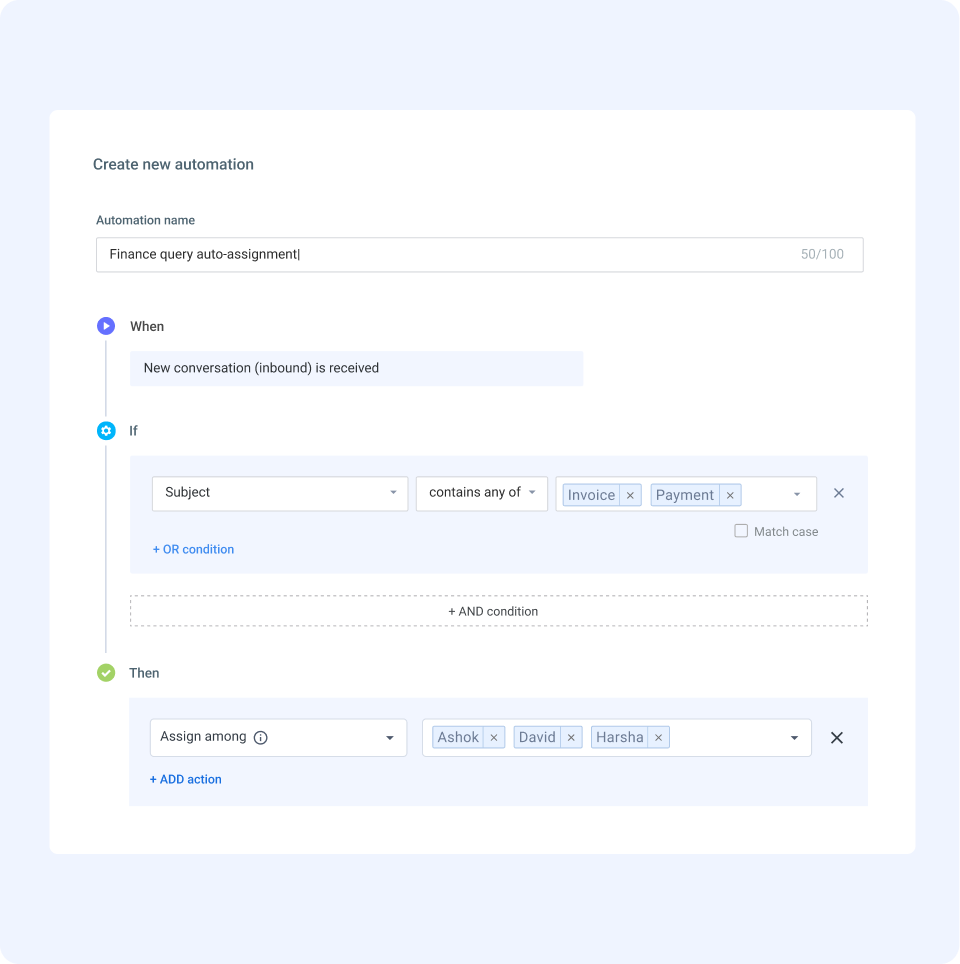
You can also auto-tag conversations, set assignment limits to prevent overworking the team, and escalate queries based on priority.
Collision Detection
If anyone in your team opens an email that someone else is already working on, Hiver shows a real-time collision alert. This prevents duplicate responses, eliminates confusion, and ensures just one person handles each conversation at a time.

Internal Notes
Need input from a teammate before replying to a customer? Instead of forwarding emails or jumping onto Slack, you can leave private notes directly on the email thread. Internal discussions stay neatly attached to the conversation. This way, there’s no inbox clutter and no missed context.

AI Copilot
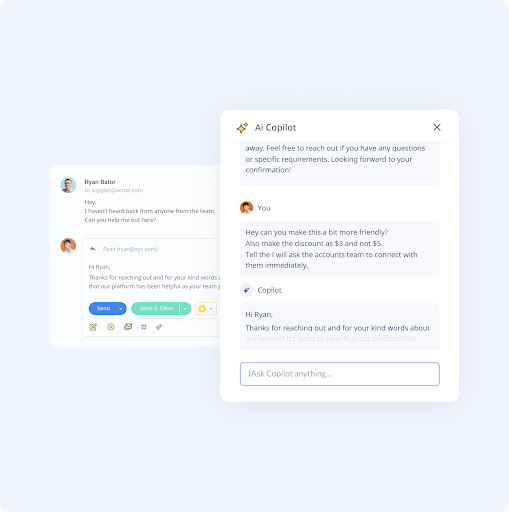
Hiver’s AI Copilot is your smart inbox assistant—working quietly in the background so you don’t have to dig for key information. It automatically pulls up critical customer details while you reply, summarizes lengthy email threads for quick context, and even recommends tailored template responses. This means you spend less time hunting for data and more time delivering fast, informed support, all without leaving Gmail.
Service Level Agreements (SLAs)
In customer support, every minute counts. With Hiver, you can define SLAs for different types of emails and automatically track response and resolution deadlines. For example, you can set a 2-hour SLA for billing queries and a 4-hour SLA for product queries. Hiver will monitor them in real-time. If the conversation is close to breaching their SLA, get flagged instantly.

Third-party Integrations
Connect Hiver to 100+ apps — including Slack, Zapier, HubSpot, Salesforce, QuickBooks, and more. Integrations let your team pull data, trigger workflows, and manage tasks right from their inboxes. For example, you can sync QuickBooks with Hiver to manage invoice approvals right from your inbox — no tab switching needed.

Analytics And Reporting
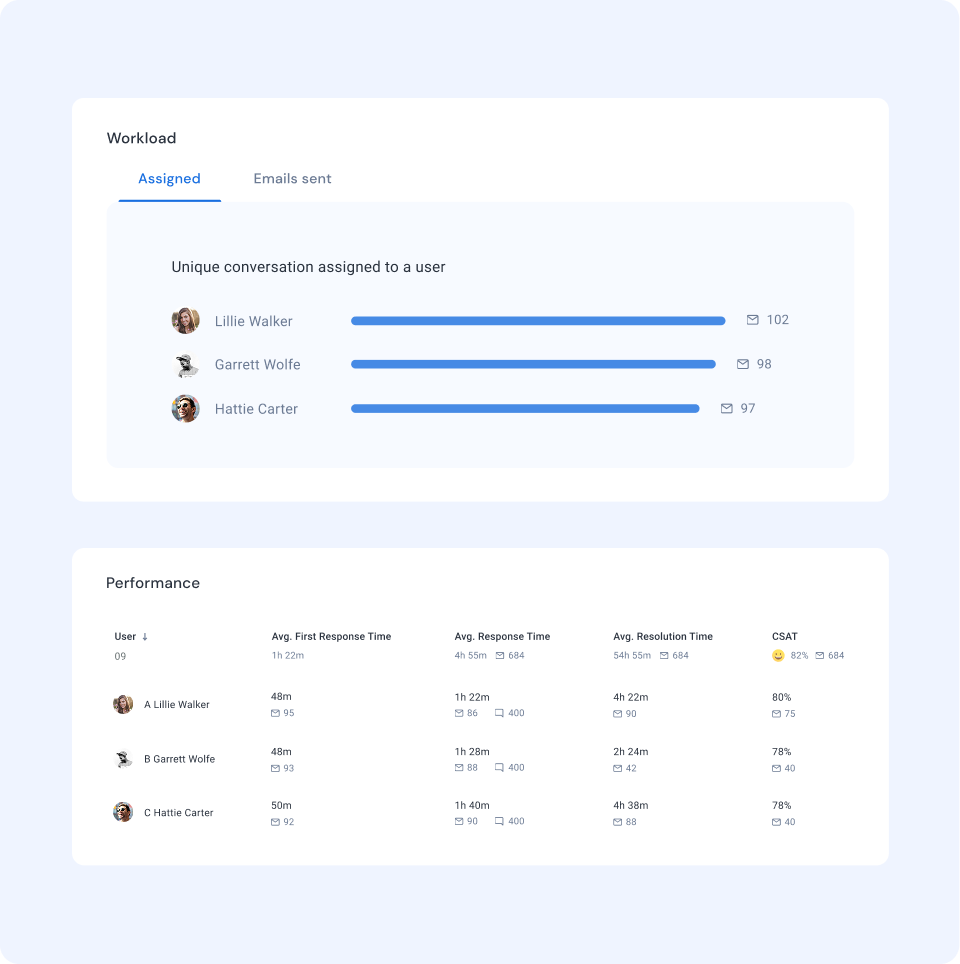
Track your team’s performance across shared inboxes with key metrics like CSAT scores, first response times, resolution times, and agent workloads. Use custom reports to understand the why behind the quality of service.
For example, a support team manager can pull weekly reports to identify top-performing agents and spot bottlenecks in ticket resolution.
Pricing
Hiver offers a forever-free plan that lets teams set up one shared inbox. So, if you only have one email ID like info@ or support@, this is a good enough to get started with.
If you have multiple shared inboxes and want more advanced features, then you might have to opt for one of Hiver’s paid plans. Here’s some information about them:
- Lite plan ($19/user/month) covers the most essential shared inbox features like assignment, collision alerts, and internal notes.
- Growth plan ($29/user/month) adds automation workflows, SLA tracking, and multi-channel support.
- Pro plan ($49/user/month) includes advanced analytics, CSAT tracking, and enterprise-grade security.
10,000+ teams trust Hiver to manage their shared inboxes more efficiently, and here’s what one of them had to say:
The integration of Hiver into Gmail is hands-down the best feature. When searching for a shared inbox I did not want something that would require having yet another tab open. I needed something that would work with the system that my team was already using.
Patience S. | Chief Operating Officer
Top Alternatives to Hiver for Managing a Shared Inbox in Gmail
1. Front
Front is a shared inbox and communication platform designed to bring emails, chats, SMS, and social media messages into one unified workspace. Compared to Gmail’s native options, the platform makes internal collaboration much easier. You can assign conversations to specific teammates, leave private comments next to email threads, and collaborate on drafts in real time, without endless forwarding or CC chains.
The platform also helps teams stay efficient with real-time collision detection to avoid duplicate replies, AI-powered suggestions for quicker responses, and automatic triaging rules.
Pricing for Front starts at $19 per seat per month (billed annually) on the Starter plan, with access to core inbox collaboration features and basic workflow automation.

2. Help Scout
Help Scout is a shared inbox platform built specifically for customer support teams that want to deliver more personalized, human conversations at scale. It’s designed to give agents better context by showing detailed customer information — like past interactions and profile details — right alongside each conversation.

Help Scout also makes it easy for other departments to collaborate without friction. With Light User access, teams like billing, sales, or technical support can jump into conversations without needing full agent licenses.
Other functionalities like automated workflows, tagging, and saved replies help support teams stay efficient as volumes grow, while reporting features give managers visibility into response times, resolution rates, and overall team performance.
Pricing for Help Scout starts at $20 per user per month (billed annually) for the Standard plan, which includes shared inbox access, knowledge base integration, and reporting.
3. Missive
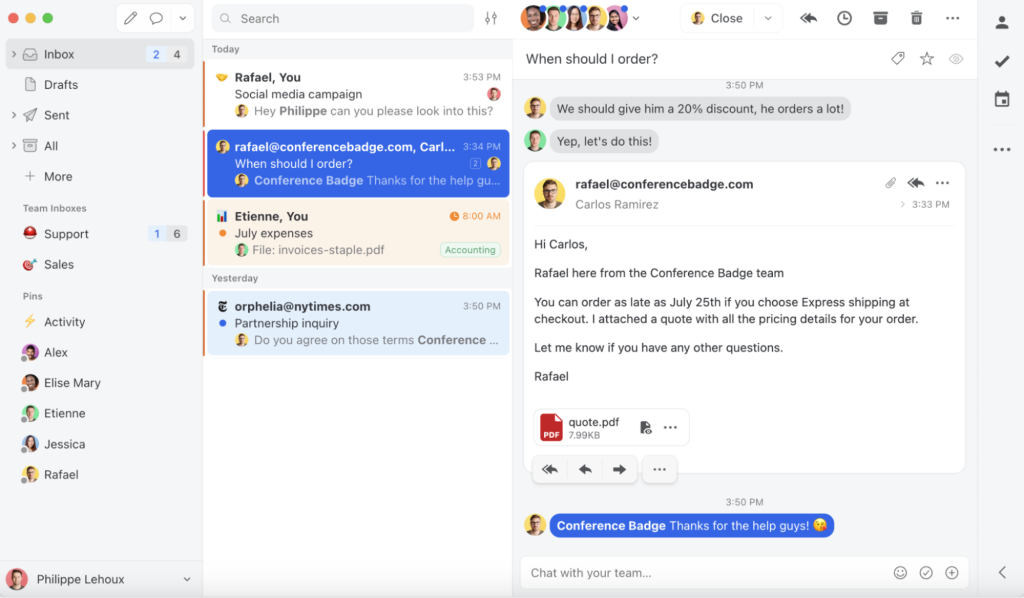
If your team needs a tool that goes beyond just shared email, Missive could be a strong fit. It offers a fully collaborative workspace where emails, SMS messages, social media DMs, and internal chats live side-by-side — all inside dedicated team inboxes.
Agents can co-edit email drafts together, add private in-thread comments, see real-time read statuses, and even turn conversations into tasks. Its automation rules, AI-powered email editing, and integrations with over 25 apps help teams minimize manual busywork and keep communication flowing smoothly.
Pricing for Missive starts at $14 per user per month (billed annually) on the Starter plan, with access to basic collaboration features and automation workflows.
4. Zoho TeamInbox
Managing a shared inbox with basic Gmail delegation often leads to missed emails and unclear ownership. Zoho TeamInbox helps teams bring structure to their communication by offering a more organized, collaborative way to manage such email IDs.
It provides rule-based workflows to automatically assign email threads, ensures accountability with conversation owners, and keeps discussions streamlined through private and shared templates, @mentions, and tags.
Beyond email, Zoho TeamInbox lets you manage conversations across WhatsApp, Telegram, Facebook, and Instagram.
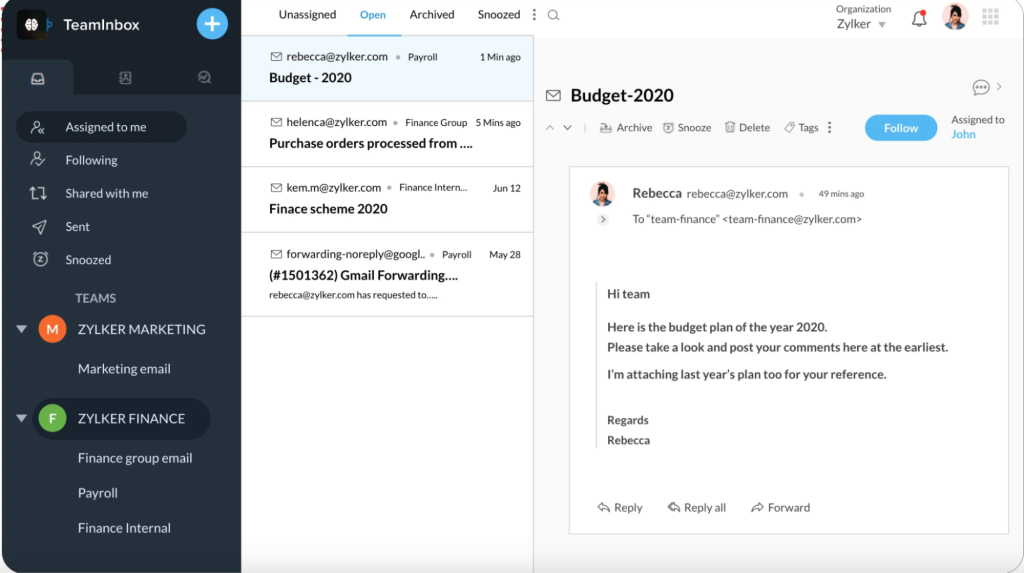
You can try Zoho TeamInbox for 14 days free. Paid plans start at $5 per user per month for the Starter plan, or $7.50 per user per month for the Professional plan, which includes advanced features like SLA tracking, analytics, and audit logs.
5. Gmelius
For teams that want to manage shared inboxes without leaving Gmail, Gmelius offers a powerful solution. It transforms Gmail into a unified workspace where your team can handle emails, chats, tasks, and workflows, all from one dashboard.

Assign emails with a single click, leave private comments on threads, collaborate on shared drafts, and stay updated with real-time collision detection. You can also automate busywork with AI-powered rules that auto-sort incoming messages, suggest draft replies, and dispatch emails based on workload or expertise.
That’s not all. Teams can organize conversations visually using Kanban board views, enforce SLA policies to maintain response standards, and access detailed analytics for continuous improvement.
Pricing for Gmelius starts at $24 per user per month (billed annually) for the Growth plan, and $36 per user per month for the Pro plan with advanced automation and reporting capabilities.
Gmail Is for Communication. Hiver Is for Collaboration.
A Gmail shared inbox might seem like a quick fix, but it’s simply not built for real teamwork.
If your team spends most of the day inside Gmail managing shared addresses like support@ or sales@, it makes sense to use something that fits naturally into your workflow. Hiver adds all the shared inbox capabilities you need—assignments, notes, tracking, and automations— on top of your existing Gmail inbox.
Instead of stretching Gmail beyond its limits, use something built specifically for collaborative email management. Hiver keeps things simple, efficient, and exactly where your team already works.
Frequently Asked Questions (FAQs)
1. Can Gmail be used as a shared inbox?
Not directly. Gmail was built for individual use. To manage emails as a team, you can either delegate inbox access, set up a Collaborative Inbox through Google Groups, or use a dedicated shared inbox tool like Hiver.
2. Can two people share a Gmail email account?
Yes, but not by logging in with the same password—that poses security and audit issues. Instead, use Gmail’s delegation feature to grant others read-and-send access without sharing credentials. Each delegate signs in with their own account and clicks your address under their profile menu. They can view, send, and delete messages on your behalf.
3. What is the difference between Gmail delegation and a shared inbox?
Gmail delegation lets you grant access to your inbox to specific people, but it doesn’t offer features like email assignment, collision alerts, or workflow automation. A true shared inbox helps teams organize, assign, and collaborate on emails much more effectively.
4. How many people can I grant access to my Gmail via delegation?
Google allows up to 10 delegates for a personal Gmail account. If you’re using Gmail in Google Workspace (through your organization), the limits are much higher – you can add up to 1,000 delegates within your organization. Keep in mind that practical usage is lower: Google notes that about 40 delegates can actively access a Gmail account at the same time under typical uses (too many simultaneous users could cause performance issues).
5. What roles or permissions control a Collaborative Inbox?
Google Collaborative Inbox has roles like Owner, Manager, and Member, and a set of permissions that determine who can do what in the Collaborative Inbox. You can grant the following permissions to these roles:
- View Topics: Allows viewing the emails sent to the group (generally, all members have this by default).
- Post: Allows sending messages to the group (replying to incoming emails counts as posting).
- Moderate Metadata: This permission is key for Collaborative Inboxes. It allows users to take or assign conversations and mark them as completed. Members who need to assign conversations to others or mark status should have this.
- Moderate Content: Allows marking conversations as duplicates or no action needed
Start using Hiver today
- Collaborate with ease
- Manage high email volume
- Leverage AI for stellar service














