


Managing a shared mailbox like support@ or info@ is a common need for growing teams, whether it’s for customer support, sales inquiries, or internal requests. But without the right setup, things can get messy fast: multiple replies to the same email, missed messages, and no clear ownership of who’s handling what.
Google Workspace doesn’t have a built-in shared mailbox feature, but it does offer two native workarounds: delegated access and Google Collaborative Inbox. These options let multiple people access and respond to emails from the same address, but they differ significantly in how well they support team collaboration.
In this guide, we’ll walk you through how to set up both options and help you decide which one makes the most sense for your team.
How to create a shared mailbox in Google Workspace
Like we mentioned earlier, Google Workspace offers two ways to share a mailbox with your team: delegated access and Google Collaborative Inbox.
1. How to set up delegated access in Gmail
- In Gmail (desktop version), go to Settings → Accounts and Imports or Accounts → Grant access to your account.

- Click ‘Add another account,’ enter their Gmail address, and send the invite.
- From there, it will take 5-10 minutes to activate once the delegate accepts an invite.

Delegated access in Google Workspace is useful when a single mailbox needs to be monitored or managed by one or two trusted individuals, and not a full-fledged team.
It works well for scenarios like:
– An executive assistant managing a manager’s mailbox
– A finance lead monitoring a billing@company.com address
– Someone is temporarily covering another teammate’s email
However, it does have some limitations: you can’t assign messages to specific teammates or track who’s replied (or how long it took). Everyone shares the same blanket permissions, creating security blind spots. There’s no way to tag colleagues, flag threads as “in progress,” or escalate urgent requests.
That’s where setting up a Google Collaborative Inbox can help.
2. How to set up a collaborative inbox in Google Groups
A Google collaborative inbox is a feature of Google Groups that allows you to manage shared email IDs like info@ and support@ from a common workspace. Multiple team members can access and respond to emails that arrive in this mailbox. Unlike regular Gmail or delegated accounts, it enables better collaboration with features such as conversation assignment, tagging, and status tracking.
Here’s a quick video tutorial on how you can set up Google Collaborative Inbox.
Step 1: Access Google Groups:
Sign in to your Google Workspace account and visit Google Groups – a platform for creating and managing a collaborative inbox.
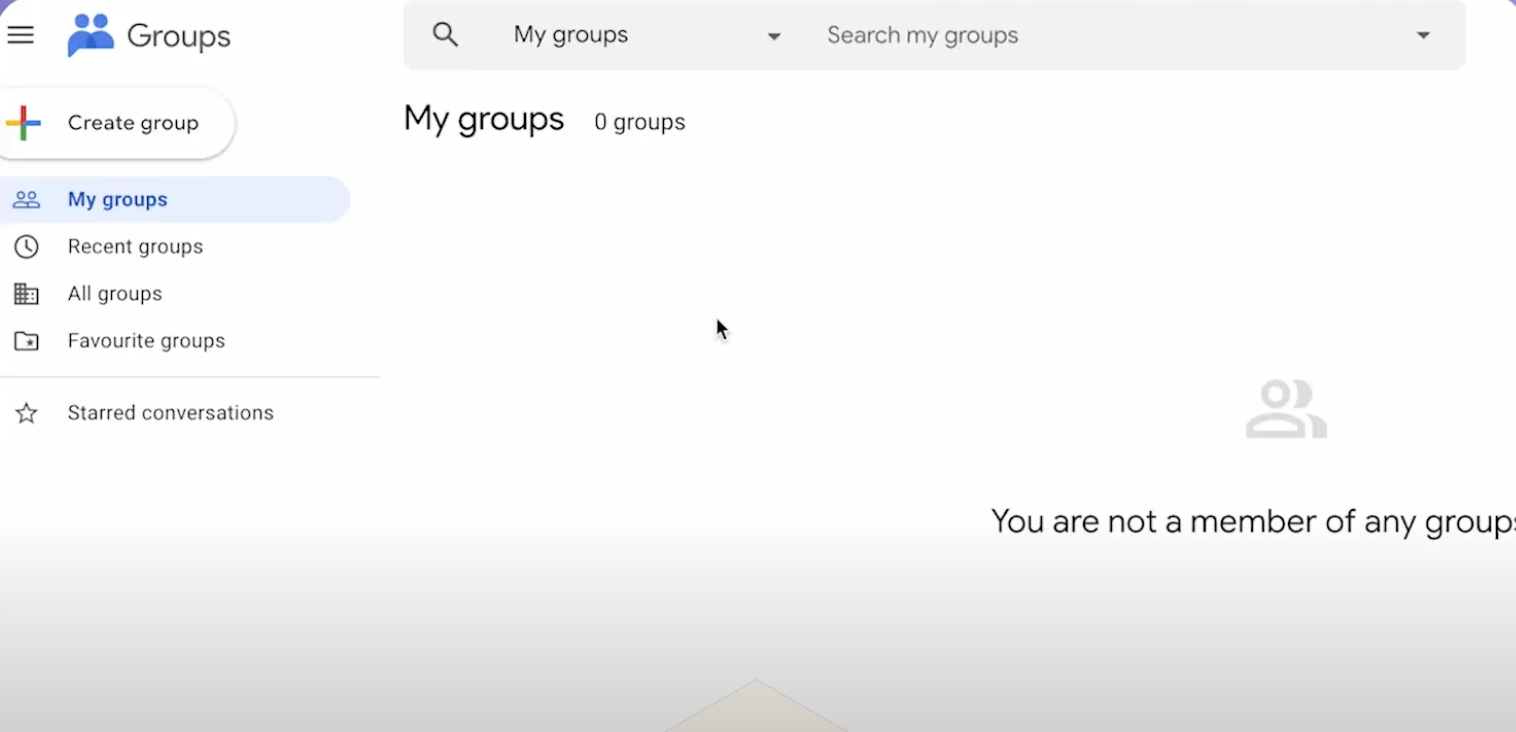
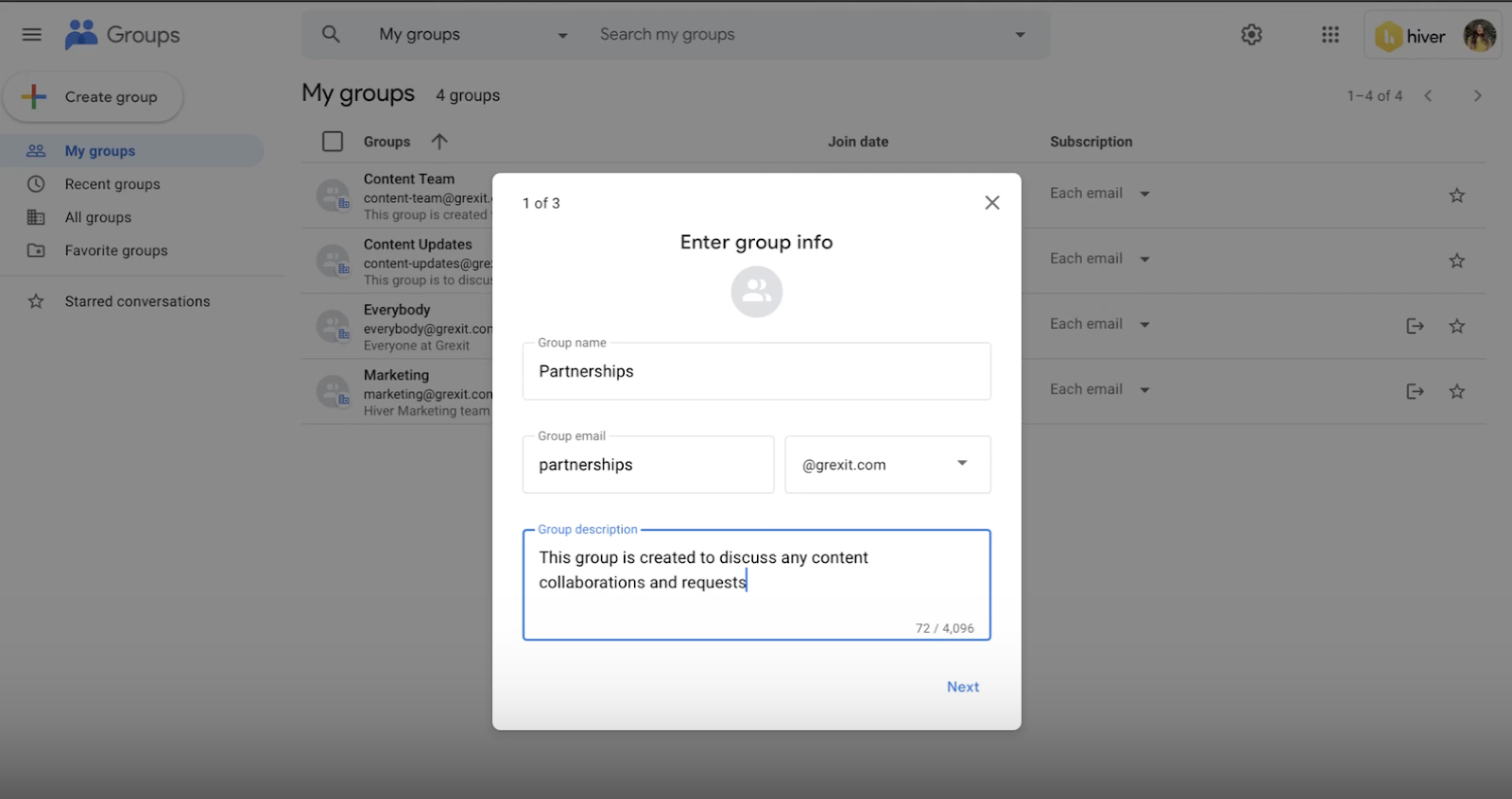
Step 2: Create a new group
Click on “Create Group.” Enter the group name, email (like support@yourdomain.com), and description. Remember to choose a descriptive name to reflect the purpose of the shared mailbox.
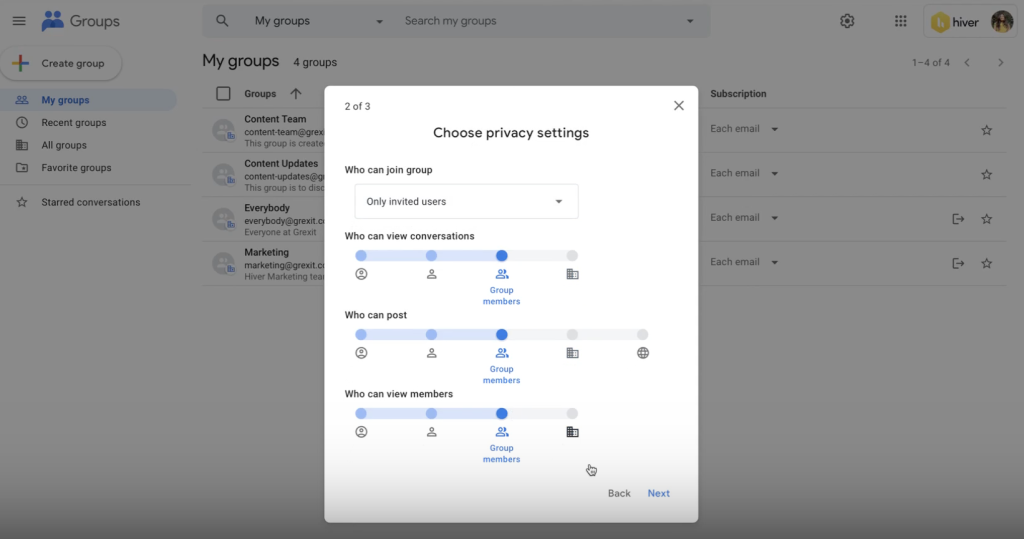
Step 3: Set permissions
Under privacy settings, you can control who can join the group, view conversations, post messages, and moderate messages.
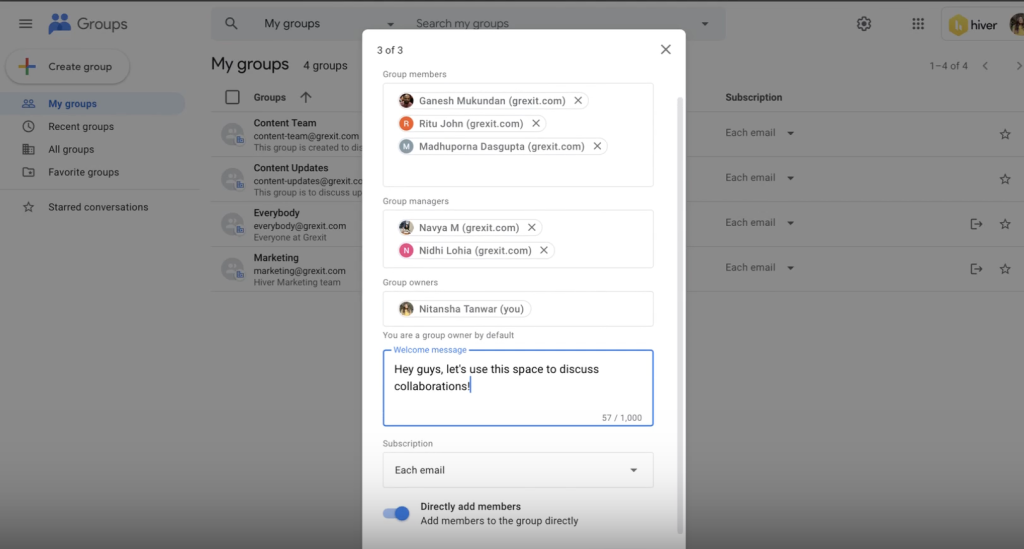
Step 4: Add members:
Add members to the group and give them the appropriate roles (e.g., manager or member).
?Keep in mind:
– Owners have complete control over the group — they can manage settings, roles, conversations, and perform all administrative actions.
– Managers handle daily workflows, such as assigning conversations, updating statuses, moderating posts, and keeping discussions on track.
– Members can view, reply to, and participate in conversations, but they usually don’t have permission to assign tasks or change statuses.
Step 5: Enable Google Collaborative Inbox:
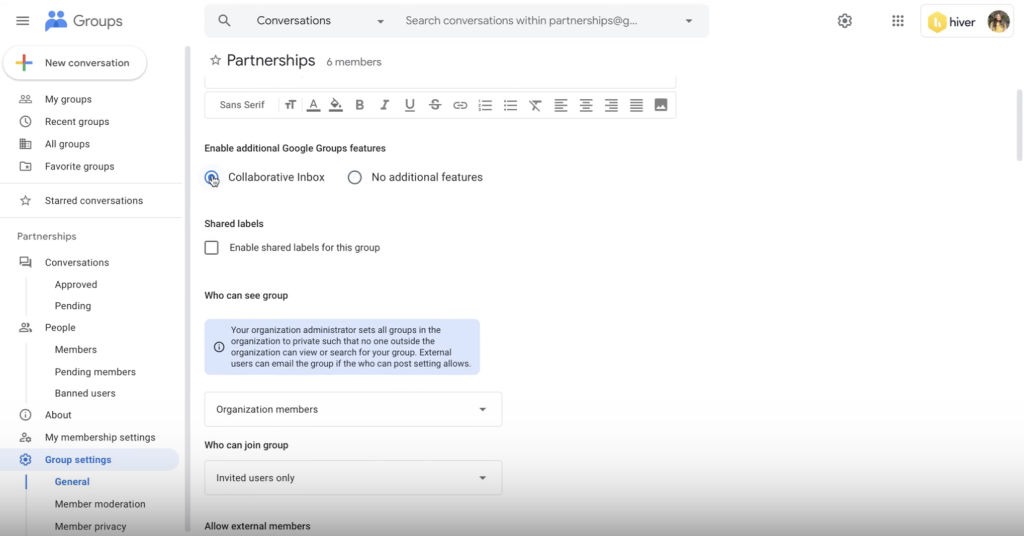
Once you’ve added your team, you can enable the Collaborative Inbox option. Click the name of a group. On the left, click Group Settings. Under ‘Enable additional Google Groups features,’ select ‘Collaborative Inbox.’
Step 6: Assign emails to yourself or others in the group:
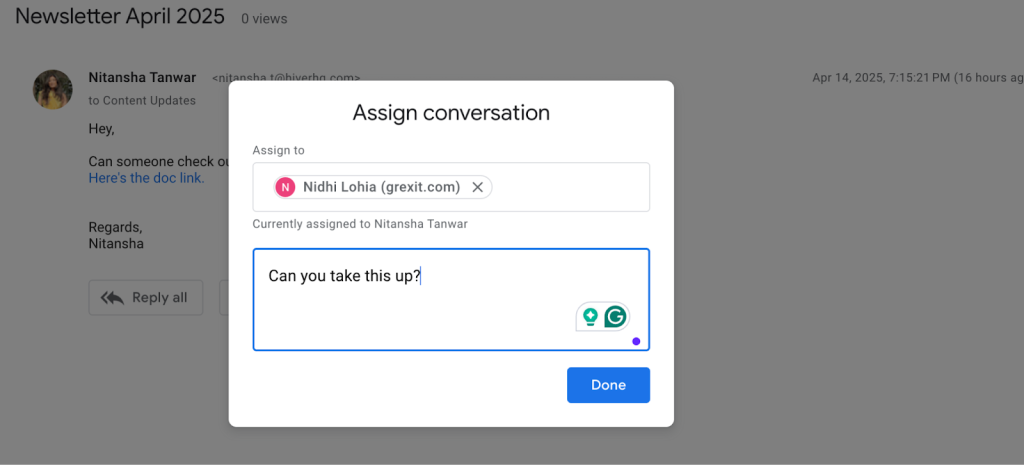
Whenever you receive an email, you can forward it to the group. From there, you can define ownership by assigning it to yourself or any member of the group.
Step 7: Edit and update status:
Once the email is assigned, you and your team can update its status. Choose between ‘mark as complete,’ ‘mark as duplicate,’ or ‘no action needed.’
Now, members of your group can access, assign, and respond to emails collectively. This is a good step toward centralizing communication, but it comes with trade-offs. Though the setup is straightforward, Google Collaborative Inbox has some limitations.
- There’s no way to track who’s working on what. You don’t have a separate team view where you can apply filters and see specific emails by owners or status.
- If you reply to a customer email using your personal ID, you’ll always need to CC the group email, or it won’t appear in the group mailbox. And if you want to discuss something with a teammate, you have to forward or CC the email, which clutters everyone’s mailbox.
- There’s no built-in dashboard to track metrics like response times, volume trends, SLA compliance, or individual performance.
- You can’t create automated workflow rules or trigger notifications based on conditions like keywords in the email or sender.
And that’s why we want to discuss this alternative.
An easy-to-use alternative to Google Workspace Shared Mailbox
Google Groups can help you get started with a shared mailbox, but it quickly feels limiting as your team grows or volume picks up.
Hiver fixes the limitations of Google Groups, without forcing your team to learn complicated software. It helps your team manage email IDs like info@ and support@ from the extremely familiar Gmail interface. You can toggle between your shared mailbox and your personal inbox without switching tabs or tools.
That’s because when you install Hiver, your shared mailbox appears on the left side panel. Anyone in your team can access it and see how many emails are pending, in progress, and resolved.
Some of Hiver’s standout features include:
- Internal notes and @mentions to have quick discussions without forwarding or CC-ing emails.
- Email tags to automatically organize and prioritize incoming messages,
- Auto-assignment to route queries to the right team member without any manual intervention. You can do this by using the round-robin method or rule‑based workflows.
- Shared drafts and email templates to edit responses in real-time and ensure that your team sends out accurate, consistent replies
- AI copilot to help you craft responses to customer emails by using your knowledge base as source content. It also helps summarize long conversations, auto-close “thank you” or non‑actionable emails, and suggest email templates.

- Reports and analytics help you drill down into metrics like response time, resolution time, and ticket volume. Also, custom reports let you extract data by tags, statuses, or custom fields for precise insights.
- Third-party integrations to connect with 100+ apps—Salesforce, Slack, Jira, QuickBooks, Zapier, WhatsApp, Aircall, and more—to automate workflows and sync customer data in real-time.
- Creating and managing a knowledge base to deflect common questions.
Frequently Asked Questions (FAQs)
1. Does Google Workspace have shared mailboxes?
Not in the traditional sense—but Google Workspace offers a Collaborative Inbox feature through Google Groups. It allows your team to assign, track, and respond to emails sent to addresses like support@ or info@ from a shared workspace.
2. Can I have 2 emails on Google Workspace?
Yes, you can have multiple email addresses on Google Workspace in a few ways. You can either create separate user accounts for each email or use email aliases under a single user account (e.g., jane@company.com and help@company.com). Aliases don’t require additional licenses, but separate accounts do.
3. What is the difference between a Google Group and a shared mailbox?
Google Groups can function as mailing lists, discussion forums, or file-sharing hubs. A shared mailbox, on the other hand, is designed specifically for team-based email management, where members can assign conversations, track status, and respond collaboratively.
4. Do I have to pay for Google Workspace?
Yes. Google Workspace is a paid service after its 14-day free trial. While Gmail and Google apps are free for personal use, Workspace plans offer custom email domains, larger storage, admin controls, and collaboration tools like shared inboxes. Pricing starts at $6/user/month for the Business Starter plan, with advanced features available in higher tiers.
5. Can I create a shared mailbox without Google Workspace?
Yes, it’s possible to create a shared mailbox without relying on Google Workspace alone. You can use external tools like Front or Help Scout, which offer dedicated shared inbox solutions. However, these platforms come with their own interfaces, meaning your team would need to learn a new system.
If you’d prefer to stay within Gmail, Hiver is a simpler alternative. It turns your existing Gmail account into a full-fledged shared mailbox, allowing teams to manage group emails like info@ and support@—without ever leaving the familiar Gmail interface.














