

I’ll begin with a confession — I love Gmail labels. If I haven’t made that clear enough, here’s what my personal Gmail inbox looks like:
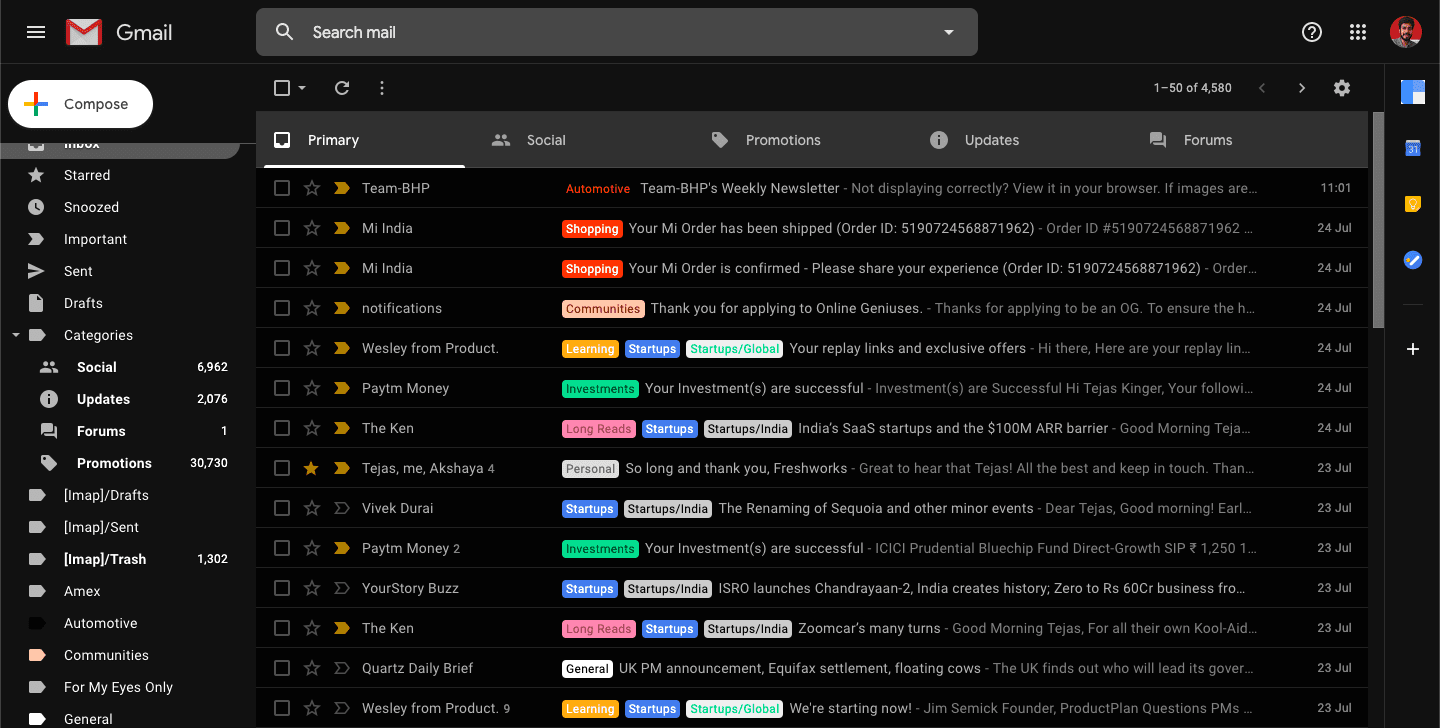
Before we begin, here is a quick primer on Gmail labels: A Gmail label is a tag that can be added to every email you receive or send. You can also add them to drafts. These labels can be used to keep your inbox organized. In other words, they are the Marie Kondo to your Gmail inbox if you will.
Before we go further, let’s take a quick stroll down memory lane. Email clients like Outlook have supported folders for eons to help users organize their emails.
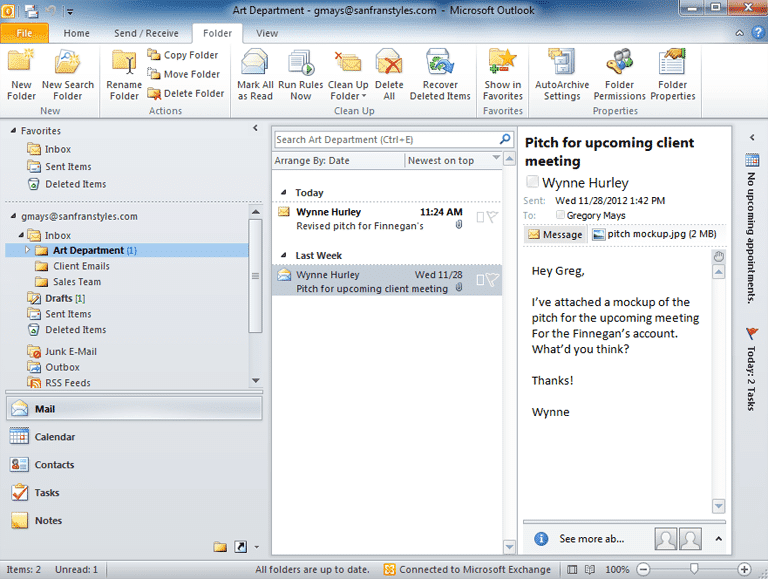
This was a relatively frictionless method to organize emails because we’re habituated to organizing our files stored locally on our computers or cloud drives into folders and sub-folders.
In 2004, Gmail came along and introduced the concept of labels effectively putting an end to the days of going down the rabbit hole of email folders inside folders (at least for Gmail users).
While you can use Gmail labels and folders to categorize and organize emails, they have certain specific differences.
Labels can be particularly confusing if you are migrating from Outlook, primarily because Outlook is a folder-based email client. Google’s Help Center and Reddit have countless threads running rife with discussions on Gmail’s labels versus Outlook folders. The way Gmail’s organization works is that a label can be a label, but it can also be a folder.
Trying to wrap your head around that? Don’t fret because we’re here to help.

Labels vs folders – A paper file analogy
As explained via this neat analogy presented by Laura Earnest, a folder can be compared to a drawer in a filing cabinet. When you add an email to a folder, it is like stashing away let’s say, a paper file inside the drawer. And just like how a file can exist only inside a particular drawer at any given point in time, an email can be stored only in one folder, which can be a bit of a downer if you are using email for team collaboration. Let’s say you are using Outlook as a collaborative inbox, and a user moves an email into a folder. This would make it particularly difficult for other users to spot the email as it wouldn’t appear in their default inbox view. Getting back to the paper file analogy, the only way this file can be stored in multiple drawers of this filing cabinet is if several photocopies existed of it. The same goes with storing emails in multiple Outlook folders – you’ll have to make multiple copies of the said email.
Think of a label as a Post-it note tacked on to a paper file. Multiple files can be stored in the same drawer, and each can have multiple Post-it notes attached to them. In the same way, Gmail allows you to add as many labels as you want to an email, without needing to make a copy of the email. You can then view the emails under all of the labels that you have applied to it. This works well if you are using Gmail as a collaborative inbox, especially in a customer support scenario because this ensures that your team is getting a unified view of emails and labels in their default inbox view.

That said, how do you create a new label in Gmail?
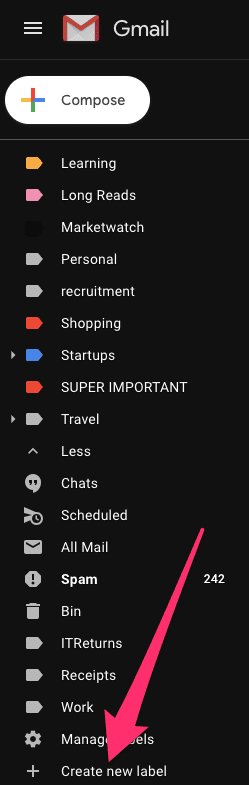
To create a label in Gmail, scroll down to the bottom of the label list located on the left-hand side of your Gmail window, click on ‘More’ and then scroll further and click on ‘Create new label.’
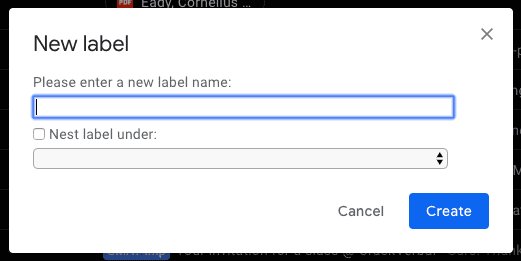
You can then choose to give your label a name. Additionally, you can choose to also create nested labels, ie create sub-labels under specific parent labels. Nesting of labels can be compared to creating folders and sub-folders to organize your emails.
How do you add an email to a label?
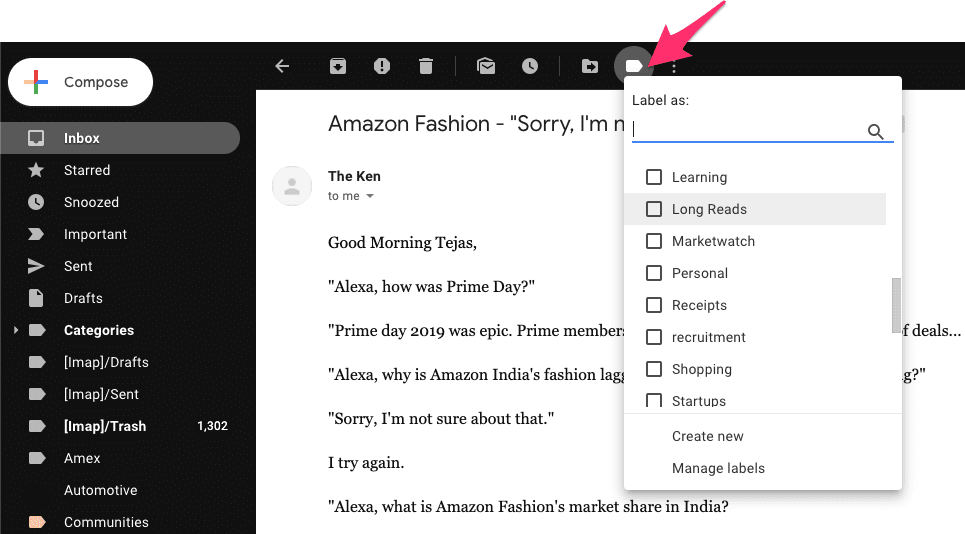
Irrespective of whether you use Windows or Macintosh, Google Drive or Dropbox, the method of adding files to folders remains largely the same. Adding emails to folders in Outlook mimics the same set of steps. This is probably why a sudden shift from Outlook to Gmail could cause some friction.
The trick in making this frictionless is getting used to Gmail’s UI and picking the right options. Every time you open an email inside Gmail, it shows you a set of buttons on top of the email. Clicking on the ‘Label’ icon allows you to select a label from a set of pre-existing labels to add to your email, or create a new label for this particular email.
Pro-tip: You can also drag and drop emails from your inbox under a particular label in the left-hand side menu to add labels to the said emails.

The eagle-eyed amongst you may have noticed a folder icon in the top bar right next to the label icon. Before you jump the gun, these aren’t folders in Gmail. The folder icon, in fact, refers to the ‘Move to’ option. The ‘Move to’ option essentially adds an email under a Gmail label.
What is the difference between adding a label to an email and moving an email to a Gmail label?
This is perhaps the closest you can get to making Gmail labels feel like Outlook folders. Outlook users would know that when an email is added to a folder, it ceases to exist in the primary inbox.
Now, in a Gmail account, when an email is ‘added’ to a label, the email continues to be a part of your primary inbox. However, this may clutter your inbox. When you use the option to ‘move’ an email to a Gmail label as against ‘adding’ it to one, the said email will no longer appear in your primary inbox and will only be available under the particular label.
What happens when you delete a label?
When Outlook users delete a folder, because an email can be present only in one folder at any given point in time, when a folder is deleted, emails present in the folder get deleted as well.
On the other hand, with Gmail labels, when a label is deleted, the emails in your inbox remain intact.
Is there a way to automate label creation in Gmail?
While Outlook provides a comprehensive set of automation rules that lets users automatically move emails to folders, Gmail users too can automate label creation. In fact, Gmail’s intuitive UI makes creating these automation rules a cinch.

Click on the gear icon in the top right corner of your Gmail window and then click on ‘Settings.’

Under settings, go to the ‘Filters and Blocked Addresses’ option and use the option to create a new filter.

Choose what you want to use as the basis for creating this automation. It could be a keyword, the subject line, the sender’s email address among other things. Once you do that, click on the ‘Create Filter’ option.
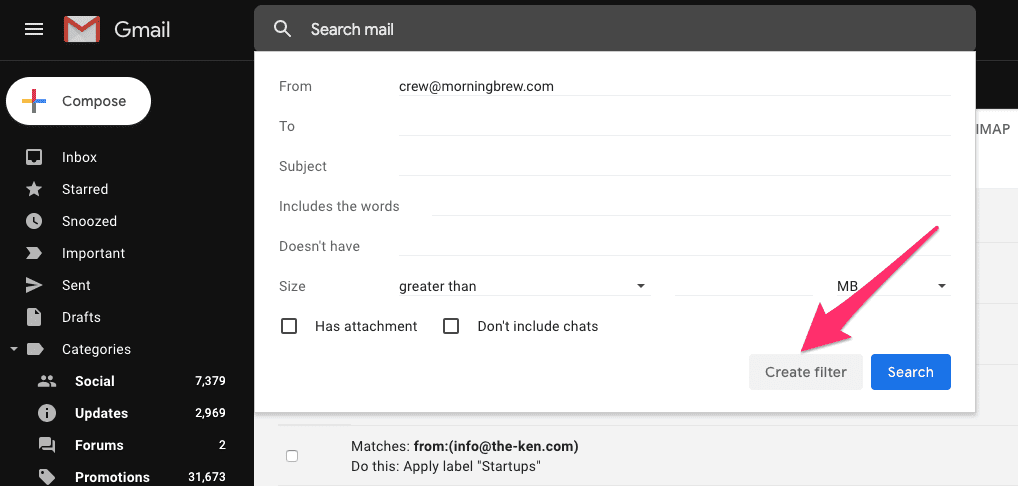
In the example shown above, we’re filtering all incoming emails from ‘crew@morningbrew.com.’
Creating the filter then gives you a whole host of options that can be performed on the selected emails. To automate label creation, you can simply choose the ‘Apply the label’ option and then create a new label or pick a label from a set of pre-existing ones. All emails filtered will henceforth have the selected label applied to them.
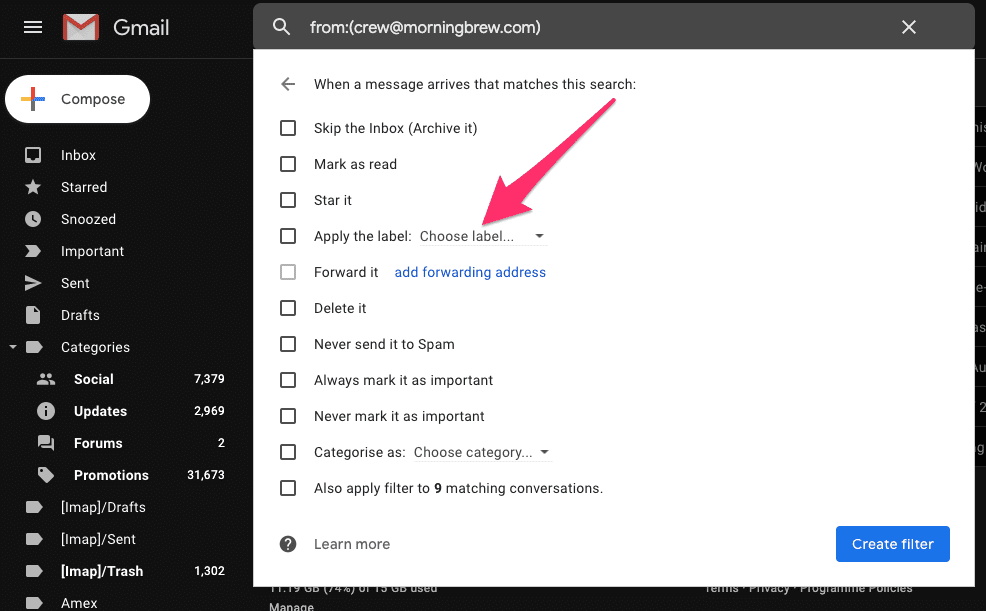
With automated label creation, you can easily see which emails are sitting in your inbox and prioritize which emails you should act on first.
Once again, this is handy if you are using Gmail for team collaboration. If you are using Gmail for say sales, support, or account management, you can filter emails based on specific email addresses or specific keywords, and apply labels to indicate owners and priority.
Upping the inbox organization game: Adding color to your inbox
Power users of Outlook use Conditional Formatting to help easily classify, prioritize and identify emails. While Gmail doesn’t have an option for conditional formatting and does not allow users to color-code emails, it does give you the option to color-code labels, allowing you to identify and prioritize emails easily.
To color-code a label, click on a particular label from the Gmail sidebar and click on the ‘Label Color’ option.
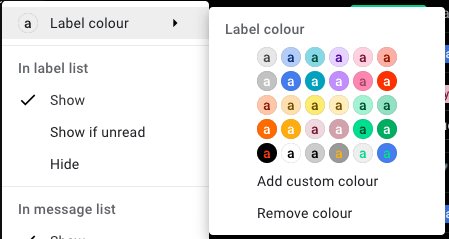
And if the default color options aren’t enough, you can always create a custom color palette to suit your needs.
Use a combination of labels and folders to organize your inbox
Email folders offer a structured and hierarchical approach to sorting emails. They’re very similar to the folders on your laptop. For instance, all newsletter emails can be routed to a Newsletter folder. It’s that straightforward.
Labels, on the other hand, are a more dynamic way to categorize and access emails. You can easily share emails under a specific label with others, and you can add multiple labels to an email. For instance, an email can be labeled as a ‘high priority’ or ‘product bug.’
Use folders where you want rigid structure and labels in cases where you need flexibility.
The labels vs. folders discussion gives way to the topic of email collaboration. If you want to collaborate on emails as a team and keep track of who is working on what, then you should try Hiver.
It works as an extension to your inbox and gives you collaborative features such as notes, tags, assignments, automations, and more.
FAQs
1. What is the primary purpose of Gmail labels?
Gmail labels serve as tags that can be added to emails, drafts, and more, offering a flexible way to organize and categorize your inbox.
2. How do Gmail labels differ from traditional Outlook folders?
Unlike Outlook folders, Gmail labels are versatile and can act as both labels and folders, introducing a unique organizational approach.
3. Can emails have multiple labels in Gmail?
Yes, Gmail allows emails to have multiple labels, providing a powerful tool for collaborative inboxes and team-based email management.
4. What’s the analogy for folders and labels using a paper file comparison?
Folders are likened to drawers in a filing cabinet, where an email in a folder is akin to a paper file in a drawer. Labels, however, are compared to Post-it notes on a paper file, allowing multiple labels without creating copies.
5. How do I create a new label in Gmail?
Scroll to the bottom of the label list, click on ‘More,’ then ‘Create new label.’ Provide a name and consider creating nested labels for enhanced organization.
6. What’s the difference between adding a label and moving an email to a Gmail label?
Adding a label keeps the email in the primary inbox, whereas moving it removes the email from the primary inbox, making it accessible only under the specific label.
7. Can Gmail label creation be automated?
Yes, Gmail allows users to automate label creation using filters. Set criteria such as keywords or sender email addresses, and Gmail will apply the specified label to matching emails.
8. Is there a way to enhance inbox organization in Gmail with color-coding?
While Gmail lacks conditional formatting, users can color-code labels for easy identification and prioritization, adding a visual layer to inbox management.














